Star Automation Systems Inc.
LodeStar
LSHAC-Z5B3K4-100
Central Controller
HW: 1 FW: 5.01:02.61:01.00:01.00
ZM5304
6.71.03
0x0358 (856)
0x0001 (1)
0x0001 (1)
ZC10-19016353
2019-01-17 19:48:36.05707
N/A
Static Controller
Central Static Controller
Home automation and security platform
Home automation and security platform with Z-Wave connectivity and advanced security features.
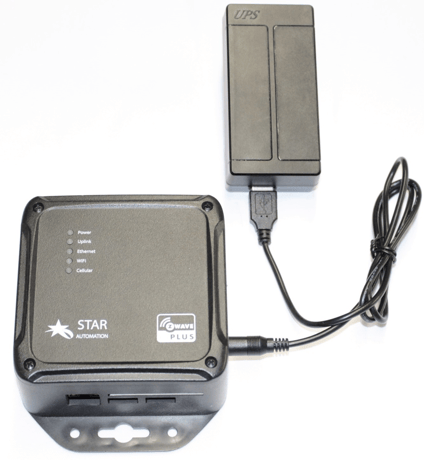
There is a feature provided in Lodestar controller with the help of which we can add another Z-Wave controller on the network. Z-Wave Learn mode is the option provided in Technician App under Step-7 of the installation. Z-Wave Learn Mode option will basically broadcasts a message out to all Z-Wave devices from Lodestar controller. After that user needs to tap the function button on a Z-Wave controller and the Z-Wave controller responds back to the Lode Star with a node added event and then the Lodestar controller tells the tech app that the z-wave controller is added successfully.
We have an option to reset the Lodestar Z-Wave enabled controller in Technician App under Step-7 of the installation. This option will basically help in removing all the Z-Wave devices paired with Lodestar controller. Once the Lodestar Controller responds back to the Tech App with a SUCCESS message, then tech app will then remove all Z-Wave devices from the inventory in the cloud. This is so we can keep the inventory in sync with the Z-Wave devices which are actually paired to the Lodestar controller. If this controller is the primary controller for your network, resetting it will result in the nodes in your network being orphaned and it will be necessary after the reset to exclude and re-include all of the nodes in the network.
Adding Z-Wave devices Z-Wave devices like door locks, dimmers and lamps can be added from the first section of the screen. Technician can click on the section itself or can click + icon to add Z-Wave devices. Before adding any device, technician app sends a remove command to ensure that all connections are cleared from the device. Technician needs to push the button from Z-Wave device to make remove command successful. After that device can be added by scanning its barcode or entering its ID manually.
Technician can remove an added device by selecting Remove menu option from the device list. Remove command will be published by the app and push button need to be pressed from Z-Wave device to complete the Remove command
| Type | Value(s) |
|---|