Vera Control, Ltd.
Advanced Smart Home Security Controller
Vera Secure - EU
Gateway
HW: 4 FW: 4.05:03.07
ZM5202
6.51.06
0x008C (140)
0x0001 (1)
0x0025 (37)
ZC10-19016359
2019-01-22 16:32:57.02622
N/A
Static Controller
Central Static Controller
Easily installed alarm system and home control hub. Add cameras, locks, sensors, thermostats and security devices. Built-in siren and battery/cellular backups. View and control anywhere.
VeraSecure is an easy-to-install comprehensive home controller/alarm hub. It’s like an alarm security panel in a box. Just add sensors, cameras and locks – choosing from dozens of brands – and VeraSecure does the rest. VeraSecure does more than security – you can adjust thermostats, control lights, garage doors, and more. Operate everything from one easy app on your smartphone, tablet or computer. Get The Security & Peace Of Mind… • Of Never Arriving Home To A Dark House o Automatically schedule your lights to turn on before you enter your home with a VeraSecure System. • Of Being Sure When Your Kids Come Home o Receive notifications automatically with your motion sensor & security camera connected to your VeraSecure System. • Of Knowing Your Home Is Safe o Cameras, sensors and siren ensure your home is being monitored from anywhere on your mobile device. • Of Watching What Your Pet Is Up To o With your VeraSecure System and security camera you can always ensure your pet is safe. • Of Knowing You Are Saving Money o By never wasting energy in your home with control of lighting, heating and cooling. Get Maximum Compatibility & Performance • Comprehensive wireless connectivity with Z-Wave, ZigBee, Bluetooth LE, VeraLink (433/345 Mhz), 802.11a/b/g/n/ac Wi-Fi • 3G cellular connection keeps home protected even when Internet goes out • Built-in backup battery protects home during power outages (4-8 hours) • Built-in Siren for local alarm notification • 2-Way audio for optional VeraProtect 24/7 alarm monitoring service
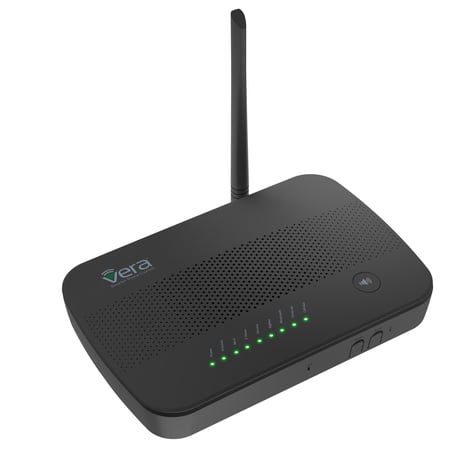
Product Picture
To include the controller into an existing Z-Wave network, use the UI and follow the steps below. Click on Settings -> Z-Wave Settings -> Advanced, select 'Copy Z-Wave network from a primary controller. This will shift the controller to have a secondary controller role and will receive data from the primary controller in the network.
If this controller is the primary controller for your network, resetting it will result in the nodes in your network being orphaned and it will be necessary after the reset to exclude and re-include all of the nodes in the network. If this controller is being used as a secondary controller in the network, use this procedure to reset this controller only in the event that the network primary controller is missing or otherwise inoperable. To reset the controller, press the reset button for 6 times in 6 seconds. This will reset it to factory default.
To include a Z-Wave device into the Z-Wave network using the VeraSecure Controller, use the Vera Custom or Generic Device Wizard on the Vera Dashboard on the Web UI/App and follow the on- screen instructions. During normal installation of Z-Wave devices you do NOT need to use the buttons on the Controller. The following are for manually starting Z-Wave Include Mode. Press the Select button 2 times and then press the Sync button on the Controller. To exit the inclusion mode on the Controller, press and hold the Select button for 6 seconds.
To exclude a Z-Wave device from the Z-Wave network using the VeraSecure Controller, use the Vera Custom or Generic Device Wizard on the Vera Dashboard on the Web UI/App and follow the on- screen instructions. During normal installation of Z-Wave devices you do NOT need to use the buttons on the Controller. The following are for manually starting Z-Wave Exclude Mode. Press the Select button 2 times and then press the Sync button for at least 3 seconds and release.
| Type | Value(s) |
|---|