Vera Control, Ltd.
Multiple RF Home Gateway
VeraPlus-AU
Gateway
HW: 4 FW: 4.05:03.07
ZM5304
6.51.06
0x008C (140)
0x0001 (1)
0x0024 (36)
ZC10-19016356
2019-01-22 16:24:56.865156
N/A
Static Controller
Central Static Controller
VeraPlus Home Controller: A versatile, easy and powerful one-app home security and automation control center. Works with all brands cameras, sensors, etc. Smartphone, computer control.
VeraPlus: Advanced Home Controller for Everything in Today's Smart Home Universe • One-touch control of your entire system • View all your cameras and control all your devices from one easy app • Works with 4 popular wireless device protocols for maximum compatibility with most brands (Z-Wave, Bluetooth and Wi-Fi) • See and control your system from any smartphone or tablet from anywhere in the world (where there's Internet) • Save money on energy, automatically! • Expand your system to control over 220 devices • Wireless communications makes installation a breeze in any home or small business • Easy, intuitive setup with simple Q&A format; adding devices later is easy too with preconfigured settings for most devices • No monthly fees required! • Cutting edge features like geo fencing let the system know when you're coming home, automatically, and when you leave, too! • One easy, intuitive app spans all platforms (Mac/Window/iOS/Android) to easily keep you in control at all times, wherever you go. • Controls all the leading brands of locks, thermostats, and other devices so you don't need to compromise when selecting components. • More device compatibility—four radio protocols work with most devices • Faster processor for superior performance (compared with VeraEdge) • More memory for better response times and flexibility (compared with VeraEdge)
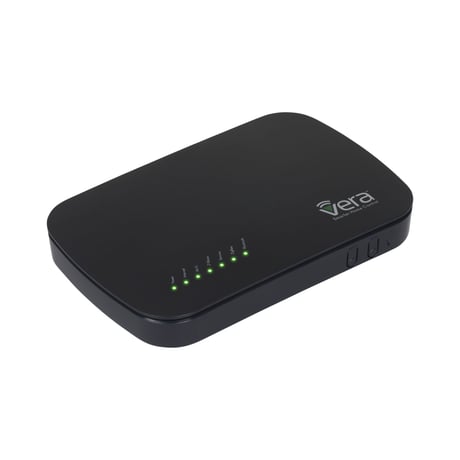
Product Picture
To include the controller into an existing Z-Wave network, use the UI and follow the steps below. Click on Settings -> Z-Wave Settings -> Advanced, select 'Copy Z-Wave network from a primary controller. This will shift the controller to have a secondary controller role and will receive data from the primary controller in the network.
If this controller is the primary controller for your network, resetting it will result in the nodes in your network being orphaned and it will be necessary after the reset to exclude and re-include all of the nodes in the network. If this controller is being used as a secondary controller in the network, use this procedure to reset this controller only in the event that the network primary controller is missing or otherwise inoperable. To reset the controller, press the reset button for 6 times in 6 seconds. This will reset it to factory default.
To include a Z-Wave product into the network, you can use the UI and follow the on- screen instructions that read as follows: Select Add device -> Pick the device to be included in the network from the list -> Follow the steps for inclusion of the device -> Once the device is detected, save the name of the device and the device completes the configuration process. For an installer who wishes to carry out a manual setup of devices, tap the Select button 2 times and then press the Sync button on the controller. To exit the inclusion mode on the controller, press and hold the Select button for 6 seconds.
To exclude a Z-Wave product into the network, you can use the UI and follow the on- screen instructions that read as follows: Navigate to the device -> Select the remove device option -> Choose to un-pair and follow the instructions. For an installer who wishes to manually exclude a Z-Wave product from the network, Press the Select button 2 times and then press and hold the Sync button down for 3 seconds.
| Type | Value(s) |
|---|