MITSUMI
ITB-5088
ITB-5088
Gateway
HW: 1 FW: 5.03:02.61
ZM5101
6.71.03
0x0112 (274)
0x0001 (1)
0x0001 (1)
ZC10-19066530
2019-03-20 01:45:08.340569
N/A
Static Controller
Central Static Controller
Gateway Controller to IoT.
Gateway Controller to IoT with functions of wired LAN and Z-Wave communication.
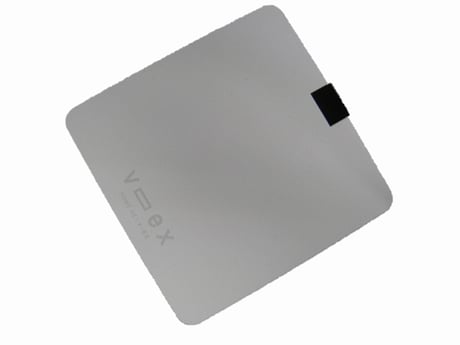
Product Picture
To add an IoT gateway into another Z-Wave network as a secondary controller or inclusion controller, press “Learn Mode Classic” or “Learn Mode NWI” in the Settings dialog. A gateway Operation dialog will appear and will be displayed during the Learn Mode. To abort the Learn Mode, press “ABORT”. When the Learn Mode has been stopped, the gateway operation dialog will automatically disappear.
Press “RESET” in the Factory Default Reset dialog. This will reset the Z- Wave chip, and the gateway will show “DEVICE RESET LOCALLY NOTIFICATION” after the restart. If this controller is the primary controller for your network, resetting it will result in the nodes in your network becoming orphaned, and it will be necessary after the reset to exclude and re-include all of the nodes in the network. If this controller is being used as a secondary controller in the network, use this procedure to reset this controller only in the event that the network primary controller is missing or otherwise inoperable.
To add a device to the Z-Wave network, press the “Inclusion” button in the Android Controller Application. This will put the gateway into Inclusion Mode. Then a gateway operation dialog will appear in the Android Controller Application. The gateway operation dialog will be displayed during the Inclusion Mode. To stop the Inclusion Mode, press the “Abort” button in the gateway operation dialog, or wait for one minute and the Inclusion Mode will automatically stop. When the Inclusion Mode has stopped, the gateway operation dialog will automatically disappear.
To remove a device from the Z-Wave network, press the “Exclusion” button in the Android Controller Application. This will put the gateway into Exclusion Mode. A gateway operation dialog will appear in the Android Controller Application. The gateway operation dialog will be displayed during the Exclusion Mode. To abort the Exclusion, press the “Abort” button in the gateway operation dialog, or wait for one minute and the Exclusion Mode will automatically stop. When the Exclusion Mode has stopped, the gateway operation dialog will automatically disappear.
| Type | Value(s) |
|---|