Samsung Electronics, Co., Ltd.
SmartThings Wifi
ET-WV525
Central Controller
HW: 51 FW: 4.38:00.17
SD3503
6.51.09
0x0201 (513)
0x0003 (3)
0x0033 (51)
ZC10-19056480
2019-05-09 22:56:13.670451
N/A
Static Controller
Central Static Controller
A connected smart home hub used to control a variety of Z-Wave sensors for home automation.
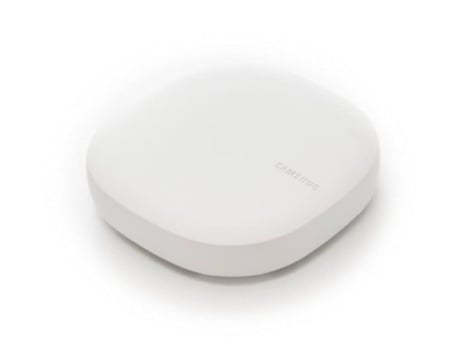
Product Picture
Because the Hub is a certified Z-Wave device, you can add it to another Z-Wave network. Note that adding a Hub to a different Z-Wave network will disconnect it from any previously connected Z-Wave devices, and they will have to be put through the exclusion process before being added to the network again. SmartThings strongly discourages adding the Hub to another Z-Wave network. We cannot offer support for disconnected Z-Wave devices or the inability to add devices through the Hub as a result of including the Hub into another Z-Wave network. Here are the steps to put the Hub into learn mode to receive network information from another Z-Wave controller: 1 Prepare the other Z-Wave controller to copy its network information to the Hub. This may be called include, add, transfer, copy, or replicate mode 2 In the SmartThings app, Tap the menu 3 Tap the Devices 4 Tap SmartThigns hub Card 5 Tap Include or Exclude Hub from an Existing Z-Wave Network This will start learn mode on the Hub. It may take longer to receive all the network info and load all the devices. Check the other controller for confirmation of whether the transfer was successful.
If the Wi-Fi hub freezes or hangs, disconnect the adapter from the Wi-Fi hub and reconnect it. Close the SmartThings app completely on your mobile device and restart it. If your Wi-Fi hub is frozen and unresponsive, insert a pin into the Reset hole for more than 8 seconds. If the tips above do not solve the problem, contact a Samsung Service Center. If this controller is the primary controller for your network, resetting it will result in the nodes in your network being orphaned and it will be necessary after the reset to exclude and re-include all of the nodes in the network. If this controller is being used as a secondary controller in the network, use this procedure to reset this controller only in the event that the network primary controller is missing or otherwise inoperable
To Include/Add a Z-Wave device: 1 On the dashboard, tap Add device. 2 Tap under ADD DEVICE MANUALLY. 3 Select a category of the device to register. Alternatively, enter the device’s name in the search input field and tap ADD next to your device. 4 Follow the on-screen instructions to complete the registration. • The Samsung SmartThings Hub feature may not be available depending on the region. Visit www.samsung.com for details. • Refer to the other devices’ user manuals for instructions on how to pair with them. • To learn more about the Samsung SmartThings Hub feature, visit support.smartthings.com.
To Exclude/Remove a Z-Wave device: 1 On the SmartThings screen, tap Devices. 2 Tap ALL DEVICES and scroll up or down to select a location. 3 Tap  → Edit and use the following options. REMOVE a Device:Remove a Device. If you reset the Wi-Fi hub, you should exclude the Z-Wave device and reconnect (re-include) it. For instructions on how to put the Z-Wave device into Exclusion Mode, please refer to the device manufacturer's user manual.
| Type | Value(s) |
|---|