Jasco
Plug-in Outdoor Smart Switch
14325/ZW4203
On/Off Power Switch
HW: 255 FW: 5.52
ZM5202
6.81.03
0x0063 (99)
0x4F50 (20304)
0x3035 (12341)
ZC10-19106779
2019-10-18 13:11:39.089925
N/A
Enhanced 232 Slave
Always On Slave
New Plug-in Outdoor Smart Switch is equipped with S2 and SmartStart which allows for easy and secure inclusion.
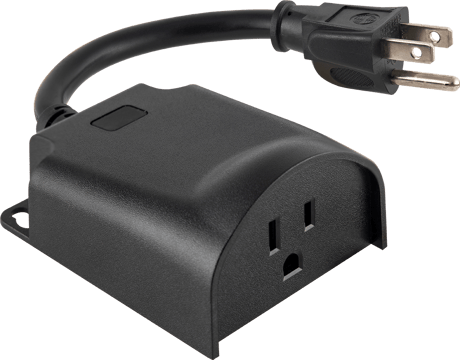
Product Image


3 - LED Indicator Configuration
Size: 1 byte
Default: 1
Minimum: 0
Maximum: 3
Possible values
| From | To | Desription |
|---|---|---|
| 0 | 0 | LED ON when device is OFF, LED is OFF when device is ON |
| 1 | 1 | (Default) - LED ON when device is ON, LED is OFF when device is OFF |
| 2 | 2 | LED always OFF |
| 3 | 3 | LED always ON |
19 - Alternate Exclusion
When enabled, press 3 times and hold on the last press to remove the device during exclusionSize: 1 byte
Default: 0
Minimum: 0
Maximum: 1
Possible values
| From | To | Desription |
|---|---|---|
| 0 | 0 | Disabled |
| 0 | 1 | Enabled |
1. Follow the instructions for your Z-Wave certified controller to add the smart switch to the Z-Wave network. 2. Once the controller is ready to add your outdoor smart switch, press and release the manual/program button on the smart switch. 3. The controller’s app will indicate if it has discovered the switch. If prompted by the controller to enter the S2 security code, refer to the QR code/security number on the side of the box or the QR code label on the product (see Figure 1). Enter the 5-digit code.
1. Follow the instructions for your Z-Wave certified controller to remove a device from the Z-Wave network. 2. Once the controller is ready to remove your device, press and release the manual/program button on the smart switch to remove it from the network.
1. If plugged in, unplug the switch from the receptacle. 2. Press and hold the manual/program button for at least 3 seconds while you plug the switch into a receptacle. Note: This should only be used if your network’s primary controller is missing or otherwise inoperable.
How to cycle through LED indicator options: Press button 10 times quickly. 1. LED is ON when the load is ON (indicates the switch is ON) (default) 2. LED is always OFF 3. LED is always ON (illuminates switch in the dark) 4. LED is ON when the load is of (guide light in the dark)
If prompted by the controller to enter the S2 security code, refer to the QR code/security number on the side of the box or the QR code label on the product (see Figure 1).
| Type | Value(s) |
|---|