myTEM SmartHome
Radio Server
MTSER-100-WL
Gateway
HW: 1 FW: 6.04:02.81:01.00
ZM5101
6.81.03
0x034E (846)
0x0001 (1)
0x0100 (256)
ZC10-19086713
2019-06-25 20:22:16.730305
N/A
Bridge Controller
Central Static Controller
The myTEM Radio Server is a universal, Z-Wave compatible, smart home controller. It can control various devices within the Z-Wave radio network and/or myTEM Smart Home modules via CAN bus.
The myTEM Radio Server is a universal, Z-Wave compatible, smart home controller. It can control various devices within the Z-Wave radio network and/or myTEM Smart Home modules via CAN bus. The myTEM Radio Server is the heart of your intelligent home. You have access to the controller via the very simple, user-friendly myTEM Smart Home App or via the extremely powerful myTEM ProgTool. These access options allow you to assign suitable tasks and functions to all devices and to set them up for your needs. Depending on your needs, you can customize your home using predefined scenes or completely individually according to your wishes.
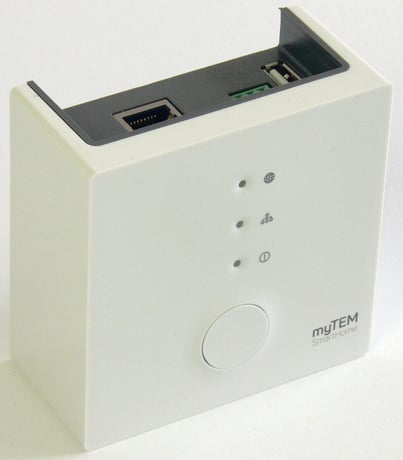
Product Picture
To set the Radio Server to Learn Mode use myTEM ProgTool. 1. Create or open a project 2. Connect to Radio Server 3. Start Z-Wave Manager 4. Click <Learn mode> button For more information see myTEM ProgTool manual.
To reset Radio Server use myTEM ProgTool. 1. Create or open a project 2. Connect to Radio Server 3. Start Z-Wave Manager 4. Click <Reset network> button If this controller is the primary controller for your network, resetting it will result in the nodes in your network being orphaned and it will be necessary after the reset to exclude and re-include all of the nodes in the network. If this controller is being used as a secondary controller in the network, use this procedure to reset this controller only in the event that the network primary controller is missing or otherwise inoperable. For more information see myTEM ProgTool manual.
To include a device into a Z-Wave network use myTEM ProgTool. 1. Create or open a project 2. Connect to Radio Server 3. Start Z-Wave Manager 4. Click <Add> button For more information see myTEM ProgTool manual.
To exclude a device from a Z-Wave network use myTEM ProgTool. 1. Create or open a project 2. Connect to Radio Server 3. Start Z-Wave Manager 4. Click <Remove> button For more information see myTEM ProgTool manual.
| Type | Value(s) |
|---|
| Meter type |
|---|
| Electric Meter Consumption |