Starvedia
Doorbell Gateway
D1
Central Controller
HW: 0 FW: 6.01:04.00:00.00:22.00
ZM5202
6.81.03
0x0265 (613)
0x0002 (2)
0x0009 (9)
ZC10-19076688
2019-07-29 23:09:14.630024
N/A
Static Controller
Central Static Controller
Smart Home Z-Wave Doorbell Gateway.
This is the first doorbell camera that has the Z-Wave controller function, so that you could remotely lock/unlock your door when your amazon parcel arrived at your house. When some visitor pressed your doorbell, you will receive the video call on your mobile, and you could talk to the visitor anywhere you are. The video of the visitor is recorded on the cloud and you could playback anytime. The PIR motion detection is supported, so any one near your front door will also notice your mobile and video also is recorded. Plug & play by ID/password. Control up to 120 Z-Wave devices. Support Geo-Sense. Control up to 60 scenes and hotkey, each scene allows 6 events and 12 actions. Allow for 20 sets of user codes for the door lock. Support Amazon Alex and Google Home. Support IFTTT Video recording on cloud. Internal real time clock. Watchdog function to prevent system failure.
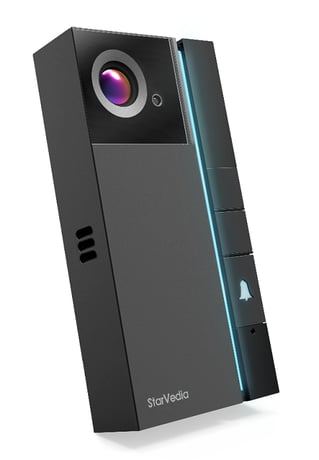
Product Picture
Open the App mCamviewZ+ and go to ""Home Settings"" > ""Camera settings"" > ""Admin"" > ""Z-Wave administration"" page, click ""Z-Wave Learn Mode"" will put the camera into learn mode
Open the App mCamviewZ+ and go to ""Home Settings"" > ""Camera settings"" > ""Admin"" > ""Z-Wave administrator"" page, click ""Z-Wave Reset"" will reset the Z-Wave Settings of the camera. If this controller is the primary controller for your network, resetting it will result in the nodes in your network being orphaned and it will be necessary after the reset to exclude and re-include all of the nodes in the network. If this controller is being used as a secondary controller in the network, use this procedure to reset this controller only in the event that the network primary controller is missing or otherwise inoperable.
Open the App mCamviewZ+ and press the ""+"" button under the ""Device"" menu, the camera will go into inclusion mode. User can now trigger the Z-Wave device into its inclusion mode and add it to the camera's Z-Wave network.
Open the App mCamviewZ+ and press the ""-"" button under the ""Device"" menu, the camera will go into exclusion mode. User can now trigger the Z-Wave device into its exclusion mode and remove it from the camera's Z-Wave network.
| Type | Value(s) |
|---|