keemple
Smart Touch Light Switch (2-way)
KP-SW-08
On/Off Power Switch
HW: 1 FW: 1.00
ZM5202
6.81.03
0x041A (1050)
0x0100 (256)
0x0003 (3)
ZC10-19086710
2019-07-25 18:17:01.034859
N/A
Enhanced 232 Slave
Always On Slave
KP-SW-08 is an intelligent touch switch that two buttons can control two way outputs separately. When the device is inclusion or exclusion from Z-Wave network, only the left button of the panel can take effect.
Touch switch is an in-wall switchgear based on Z-Wave wireless radio frequency technology for intelligent control. This product can be added to the gateway or PC controller supporting Z-Wave Plus, remotely controlled through the APP interface, or manually controlled by the touch. In addition, the product also supports the scene mode, the user can configure the scene through the APP, combine various devices in the same scene, and run the scene function through the APP or manually.
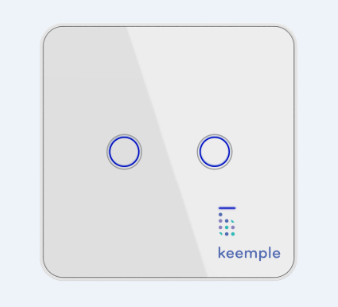
Product Picture


21 - Setting device status after power failure
Define how the Switch reacts after the power supply is back on.Size: 1 byte
Default: 0
Minimum: 0
Maximum: 0
Possible values
| From | To | Desription |
|---|---|---|
| 0 | 0 | Touch Switch memorizes its state after a power failure. |
| 1 | 1 | Touch Switch does not memorize its state after a power failure. Connected device will be on after the power supply is reconnected. |
| 2 | 2 | Touch Switch does not memorize its state after a power failure. Connected device will be off after the power supply is reconnected. |
24 - Notification when Load status change
Touch Switch can send notifications to association device when state of Touch Switch’s load change.Size: 1 byte
Default: 1
Minimum: 0
Maximum: 0
Possible values
| From | To | Desription |
|---|---|---|
| 0 | 0 | The function is disabled. |
| 1 | 1 | Send Switch binary report. |
| 2 | 2 | Send Switch binary report only when Load condition is not changed by Z-WAVE Command. |
1) Connect the power supply. 2) Set the Z-Wave network main controller into learning mode. 3) Press and hold the button 1 (the red light flashes slowly) until the pink light flashes slowly and then release, the device sends the network k information (blue light flashes quickly). 4) After the network is successfully connected, the LED indicator of the device is steady blue, and the load is off by default.
1) Power on the switch. 2) Set the Z-Wave network controller into the exclusion mode. 3) Long press the switch button 1 (Red LED blink slowly) when Pink LED indicator light blink slowly, release the button, then the device start to send out exclusion information(Blue LED indicator in quick blinking). 4) When exclusion successfully, LED display is steady blue, load is off.
Reset procedure will delete all information in the Z-Wave network or Z-Wave gateway, and will restore switch to factory default settings. 1. Make sure switch is powered. 2. Press and hold the Switch button 1 for 20 seconds. 3. Until the pink light is always on, release the button. Use this procedure only in the event that the network primary controller is missing or otherwise inoperable.
| Type | Value(s) |
|---|