Gigaset
ONE X5100
S30851-S2563-R101
Gateway
HW: 1 FW: 6.04:02.81:01.00:01.00
ZM5202
6.81.03
0x0432 (1074)
0x0001 (1)
0x0001 (1)
ZC10-19096757
2019-09-24 19:02:47.432495
N/A
Bridge Controller
Central Static Controller
Gigaset ONE X5100 supports three Home Control groups HC8, HC9 and HC10. The device is configurable via LAN.
Gigaset ONE X5100 is a tiny, nice and high performing Z-Wave controller which supports three Home Control groups – HC8, HC9 and HC10. It belongs to the latest generation of Gigaset base stations, which means that it is equipped with CAT-iq and thus supports Gigaset Universal Handsets (HX) via Voice of IP. In addition, Gigaset ONE X5100 must be configured via a LAN interface and can therefore also communicate with the Gigaset Cloud. In this way it is possible to link Gigaset ONE X5100 with an Gigaset account that already contains a Gigaset base. As a result it is possible to create exiting smart home scenarios with Gigaset sensors and Z-Wave sensors.
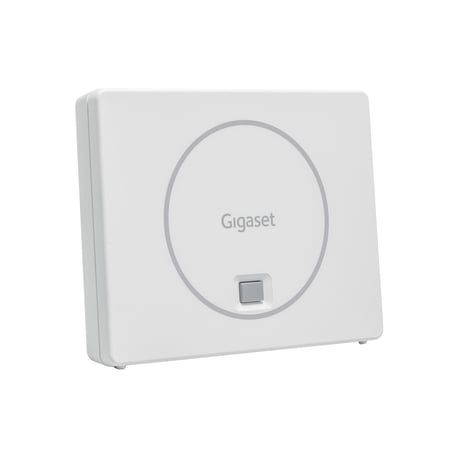
Product Image
- Enter the Z-Wave Portal - From the menu choose DEVICES and then + ADD DEVICE - Now start the inclusion procedure of your Z-Wave device according to its manual
- Enter the Z-Wave Portal - Choose MORE, then MAINTANACE and then REMOVE DEVICE - Now start the removing procedure of your Z-Wave device according to its manual
You can start the learn mode by assesing the web interface (Z-Wave Portal) and after logging in click on "MORE", "MAINTANANCE" and "SET LEARN MODE".
N/A
- Enter the Z-Wave Portal - Tab on MORE, then MAINTANACE and then RESET - Confirm Reset by choosing CONFIRM and after couple of seconds the Reset is finished
The product is not limited strictly to Smart Home solutions, but also includes CAT iq based telephony functionalities from Gigaset. This makes it possible to connect Gigaset's Universal Handsets to the Gigaset ONE X5100 in addition to registering smart home devices.
If your Gigaset ONE X5100 has no sensors added (e.g. it has been just reset to factory settings) you can set the LEARN MODE and read DSK (Device Specific Key). To do that: - Enter the Z-Wave Portal - From the menu choose MORE and MAINTANANCE and select SET LEARN MODE The LEARN MODE is active, the DSK will be displayed in the popup after couple of seconds.
To add new node (e.g. sensor) to your Z-Wave network, you need to start your browser and log in to the web interface of the controller (Z-Ware Portal). Then click on "DEVICES" and click on "+ ADD DEVICE". Then start the inclusion procedure on the node according to it's manual. There's also other place in Z-Ware Portal where you can add a new node - "MORE" / "MAINTANANCE" and the click on "ADD DEVICE".
To remove node from your Z-Wave network, you need to start your browser and log in to the web interface of the controller (Z-Ware Portal). Then click on "MORE", "MAINTANANCE" and "REMOVE DEVICE". Then start the exclusion procedure on the node according to it's manual.
| Type | Value(s) |
|---|
| Group | Type |
|---|---|
| Smoke Alarm | State Idle |
| Water Alarm | (Refer to parameters): State idle |
| Access Control | (Refer to parameters): State idle |
| Home Security | (Refer to parameters): State idle |
| Power Management | (Refer to parameters): State idle |
| Sensor type |
|---|
| Air Temperature |
| Illuminance |
| Power |
| Voltage |
| Current |
| Acceleration X-Axis |
| Acceleration Y-Axis |
| Acceleration Z-Axis |
| Meter type |
|---|
| Electric Meter Consumption |