Honeywell Home (Resideo)
Chandelier
TuxedoW
Gateway
HW: 1 FW: 6.04:02.81:02.02
ZM5202
6.81.03
0x041B (1051)
0x0001 (1)
0x0004 (4)
ZC10-19116803
2019-11-27 21:21:04.255767
N/A
Bridge Controller
Central Static Controller
TuxedoW is a wired keypad used to control a security system and the Z-wave devices integrated with the system. TuxedoW is a Z-Wave Gateway and security system.
Honeywell Home TuxedoW Touch is a 7", high-resolution graphic touchscreen and controller that integrates security with home and business automation. It provides opportunities to capture new prospects and markets by seamlessly integrating security with voice commands, video viewing and recording, and the ability to control Z-Wave® enabled thermostats, lights, locks and shades. This versatile product is the perfect way to differentiate your business and safeguard your accounts. Consumers can now utilize groundbreaking voice control in everyday living. By speaking commands such as “leaving the house” or “returning home”, users can perform a range of tasks, such as arming their systems, adjusting Z-Wave enabled thermostats, controlling lights, locking doors and more. With Resideo Total Connect Remote Services, users can also view cameras, control their security system, lights, locks and thermostats, and receive event-driven email and video alerts remotely—a great opportunity for additional RMR.
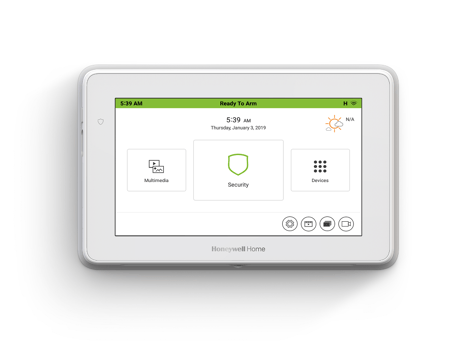
Product Image
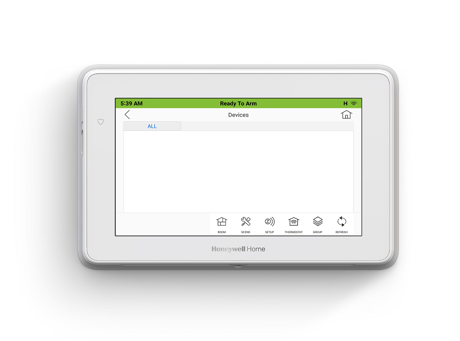
Security home page
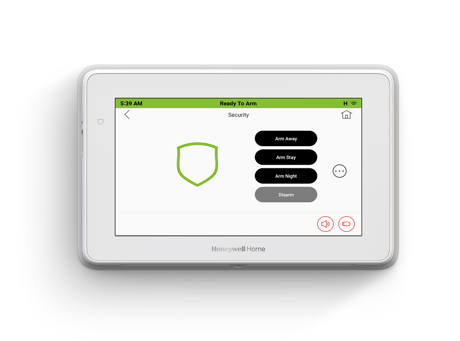
Home screen
1. At the TUXEDOW Home screen: a) Press the Devices icon and then press the SETUP icon to display “Z-Wave Device Management” screen. b) Press the ADD DEVICE icon. 2. At the device Module: a) Press the Function Key on the device
1. At the TUXEDOW Home screen: a) Press the Devices and Setup icons to display the “ZWave Device Management” screen. b) Highlight the device to remove and press the Remove Device icon. 2. At the device module: a) Press the Function Key to remove the device from the keypad
Please use this procedure only when the network primary controller is missing or otherwise inoperable. To activate the Keypad Reset function, press the Setup, System Setup and Advanced Setup icons 1. Enter your Authorized Code and press the Keypad Reset icon. 2. Select OK or Cancel
DSK is located on the back of the unit in the middle of the FCC label, right below MAC and CRC.
| Type | Value(s) |
|---|