ABUS
Z-Wave Button
SHBE10000
Wall Controller
HW: 1 FW: 1.00
SD3502
6.71.03
0x0403 (1027)
0x0004 (4)
0x0005 (5)
ZC10-19106766
2019-10-07 14:10:36.873933
N/A
Enhanced 232 Slave
Reporting Sleeping Slave
Yes
Scenes programmed in the Z-Wave Gateway can be safely and quickly switched on and off at the touch of a button without having to open the app
Scenes programmed in the Z-Wave Gateway can be safely and quickly switched on and off at the touch of a button without having to open the app. The rocker button has 2 buttons (top and bottom), for each button a distinction is made between short press, double press and long press. This means that up to 3 different scenes can be switched on and off as the button can send a total of 6 different commands to the Z-Wave Gateway With just one button, an entire room can be controlled. For example: heating up/down, lighting on /off and shutter up/down. The button can either be glued to the wall or screwed. Alternatively, it can also be used on the move, for example on the bedside table or living room table. The wireless button can be operated with 2 standard AAA batteries for up to 2 years without battery replacement.
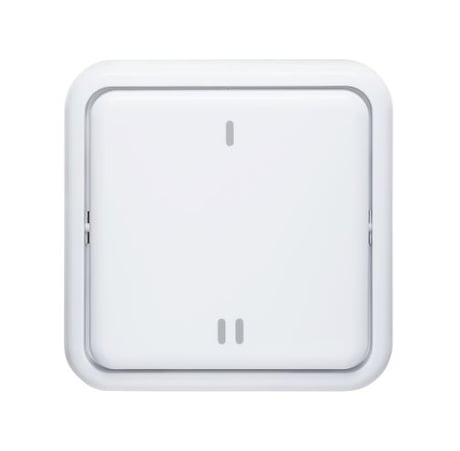
Product Image
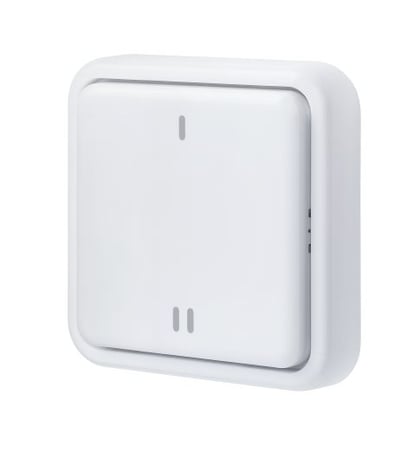
Left
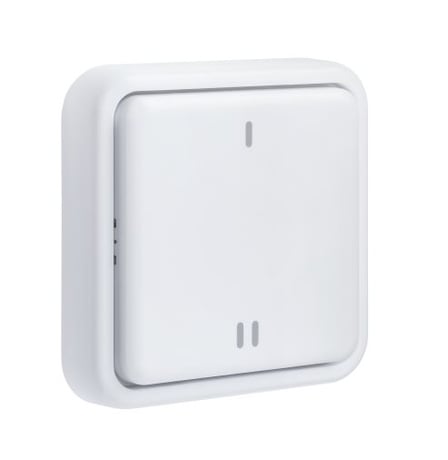
Front
Activate the inclusion mode (teach-in mode) on the gateway. (for further details please refer to the gateways manual) Press the "+" key (Add / Inclusion) in your Z-Wave app and follow the instructions to set the gateway to Inclusion mode. Keep the device within range of the gateway. Remove the fuse strip from the battery compartment. The device supports automatic inclusion, i.e. it automatically goes into inclusion mode when it is powered and not yet connected to a gateway. Alternative Inclusion: If the security strip has already been removed, instead press the Link button 3 times quickly (within 1.5 seconds) to start the inclusion on the device.
Activate the exclusion mode (learn-out mode) at the gateway. (for further details please refer to the gateways manual) Press the "-" key (Remove / Exclusion) in your Z-Wave app and follow the instructions to set the gateway to exclusion mode. Press the Link button 3 times quickly (within 1.5 seconds) to start the exclusion on the device. The successful exclusion is displayed in the app or at the gateway.
Press the Link button once to wake up the device. It then establishes a connection to the Z-Wave gateway and transmits the current status.
Press the Link button 3 times quickly (within 1.5 seconds). Press quickly (within 1 second) a fourth time and press and hold the Link button for at least 5 seconds. The button is now reset to factory settings. Hint: Please use this procedure only when the network primary controller is missing or otherwise inoperable. If the device is set to factory default, the status is set to "not included" and the association settings and possible configurations are reset to default.
Backside of the Base Described in user Manual chapter 1.2, page 6 It can also be found on DSK Card Described in user Manual chapter 1.6, Page 7
| Type | Value(s) |
|---|
| Group | Type |
|---|---|
| Power Management | Battery maintenance status: Replace battery soon |