Ring
Ring Motion Detector (EU)
4SPAE9-0EU0
Notification Sensor
HW: 1 FW: 1.00
ZM5101
6.81.04
0x0346 (838)
0x0301 (769)
0x0202 (514)
ZC10-19116786
2019-10-31 17:37:00.753629
N/A
Enhanced 232 Slave
Reporting Sleeping Slave
Yes
The Alarm Motion Sensor sends alerts whenever motion is detected inside your home. It connects to your Ring Alarm Base Station and mounts to any indoor wall or corner, so you’ll always know when there’s activity at home.
The Alarm Motion Sensor sends alerts whenever motion is detected inside your home. It connects to your Ring Alarm Base Station and mounts to any indoor wall or corner, so you’ll always know when there’s activity at home. * Requires the Ring Alarm Security Kit * Advanced motion sensitivity to prevent false alarms from pets * Mounts to room corners or flat walls
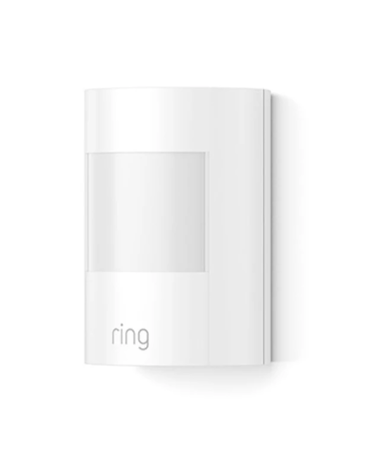
Product Image


1 - Battery report
Configures how often the sensor should send an unsolicited Battery Report to the Lifeline.Size: 2 bytes
Default: 4200
Minimum: 255
Maximum: 4200
Possible values
| From | To | Desription |
|---|---|---|
| 255 | 4200 | 255 to 4200 seconds in 255 second increments that the sensor should wait between sending unsolicited battery reports. |
2 - dwell window
Configures the “dwell” window or how long the sensor should not be detecting motion before sending the “no motion detected” message.Size: 1 byte
Default: 3
Minimum: 1
Maximum: 9
Possible values
| From | To | Desription |
|---|---|---|
| 1 | 9 | 1 to 9 minutes. |
3 - Pet Immunity
Configures the “Pet Immunity,” or sensitivity of the motion detection used mostly so only human motion is detected.Size: 1 byte
Default: 1
Minimum: 0
Maximum: 2
Possible values
| From | To | Desription |
|---|---|---|
| 0 | 2 | 0 to 2 sensitivity. 0: No pet immunity 1: 15kg (33lb) 2:25kg (55lb) |
4 - walk test
Parameter 4 is used to activate a “walk test” mode to test the PIR motion detection coverage after being installed. This mode is active for 15 minutes only after which the sensor returns to normal operation.Size: 1 byte
Default: 0
Minimum: 0
Maximum: 15
Possible values
| From | To | Desription |
|---|---|---|
| 0 | 15 | 0: Normal operation 0xFF: Activate Walk Test for 15 minutes |
5 - Wakeup Notification
One-Time Wakeup Notification. (In addition to normal Wakeup Notification)Size: 2 bytes
Default: 0
Minimum: 0
Maximum: 3600
Possible values
| From | To | Desription |
|---|---|---|
| 0 | 3600 | 1 (must be divisible by sleep step time of configuration parameter 7) to 3600 (0x0E10) |
6 - Application Level Retries
Number of Application Level Retries after a failed transmission defined as either not ACKed or Supervision Report not returned when encapsulated.Size: 1 byte
Default: 5
Minimum: 0
Maximum: 5
Possible values
| From | To | Desription |
|---|---|---|
| 0 | 5 | 0 is no application level retries to 5 |
7 - sleep between application level retries.
The minimum number of seconds to sleep between application level retries.Size: 1 byte
Default: 6
Minimum: 1
Maximum: 60
Possible values
| From | To | Desription |
|---|---|---|
| 1 | 6 | 1 to 60 seconds |
8 - Supervisory Report
The number of milliseconds to wait for a Supervisory Report in response to a Supervisory encapsulated Get.Size: 2 bytes
Default: 1500
Minimum: 500
Maximum: 5000
Possible values
| From | To | Desription |
|---|---|---|
| 500 | 5000 | 500 to 5000 milliseconds |
9 - Sleep step time
The number of seconds the device will sleep between waking up to increment its Wakeup and Heartbeat counter. Also the sleep step time.Size: 2 bytes
Default: 0
Minimum: 1
Maximum: 255
Possible values
| From | To | Desription |
|---|---|---|
| 1 | 255 | 1 to 255 seconds |
Classic Inclusion Steps: 1. Initiate add sensor flow in the Ring Alarm mobile application – Follow the guided add flow instructions provided in the application 2. Follow the instructions provided in Ring Alarm Mobile Application, select add manually and enter the 5 digit DSK pin found on the package of the sensor or found on the back of the sensor 3. Pull the battery tab on the sensor 4. When the inclusion process in complete, the LED on the sensor will be solid blue, then go out. 5. Test the sensor. Place the sensor in an unoccupied room. Leave the room for at least four minutes. Return to the room and pass in front of the sensor – LED will flash if motion is detected. Smart Start Inclusion Steps: 1. Initiate add sensor flow in the Ring Alarm mobile application – Follow the guided add flow instructions provided in the application 2. Follow the instructions provided in Ring Alarm Mobile Application, Scan the QR code found on the package of the sensor or the QR code found on the back of the sensor 3. Pull the battery tab on the sensor 4. When the inclusion process in complete, the LED on the sensor will be solid blue, then go out. 5. Test the sensor. Place the sensor in an unoccupied room. Leave the room for at least four minutes. Return to the room and pass in front of the sensor – LED will flash if motion is detected.
Exclusion Instructions: 1. Initiate remove sensor flow in the Ring Alarm mobile application – Select the settings icon from device details page and choose “Remove Device” 2. Open motion sensor’s cover 3. Remove and replace battery quickly
Wake-Up Notification The sensor will wake up every so often and when the case is closed to send a Wake-Up Notification to allow the life line master node controller that the sensor is now available for any queued messages that the controller may have for the sensor. The time between Wake-Up Notifications can be configured with the Wake-Up Notification command class to be between 1 and 24 hours.
Factory Default Instructions 1. Using a pointed end of a paperclip, press and hold the reset button via the reset pin hole found at the back of the sensor 2. Blue LED will start to blink rapidly 3. Wait for the blue LED to stop blinking Use this procedure only in the event that the network primary controller is missing or otherwise inoperable. Use this procedure only in the event that the network primary controller is missing or otherwise inoperable.
Follow the instructions provided in Ring Alarm Mobile Application, select add manually and enter the 5 digit DSK pin found on the package of the sensor or found on the back of the sensor.
| Type | Value(s) |
|---|
| Group | Type |
|---|---|
| Home Security |
|
| Power Management |
|