myTEM SmartHome
Radio Base Modul
MTBAS-100-WL
Gateway
HW: 1 FW: 6.04:02.81:01.00:01.00
ZM5101
6.81.03
0x034E (846)
0x0001 (1)
0x0101 (257)
ZC10-19106781
2019-10-23 13:35:45.45395
N/A
Bridge Controller
Central Static Controller
The myTEM Radio Base module MTBAS-100-WL is a Z Wave device of type Static Controller (in combination with a myTEM Smart Server) for use in Europe / Swit-zerland.
The myTEM Radio Base module MTBAS-100-WL is a Z Wave device of type Static Controller (in combination with a myTEM Smart Server) for use in Europe / Swit-zerland. It is used to expand your smart home system with wireless products from the Z Wave range, such as the myTEM Radio Socket, myTEM Radio Switch, key-pads, window / door contacts, motion detectors, heating thermostats, RGBW lamps, smoke detectors, sirens or water leak sensors. The myTEM Radio Base module must be powered by a 24 VDC power supply and connected to a myTEM Smart Server via the CAN bus. The device is installed in a con-trol cabinet, mounted on a 35 mm DIN rail. Several myTEM Radio Base modules can be used with the same myTEM Smart Server on the CAN bus. This can be useful, for example, if apartments are to have their own separate Z-Wave networks with a central server.
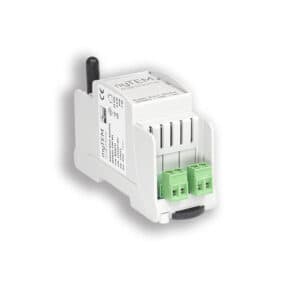
Product Image
To add the myTEM Radio Server or myTEM Smart Server into an existing network set the Controller of the existing network into inclusion mode than click on «Learn Mode» in the UI (for more informatino see manual).
To remove the myTEM Radio Server or myTEM Smart Server from an existing network set the Controller of the existing network into inclusion mode than click on «Learn Mode» in the UI (for more informatino see manual).
To set the Radio Server to Learn Mode use myTEM ProgTool. 1. Create or open a project 2. Connect to Radio Server 3. Start Z-Wave Manager 4. Click <Learn mode> button For more information see myTEM ProgTool manual.
To reset Radio Server use myTEM ProgTool. 1. Create or open a project 2. Connect to Radio Server 3. Start Z-Wave Manager 4. Click <Reset network> button If this controller is the primary controller for your network, resetting it will result in the nodes in your network being orphaned and it will be necessary after the reset to exclude and re-include all of the nodes in the network. If this controller is being used as a secondary controller in the network, use this procedure to reset this controller only in the event that the network primary controller is missing or otherwise inoperable. For more information see myTEM ProgTool manual.
The DSK is displayed by the User Interface.
To include a device into a Z-Wave network use myTEM ProgTool. 1. Create or open a project 2. Connect to Radio Server 3. Start Z-Wave Manager 4. Click <Add> button For more information see myTEM ProgTool manual.
To exclude a device from a Z-Wave network use myTEM ProgTool. 1. Create or open a project 2. Connect to Radio Server 3. Start Z-Wave Manager 4. Click <Remove> button For more information see myTEM ProgTool manual.
| Type | Value(s) |
|---|
| Meter type |
|---|
| Electric Meter Consumption |