Zooz
Z-WAVE PLUS ON / OFF LIGHT SWITCH
ZEN21 VER 3.0
On/Off Power Switch
HW: 1 FW: 1.00
ZM5202
6.81.03
0x027A (634)
0xAA00 (43520)
0xAA01 (43521)
ZC10-19096759
2019-09-24 16:17:07.516116
N/A
Enhanced 232 Slave
Always On Slave
Use this switch as direct replacement for your single pole or 3-way light switches to gain instant Z-Wave control.
PRODUCT HIGHLIGHTS: - Reliable on/off control for incandescent and LED lights - Unique Direct 3-Way Solution: no add-on switch needed (Neutral wire required) - Scene control (double tap as trigger) - Instant status reports - Advanced settings (built-in timer, LED indicator mode, paddle control, and more) PRODUCT SPECS: - Z-Wave Frequency: 908.42 MHz (US) - Power: 120 VAC, 60 Hz - Maximum Loads: 960W Incandescent, 150W LED and CFL bulbs, 1800W (15A) Resistive - Z-Wave Range: Up to 100 feet line of sight between the Wireless - Controller and the closest Z-Wave receiver module - Operating Temperature: 32-104° F (0-40° C) - Installation: Indoor use only
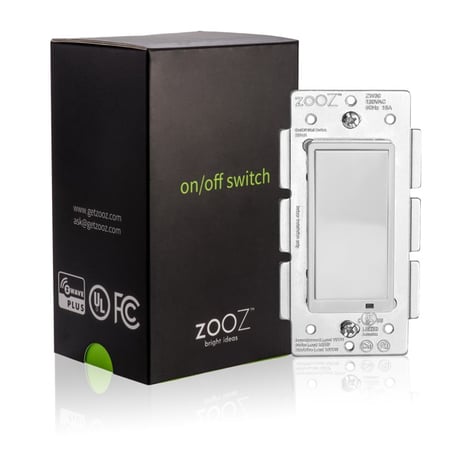
Product Image


1 - Paddle Control
Choose if you want the upper paddle to turn the light on or turn the light off when tapped.Size: 1 byte
Default: 0
Minimum: 0
Maximum: 2
Possible values
| From | To | Desription |
|---|---|---|
| 0 | 2 | 0 – Upper paddle turns the light on, lower paddle turns the light off (default); 1 – Upper paddle turns the light off, lower paddle turns the light on; 2 – Any paddle will turn light on / off depending on the status. |
2 - LED Indicator Control
Choose if you want the LED indicator to turn on when the switch (light) is on or off, or if you want it to remain on or off at all times.Size: 1 byte
Default: 0
Minimum: 0
Maximum: 3
Possible values
| From | To | Desription |
|---|---|---|
| 0 | 0 | LED indicator is on when switch is off, LED indicator is off when switch is on (default) |
| 1 | 1 | LED indicator is on when switch is on, LED indicator is off when switch is off |
| 2 | 2 | LED indicator is always OFF |
| 3 | 3 | LED indicator is always ON |
3 - Enable / Disable Auto Turn-Off Timer
Use this parameter to enable or disable the auto turn-off timer function.Size: 1 byte
Default: 0
Minimum: 0
Maximum: 1
Possible values
| From | To | Desription |
|---|---|---|
| 0 | 1 | 0 – timer disabled (default); 1 – timer enabled. |
4 - Set Auto Turn-Off Timer
Use this parameter to set the time after which you want the switch to automatically turn off once it has been turned on. The number entered as value corresponds to the number of minutes.Size: 4 bytes
Default: 60
Minimum: 1
Maximum: 65535
Possible values
| From | To | Desription |
|---|---|---|
| 1 | 65535 | minutes |
5 - Enable / Disable Auto Turn-Off Timer
Use this parameter to enable or disable the auto turn-on timer function.Size: 1 byte
Default: 0
Minimum: 0
Maximum: 1
Possible values
| From | To | Desription |
|---|---|---|
| 0 | 1 | 0 – timer disabled (default); 1 – timer enabled. |
6 - Set Auto Turn-On Timer
Use this parameter to set the time after which you want the switch to automatically turn on once it has been turned off. The number entered as value corresponds to the number of minutes.Size: 4 bytes
Default: 60
Minimum: 1
Maximum: 65535
Possible values
| From | To | Desription |
|---|---|---|
| 1 | 65535 | minutes |
8 - On Off Status After Power Failure
Set the on off status for the switch after power failure.Size: 1 byte
Default: 2
Minimum: 0
Maximum: 2
Possible values
| From | To | Desription |
|---|---|---|
| 0 | 0 | 0 – forced to OFF (regardless of state prior to power outage) |
| 1 | 1 | forced to ON |
| 2 | 2 | remembers and restores on/off status aer power failure (default) |
9 - Enable/Disable Scene Control
Enable or disable scene control functionality for quick double tap triggers.Size: 1 byte
Default: 0
Minimum: 0
Maximum: 1
Possible values
| From | To | Desription |
|---|---|---|
| 0 | 1 | 0 – scene control disabled (default). 1 – scene control enabled. |
10 - Enable/Disable Paddle Control
Enable or disable local on/off control. If enabled, you’ll only be able to control the connected light via Z-Wave. Scenes and other functionality will still be available through paddles.Size: 1 byte
Default: 1
Minimum: 0
Maximum: 1
Possible values
| From | To | Desription |
|---|---|---|
| 0 | 1 | 0 – local control disabled. 1 – local control enabled (default). |
1. Initiate inclusion (pairing) in the app (or web interface). 2. Tap the upper paddle of the switch 3 times. 3. The LED indicator will blink to signal communication and stay on/off when communication is concluded.
1. Bring your Z-Wave gateway (hub) close to the switch if possible 2. Put the Z-Wave hub into exclusion mode 3. Tap the lower paddle on the switch 3 times quickly 4. Your hub will confirm exclusion and the device will disappear from your controller's device list
If your primary controller is missing or inoperable, you may need to reset the device to factory settings. To complete the reset process manually, tap-tap-tap’n’hold the upper paddle for at least 10 seconds. The LED indicator will flash to confirm successful reset. NOTE: All previously recorded activity and custom settings will be erased from the device’s memory
Scene Control for selected hubs. OTA firmware updates.
| Type | Value(s) |
|---|