Samsung SmartThings
SmartThings Link
IM6001-SLP-VF02
Central Controller
HW: 43 FW: 6.04:00.28
SD3503
6.81.03
0x0150 (336)
0x000A (10)
0x002B (43)
ZC10-20026860
2019-10-31 17:34:10.257467
N/A
Bridge Controller
Central Static Controller
Simply build your own smart home by plugging a SmartThings Link to into the existing broadband modem
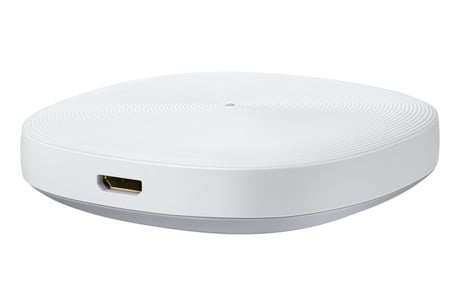
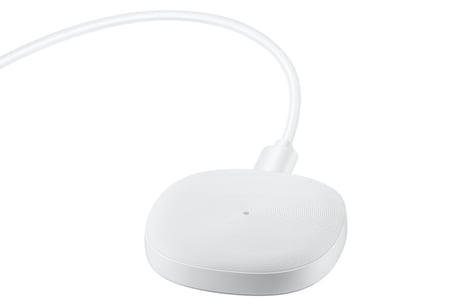
SmartThings Link is a IoT Dongle device that provides connectivity with IoT device. It supports SmartThings Hub functionality so you can control your Z-Wave device by connecting to Vodafone Power Station.
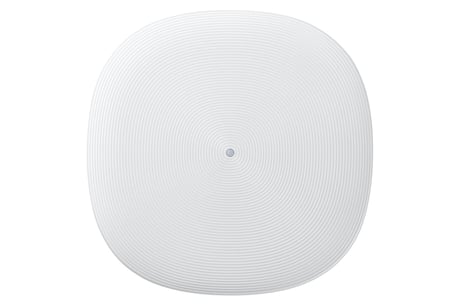
Product Image
Using the SmartThings Hub as a Secondary Controller Because the Hub is a certified Z-Wave device, you can add it to another Z-Wave network. Note that you can only add a Hub to a different Z-Wave network if no Z-Wave devices have been added. Otherwise, you should remove all Z-Wave devices from the Hub first by putting them through a device exclusion. When the SmartThings Hub is used as a secondary controller on a Z-Wave network, it may not receive notifications from some battery-operated devices. SmartThings Technical Support does not provide assistance to consumers using the Hub with other Z-Wave central controllers.
Z-Wave factory reset To reset your Hub's Z-Wave system to factory default settings, you must factory reset the entire Hub. You can factory reset your Hub with Remove Device menu in SmartThings mobile app. NOTE : Resetting the Hub will restore factory settings. All device connections, automations, rules, configurations associated with that Hub will be lost in the reset. All devices connected to your Hub will have to be reset or excluded before they can be reconnected. The steps for resetting and reconnecting each smart device differ. After resetting, you can visit our Things category, find the devices you wish to set up, and follow the guides provided. Remember that you will likely need to reset or “exclude” every device before connecting.
Page 4 - Add Device The S2 DSK (Device Specific Key) is used to authenticate the included device before exchanging the network keys. You can find DSK in in Hub's detail page at the dashboard.
Here are the steps to put the Hub into learn mode to receive network information from another Z-Wave controller Prepare the other Z-Wave controller to copy its network information to the Hub. This may be called include, add, transfer, shift, copy, or replicate mode. Add Hub to an existing Z-Wave network in Z-Wave Utilities menu will start learn mode on the Hub.
Add Device The SmartThings Hub connects all of your smart devices with one another, the SmartThings cloud, and the SmartThings mobile app. From the Home screen, touch the Plus (+) icon and select Add device. While the Hub searches, perform the connection/inclusion process specific to that device.
Remove Device Z-Wave devices require a separate command and physical confirmation from the device itself (usually a button press) in order to be reset (or "excluded") and removed from a controller (like the SmartThings Hub). Before removing a Z-Wave device, make sure you’ve uninstalled any configurations associated with the device. Your Hub will enter exclude mode automatically when you remove a Z-Wave device via the Things page. When prompted, execute the required button press or exclusion process as outlined by the device's user guide. Perhaps you're having trouble adding a ZWave device that was previously in use by a SmartThings Hub or another type of Z-Wave controller. Or maybe your new device won’t connect after several attempts. Sometimes a device partially connects, or is partially removed, behind the scenes. Resetting/excluding the device through the General Z-Wave Device Exclusion in Z-Wave utilities menu will likely fix these problems. Then, you will be able to connect the device as usual.
| Type | Value(s) |
|---|
| Meter type |
|---|
| Electric Meter Consumption |