Ecolink Intelligent Technology
Z-Wave Plus Garage Door Tilt Sensor
TILT-ZWAVE5
Notification Sensor
HW: 1 FW: 1.00
ZM5101
6.82.00
0x014A (330)
0x0005 (5)
0x04AA (1194)
ZC10-20046905
2020-03-19 16:03:10.964183
N/A
Enhanced 232 Slave
Reporting Sleeping Slave
Yes
The newly designed sensor for garage or overhead doors. The accelerometer based tilt sensor remotely monitors garages,hatches, roll-up doors, or any other tilt surface.
Verify doors are closed when you leave, and automate lights to turn on inside your home when you arrive, all from your computer, tablet or smart phone. Simple installation and setup.
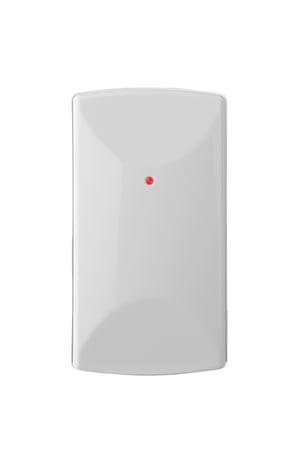
Product Image
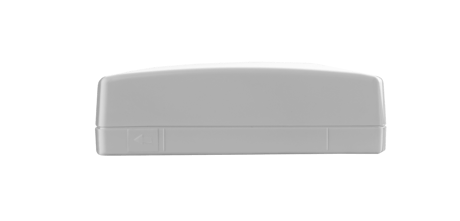
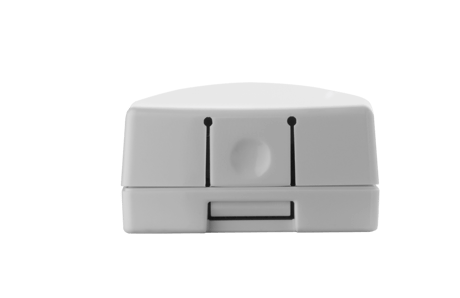
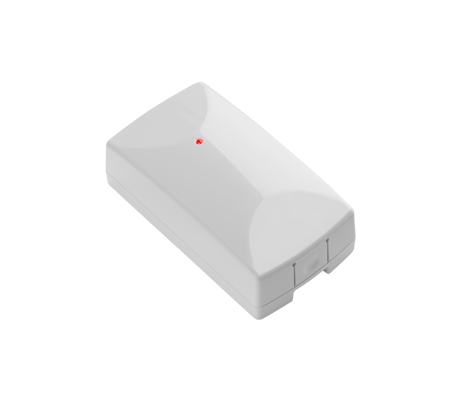


1 - Application level retry
Number of attempts the device should attempt application level retries.Size: 1 byte
Default: 3
Minimum: 0
Maximum: 10
Possible values
| From | To | Desription |
|---|---|---|
| 0 | 10 | Number of attempts |
2 - milliseconds between application level retry
milliseconds between application level retry default 500ms min 10 ms max 5000msSize: 2 bytes
Default: 0
Minimum: 0
Maximum: 1388
Possible values
| From | To | Desription |
|---|---|---|
| 0 | 1388 | Millisecond delays between application level retry |
3 - Garage close angle configuration
The tilt angle at which the garage door is considered close Byte value 0: 10 degrees Byte value 1: 30 degrees Byte value 2: 50 degreesSize: 1 byte
Default: 0
Minimum: 0
Maximum: 2
Possible values
| From | To | Desription |
|---|---|---|
| 0 | 2 | 3 different angle settings |
4 - Garage open angle configuration
The tilt angle at which the garage door is considered close Byte value 0: 30 degrees Byte value 1: 50 degrees Byte value 2: 70 degrees Parameter 4 must be set first before Parameter 3 can be set. The opened tilt angle must be greater than the closed tilt angleSize: 1 byte
Default: 0
Minimum: 0
Maximum: 2
Possible values
| From | To | Desription |
|---|---|---|
| 0 | 2 | 3 different angle settings |
Network Inclusion The Z-Wave Plus Garage Tilt Sensor must be added to a Z-Wave Plus network prior to use. To include the device in a network both the device and the network controller must be in inclusion mode at the same time. Refer to the instructions provided by the manufacturer of your specific controller for details on initiating the controller’s inclusion mode. 1) Verify that the Z-Wave Plus controller you are using is compatible with the Z-Wave Plus Tilt Sensor. 2) Put your Z-Wave Plus Controller into add (inclusion) mode. 3) Insert the battery and press the learn button on the tilt sensor. 4) The LED on the front of the unit will turn off if network inclusion is successful.
Network Exclusion 1) Any Z-Wave Plus Device can be removed from any Z-Wave Plus controller. Follow the directions to put your Z-Wave Plus Controller into exclusion mode. 2) Press the inclusion / exclusion button on the Z-Wave Plus Tilt Sensor. 3) The LED in front of the unit will blink steadily if the network exclusion is successful.Notes: • Controller inclusion mode must be activated BEFORE starting sensor inclusion or exclusion mode. • The device can only be included into one controller network at a time, and must be excluded from one network before inclusion in another.
Wake up notification is tampering the case / opening the case
Factory Default The Z-Wave Plus Tilt Sensor can be factory defaulted by pressing and holding the factory reset button for 5 seconds.
The DSK is below the QR code on the plastic case of the product. Unable to access the DSK via the UI. DSK also comes with insert in product packaging.
| Type | Value(s) |
|---|
| Group | Type |
|---|---|
| Access Control |
|
| Home Security | Cover status: Tampering, product cover removed |
| Power Management |
|