Vision
Glass Break Detector
ZB5311US-5
Notification Sensor
HW: 1 FW: 1.00
ZM5101
6.82.00
0x0109 (265)
0x202F (8239)
0x2F01 (12033)
ZC10-20036896
2020-03-06 14:58:42.084339
N/A
Enhanced 232 Slave
Reporting Sleeping Slave
Yes
Monitors Glass Breaking Sound and Send the Notification Instantly.
Two-stage glass break sensors can accurately listen for the initial glass breaking and shattering. We have performed extensive testing to improve this product’s sound detection capabilities.
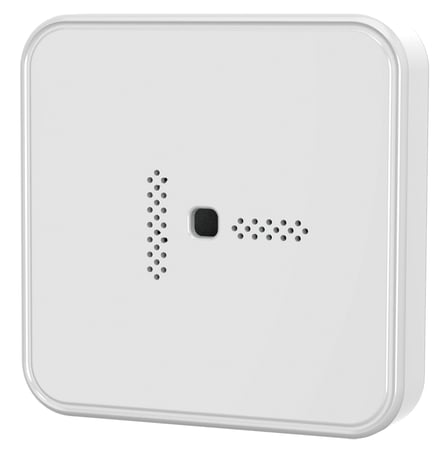
Product Image
For “Inclusion” in (adding to) a network: Put the Z-Wave™ Interface Controller into “inclusion” mode, and following its instruction to add the ZB5311-5 to your controller. To get in the “inclusion” mode, press the Program Switch of ZB5311-5 once for sending the NIF. After sending NIF, Z-Wave will send the auto inclusion; otherwise, ZB5311-5 will go to sleep after 30 seconds. After inclusion successfully, the Green LED will be solid on for 0.5 second.
For “Exclusion” from (removing from) a network: Put the Z-Wave™ Interface Controller into “exclusion” mode, and following its instruction to delete the ZB5311-5 from your controller. Press the Program Switch of ZB5311-5 once to be excluded, the Green LED will flash 5 times quickly after successful exclusion. Note: All user and network settings will be cleared and the device reset to factory defaults when the device is excluded.
Wake Up Notification: Press the program switch once to send NIF, it takes around 5 seconds to send "Wake Up Notification" for receiving all the command class from controller. The ZB5311-5 will go to sleep mode without receiving any Z-Wave command till 10 seconds.
Factory Default Reset: Long press the program switch up to 10 seconds to send the “Device Reset Locally Notification” command and reset to the factory default. The Green LED will flash 5 times quickly after finishing the Factory Default Reset. (Remark: This is to be used only in the case of primary controller being inoperable or otherwise unavailable.)
The DSK label will on the backside of ZB5311-5, Scan the DSK label to access the SmartStart if gateway 's UI supports SmartStart. (Remark: The QR code is for use with Z-Wave SmartStart by using “DSK,” “Device Specific Key,” “PIN,” or “PIN code,” etc.)
| Type | Value(s) |
|---|
| Group | Type |
|---|---|
| Home Security | Glass breakage |