ABUS
Z-Wave Dual Pet PIR
PLBW10000
Notification Sensor
HW: 1 FW: 1.01:00.01
SD3502
6.71.03
0x0403 (1027)
0x0002 (2)
0x0004 (4)
ZC10-20036890
2020-03-17 17:22:25.1453
N/A
Enhanced 232 Slave
Reporting Sleeping Slave
The motion detector uses Passive Infrared (PIR) technology to detect movement in a defined area by detecting the changes in thermal radiation caused by the moving body inside or outside the detection zone.
Motion detector It uses Passive Infrared (PIR) technology to detect movement in a defined area by detecting the changes in thermal radiation caused by the moving body inside or outside the detection zone. With the dual PIR sensor (dual-lens technology), the sensor hides pets up to approx. 38kg, so that your pet can move freely without triggering the sensor. When the motion detector is triggered, an alarm signal is sent to the Z-Wave controller. The indicator LED lights up when motion is detected. Integrated temperature and humidity sensor At periodic intervals, the unit automatically sends the measured temperature and humidity value to the Z-Wave controller or on request of the Z-Wave controller. Tamper protection between the device and wall bracket When the housing is opened, the tamper switch is triggered and the device sends a tamper alarm to the Z-Wave controller. The tamper contact must remain pressed for three seconds to reset the tamper alarm.
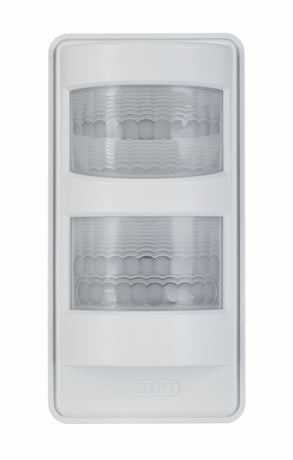
Product Image


1 - Temperature & Humidity Report
The interval time of the temperature and humidity report.Size: 2 bytes
Default: 30
Minimum: 1
Maximum: 1440
Possible values
| From | To | Desription |
|---|---|---|
| 1 | 1440 | Adjustable from 1 - 1440 in minutes (Hexadecimal: 0x01 - 0x5A0) |
2 - Waiting time between two motion alarms
Waiting time from one motion alarm to the next triggering.Size: 2 bytes
Default: 160
Minimum: 10
Maximum: 3600
Possible values
| From | To | Desription |
|---|---|---|
| 10 | 3600 | Adjustable from 10 - 3600 in seconds (Hexadecimal: 0x10 - 0xE10) |
3 - Reset waiting time after motion alarm
Waiting time after a movement alarm until reset. Additionally, defines how long directly associated devices from group 2 are activated.Size: 2 bytes
Default: 180
Minimum: 10
Maximum: 3600
Possible values
| From | To | Desription |
|---|---|---|
| 10 | 3600 | Adjustable from 10 - 3600 in seconds (Hexadecimal: 0x10 - 0xE10) |
4 - Temperature report threshold
Additional temperature report, which is sent when the set threshold is exceeded.Size: 1 byte
Default: 5
Minimum: 0
Maximum: 10
Possible values
| From | To | Desription |
|---|---|---|
| 0 | 0 | The value 0 deactivates the temperature report. (Hexadecimal: 0x00) |
| 1 | 10 | Adjustable from 1 - 10 in 0.5° steps (e.g. 5 = 2.5°, Hexadecimal: 0x01 - 0x0A) |
5 - Humidity report threshold
Additional humidity report that is sent when the set threshold is exceeded.Size: 1 byte
Default: 5
Minimum: 0
Maximum: 10
Possible values
| From | To | Desription |
|---|---|---|
| 0 | 0 | The value 0 deactivates the temperature report. (Hexadecimal: 0x00) |
| 1 | 10 | Adjustable from 1 - 10 in 5% steps (e.g. 5 = 25%, Hexadecimal: 0x01 - 0x0A) |
6 - LED status
Set whether the status LED lights up in case of a motion alarm.Size: 1 byte
Default: 1
Minimum: 0
Maximum: 1
Possible values
| From | To | Desription |
|---|---|---|
| 0 | 0 | 0 = LED deactivated (Hexadecimal: 0x00) |
| 1 | 1 | 1 = LED activated (Hexadecimal: 0x01) |
Activate the inclusion mode (teach-in mode) on the Z-Wave controller. (please refer to the Z-Wave controller manual for more details) Press the "+" button (Add / Inclusion) in your Z-Wave app and follow the instructions to set the Z-Wave controller to inclusion mode. Keep the device within reach of the Z-Wave controller. Remove the safety strip from the battery compartment. We recommend the exclusive use of the original GP battery from the scope of delivery. The device supports automatic inclusion, i.e. it automatically goes into inclusion mode when it is powered and not yet connected to a Z-Wave controller. The LED starts flashing. Alternative/manual inclusion: If you have already inserted the batteries, press the Link button 3 times quickly (within 1.5 seconds) to start the inclusion process.
Activate the exclusion mode (teach-out mode) on the Z-Wave controller. (please refer to the Z-Wave controller manual for more details) Press the "-" button (Remove / Exclusion) in your Z-Wave app and follow the instructions to set the Z-Wave controller to Exclusion mode. Press the Link button 3 times quickly (within 1.5 seconds) to start the exclusion on the device.
Press the Link button once to wake up the device. It then establishes a connection to the Z-Wave controller and transmits the current Status.
Press the Link button 3 times quickly (within 1.5 seconds). Press quickly (within 1 second) a fourth time and press and hold the Link button for at least 5 seconds. The device is now reset to factory settings. Hint: This procedure should only be used if the primary network controller is not capable of acting. If the device is set to factory default, the status is set to "not included" and the association settings and possible configurations are reset to default.
1.2 Z-Wave QR Code DSK Sticker for S2 Inclusion is located on the backside of the bracket 1.6 The DSK code (Device-Specific Key) is the device-specific key of your device and is required for secure teach-in (inclusion) via S2 on the Z-Wave controller. The first 5 digits of the DSK code can be found on the QR Code sticker on the backside of the bracket of the product.
| Group | Type |
|---|---|
| Home Security | Motion sensor status: Motion detection |
| Sensor type |
|---|
| Air Temperature |
| Humidity |