Resideo
Plug-in Dimmer (Dual Plug Simultaneous Control)
39446 / ZW3107
Light Dimmer Switch
HW: 255 FW: 5.21
ZM5202
6.51.08
0x041B (1051)
0x5044 (20548)
0x3033 (12339)
ZC10-20036902
2020-03-27 16:52:36.398736
N/A
Enhanced 232 Slave
Always On Slave
Transform any home into a smart home with the Resideo Z-Wave Smart Lighting Control Lamp Module with Dimmer Control.
Transform any home into a smart home with the Resideo Z-Wave Smart Lighting Control Lamp Module with Dimmer Control. The lamp module enables wireless control of on/off and dim functions for standard incandescent table and floor lamps, as well as dimmable fluorescent, LED and CFL fixtures and more! Use the dimmer control to customize the lighting output and create the perfect ambiance for any room. The space-saving horizontal module plugs into a standard wall receptacle without blocking the second outlet or obstructing placement of furniture. It provides a Z-Wave enabled outlet for the lamp you would like to control and one always-on, simultaneous control AC outlet for other electrical appliances. Take control of your home lighting with Resideo Z-Wave Smart Controls!
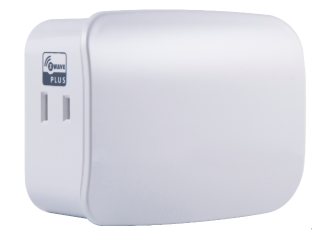
Product Image


3 - Parameter 3
Invert/disable LED (Adjusts when the indicator LED is turned ON, OFF or disabled)Size: 1 byte
Default: 1
Minimum: 0
Maximum: 2
Possible values
| From | To | Desription |
|---|---|---|
| 0 | 0 | LED ON / Device Off |
| 1 | 1 | (Default) LED On / Device On |
| 2 | 2 | Disable LED |
6 - Parameter 6
Dim up/down rateSize: 1 byte
Default: 0
Minimum: 0
Maximum: 1
Possible values
| From | To | Desription |
|---|---|---|
| 0 | 0 | (Default) = Dim up/down the light to the specified level quickly by command except value 0 and FF |
| 1 | 1 | 1 = Dim up/down the light to the specified level slowly by command except value 0 and FF |
7 - Parameter 7
Dim rate steps when using Z-Wave controller (Adjusts the number of steps the light level will stop on when dimming)Size: 1 byte
Default: 3
Minimum: 1
Maximum: 99
Possible values
| From | To | Desription |
|---|---|---|
| 1 | 99 | Valid Values |
| 3 | 3 | Default - 3 steps |
8 - Parameter 8
Dim rate timing when using Z-Wave controller (Adjusts the timing of each step in 10ms increments)Size: 2 bytes
Default: 1
Minimum: 1
Maximum: 255
Possible values
| From | To | Desription |
|---|---|---|
| 1 | 1 | 10ms per step |
| 1 | 255 | Valid Values |
9 - Parameter 9
Dim rate steps when manually controlled (Adjusts the number of steps the light level will stop on when dimmingSize: 1 byte
Default: 3
Minimum: 1
Maximum: 99
Possible values
| From | To | Desription |
|---|---|---|
| 1 | 99 | Valid Values |
| 3 | 3 | Default - 3 steps |
10 - Parameter 10
Dim rate timing when manually controlled (Adjusts the timing of each step in 10ms increments)Size: 2 bytes
Default: 1
Minimum: 1
Maximum: 255
Possible values
| From | To | Desription |
|---|---|---|
| 1 | 1 | 10ms per step |
| 1 | 255 | Valid Values |
11 - Parameter 11
Dim rate steps when receiving all-ON/OFF command (Adjusts the number of steps the light level will stop on when dimming)Size: 1 byte
Default: 3
Minimum: 1
Maximum: 99
Possible values
| From | To | Desription |
|---|---|---|
| 1 | 99 | Valid Values |
| 3 | 3 | Default - 3 steps |
12 - Parameter 12
Dim rate timing when receiving all-ON/OFF command (Adjusts the timing of each step in 10ms increments)Size: 2 bytes
Default: 1
Minimum: 0
Maximum: 255
Possible values
| From | To | Desription |
|---|---|---|
| 1 | 1 | 10ms per step |
| 1 | 255 | Valid Values |
ADDING YOUR DEVICE TO A Z-WAVE NETWORK 1. Follow the instructions for your Z-Wave certified controller to add a device to the Z-Wave network. 2. Once the controller is ready to add your device, press and release the manual/program button on the smart dimmer. Repeat as necessary to add the dimmer to the network. You have complete control
TO REMOVE AND RESET THE DEVICE 1. Follow the instructions for your Z-Wave certified controller to remove a device from the Z-Wave network. 2. Once the controller is ready to remove your device, press and release the manual/program button on the smart dimmer to remove it from the network.
TO RETURN YOUR DIMMER TO FACTORY DEFAULTS 1. If plugged in, unplug the dimmer from the receptacle 2. Press and hold the top button, plug the device in and continue to hold for at least 3 seconds. NOTE: This should only be used in the event your network’s primary controller is missing or otherwise inoperable.
| Type | Value(s) |
|---|