ABUS
PIR Sensor Lux
PLBW10100
Notification Sensor
HW: 1 FW: 1.58
ZGM130
7.12.2
0x0403 (1027)
0x0002 (2)
0x0007 (7)
ZC12-20040053
2020-04-20 12:11:45.128111
N/A
Enhanced 232 Slave
Reporting Sleeping Slave
In addition to the classic motion detection, this sensor also provides information on the lighting condition (bright/dark).
In addition to the classic motion detection, this sensor also provides information on the lighting condition (bright/dark). This means that lighting can be automated in a really smart way: e.g. the light only turns on when it is dark in the room. In addition, the sensitivity can be flexibly adjusted and the detector is pet-immune if desired. PIR supports 80° viewing angle and up to 8m range.
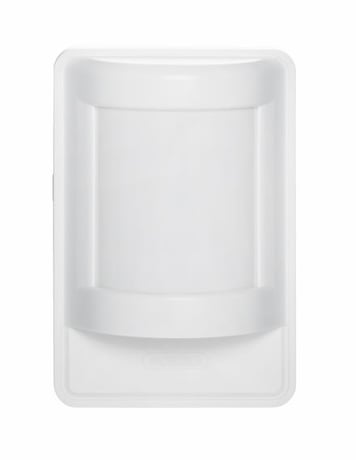
Product Image


10 - Threshold value battery alarm
LowBatAlarm Percentage value from when the low battery alarm should be transmitted.Size: 1 byte
Default: 10
Minimum: 5
Maximum: 50
Possible values
| From | To | Desription |
|---|---|---|
| 5 | 50 | Adjustable from 5 - 50 in percent |
12 - PIR sensor Active / Deactive
Enable / disable the PIR sensorSize: 1 byte
Default: 1
Minimum: 0
Maximum: 1
Possible values
| From | To | Desription |
|---|---|---|
| 0 | 0 | Sensor is deactivated |
| 1 | 1 | Sensor is activated |
13 - Waiting time between two motion alarms
PirTimeoutSet Waiting time from one motion alarm to the next triggering.Size: 2 bytes
Default: 60
Minimum: 5
Maximum: 15300
Possible values
| From | To | Desription |
|---|---|---|
| 5 | 15300 | Adjustable from 5 - 15300 in seconds |
14 - BASIC SET to association group 2 (motion alarm)
SendBasic BASIC SET should be sent after a motion alarm.Size: 1 byte
Default: 0
Minimum: 0
Maximum: 1
Possible values
| From | To | Desription |
|---|---|---|
| 0 | 0 | Deactivated, Basic Set won´t be send |
| 1 | 1 | Activated, Basis SET will be send |
15 - Invert value of BASIC SET command
Set the value of the BASIC SET command for movement alarm and acknowledgement.Size: 1 byte
Default: 0
Minimum: 0
Maximum: 1
Possible values
| From | To | Desription |
|---|---|---|
| 0 | 0 | The motion alarm sends the BASIC SET value "On" (0xFF), the acknowledgement sends the BASIC SET value "Off" (0x00) |
| 1 | 1 | The motion alarm sends the BASIC SET value "Off" (0x00), the acknowledgement sends the BASIC SET value "On" (0xFF) |
16 - Sensitivity PIR sensor
Sensitivity value of the PIR sensor.Size: 1 byte
Default: 9
Minimum: 1
Maximum: 10
Possible values
| From | To | Desription |
|---|---|---|
| 1 | 10 | The value 10 is the highest sensitivity. The value 1 is the lowest sensitivity. |
17 - Pet Immunity Active / Deactive
Activate/deactivate the pet immunity.Size: 1 byte
Default: 0
Minimum: 0
Maximum: 1
Possible values
| From | To | Desription |
|---|---|---|
| 0 | 0 | Pet immunity is deactivated |
| 1 | 1 | Pet immunity is activated |
18 - Light values after movement alarm
Defines which additional reports are to be sent in the event of a movement alarm.Size: 1 byte
Default: 3
Minimum: 1
Maximum: 3
Possible values
| From | To | Desription |
|---|---|---|
| 1 | 1 | Sensor multilevel report (LUX) |
| 2 | 2 | Light alarm report is sent |
| 3 | 3 | Lux and light alarm report is sent |
19 - Threshold value for light alarm report
Threshold value from which LUX value the light alarm (day) is sentSize: 2 bytes
Default: 50
Minimum: 0
Maximum: 500
Possible values
| From | To | Desription |
|---|---|---|
| 0 | 500 | Adjustable from 0 - 500 in lux |
Activate the inclusion mode (teach-in mode) on the Z-Wave controller. (for more details, please refer to the Z-Wave controller's user manual) Press the "+" button (Add / Inclusion) in your Z-Wave app and follow the instructions to set the Z-Wave controller to inclusion mode. Keep the device within reach of the Z-Wave controller. Remove the safety strip from the battery compartment. We recommend using only the original Duracell battery supplied. Press the Link button 3 times quickly (within 1.5 seconds) to start the inclusion on the device. The LED starts flashing red for up to 60 seconds The successful inclusion is displayed in the app or on the Z-Wave controller and the status LED on the device lights up red for 2 seconds. Repeat the inclusion process if it was not successful. If a new attempt fails as well, first carry out a factory reset on the device, see 2.5.
Activate the exclusion mode (learn mode) on the Z-Wave controller. (for more details, please refer to the Z-Wave controller's user manual) Press the "-" button (Remove / Exclusion) in your Z-Wave app and follow the instructions to set the Z-Wave controller to Exclusion mode. Press the Link button 3 times quickly (within 1.5 seconds) to start the exclusion on the device. The LED starts flashing red for up to 60 seconds Successful exclusion is displayed in the app or on the Z-Wave controller and the status LED on the device lights up red for 2 seconds.
Press the Link button once to wake up the device. It will then establish a connection to the Z-Wave controller and transmit the current status.
Press and hold the Link button for at least 5 seconds. Release the button when the red LED stops blinking and lights up continuously. The device is now reset to factory settings. Hint: Please use this procedure only if the primary network controller is missing or otherwise not functional. If the device is set to factory default, the status is set to "not included" and the association settings and possible configurations are reset to default.
The DSK code (Device-Specific Key) is the device-specific key of your device and is required for secure inclusion (teach-in) via S2 on the Z-Wave controller. The first 5 digits of the DSK code can be found on the QR Code on the back of the product. Please enter them in the inclusion process when prompted. Alternatively, you can transfer the entire DSK code that you find on the enclosed DSK card to the Z-Wave controller via QR Code Scan. Please keep the DSK card in a safe place! Hint: We recommend the secure S2 inclusion (must be supported by the Z-Wave controller) Please enter the 5 digits of the DSK code (bottom of the device) or the entire DSK code (QR code) when prompted.
N/A
N/A
| Group | Type |
|---|---|
| Home Security |
|
| Power Management |
|
| Light sensor |
|
| Sensor type |
|---|
| Illuminance |