Resideo
Plug-in Outdoor Smart Switch
39453 / ZW4203
On/Off Power Switch
HW: 255 FW: 5.52
ZM5202
6.81.03
0x041B (1051)
0x4F50 (20304)
0x3035 (12341)
ZC10-20036900
2020-03-27 16:52:54.242095
N/A
Enhanced 232 Slave
Always On Slave
Transform any home into a smart home with the Resideo Z-Wave Plug-in Outdoor Switch.
Transform any home into a smart home with the Resideo Z-Wave Plug-in Outdoor Switch. The Switch enables wireless control of on/off functions for outdoor applications, and is compatible with incandescent, LED, Xenon, Halogen, fluorescent and compact fluorescent bulbs. The weather-resistant housing with a protective outlet cover safeguards the outlet from dirt and debris when not in use. The discreet black color blends in with any outdoor environment. Perfect for decorative or seasonal lighting, fountains and other outdoor plug-in appliances. Take control of your home lighting with Resideo Z-Wave Smart Controls!
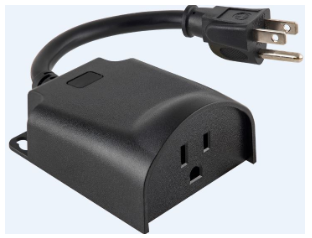
Product Image


3 - Parameter 3
LED Indication ConfigurationSize: 1 byte
Default: 1
Minimum: 0
Maximum: 3
Possible values
| From | To | Desription |
|---|---|---|
| 0 | 0 | LED ON when device is OFF, LED is OFF when device is ON |
| 1 | 1 | LED ON when device is ON, LED is OFF when device is OFF |
| 2 | 2 | LED always OFF |
| 3 | 3 | LED Always ON |
19 - Parameter 19
Alternate ExclusionSize: 1 byte
Default: 0
Minimum: 0
Maximum: 1
Possible values
| From | To | Desription |
|---|---|---|
| 0 | 0 | Alternate Exclusion |
| 1 | 1 | Press two times ON button and two time OFF button, LED will flash 5 times if successful |
ADDING YOUR DEVICE TO A Z-WAVE NETWORK 1. Follow the instructions for your Z-Wave certified controller to add a device to the Z-Wave network. 2. Once the controller is ready to add your device, press and release the manual/program button on the smart switch to add it in the network. 3. The controller’s app will indicate if it has discovered the switch. If prompted by the controller to enter the S2 security code, refer to the QR code/security number on the side of the box or the QR code label on the product (see Figure 1). Enter the 5-digit code.
TO REMOVE AND RESET THE DEVICE 1. Follow the instructions for your Z-Wave certified controller to remove a device from the Z-Wave network. 2. Once the controller is ready to remove your device, press and release the manual/program button on the smart switch to remove it from the network.
TO RETURN YOUR SWITCH TO FACTORY DEFAULTS 1. If plugged in, unplug the device from the receptacle. 2. Press and hold the manual/program button, plug the device in and continue to hold for at least 3 seconds. NOTE: This should only be used in the event your network’s primary controller is missing or otherwise inoperable.
If prompted by the controller to enter the S2 security code, refer to the QR code/security number on the side of the box or the QR code label on the product (see Figure 1). Enter the 5-digit code.
| Type | Value(s) |
|---|