Resideo
In-Wall Smart Switch
39455/ZW4008
On/Off Power Switch
HW: 255 FW: 5.53
ZM5202
6.81.04
0x041B (1051)
0x4952 (18770)
0x3036 (12342)
ZC10-20036899
2020-03-27 17:40:07.67819
N/A
Enhanced 232 Slave
Always On Slave
Transform any home into a smart home with the Resideo Z-Wave In-Wall Switch.
Transform any home into a smart home with the Resideo Z-Wave In-Wall Switch. The on/off switch replaces your current light switch, uses your existing wiring, and provides Z-Wave wireless and in-wall control of overhead lighting. The switch enables wireless control of on/off functions of direct wire incandescent, LED, xenon, halogen and fluorescent lighting. Providing ultimate flexibility, the Resideo Z-Wave Switch allows you to operate the switch by itself or easily integrate the switch with two-way, three-way or four-way wiring configurations by adding the Resideo Add-On switch. Single pole wiring configuration turns the light or appliance on/off from one location. Three-way wiring configuration turns the light on/off from two separate locations. Four-way wiring configuration turns the light on/off from three separate locations. The Resideo Add-On Switch is required for Three-way or Four-way installations. The lighting control includes a blue LED indicator light to easily locate the switch in a dark room. Take control of your home lighting with Resideo Z-Wave Smart Controls!
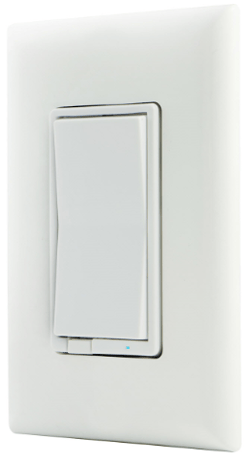
Product Image


3 - Parameter 3
Invert/disable LED (Adjusts when the indicator LED is turned ON, OFF or disables it entirely)Size: 1 byte
Default: 0
Minimum: 0
Maximum: 2
Possible values
| From | To | Desription |
|---|---|---|
| 0 | 0 | LED ON/device OFF |
| 1 | 1 | LED ON/device ON |
| 2 | 2 | Disable LED |
4 - Parameter 4
Invert switch (In case switch is installed upside down)Size: 1 byte
Default: 0
Minimum: 0
Maximum: 1
Possible values
| From | To | Desription |
|---|---|---|
| 0 | 0 | Default (Top ON/bottom OFF) |
| 1 | 1 | Invert switch (Top OFF/bottom ON) |
19 - Parameter 19
Alternate exclusionSize: 1 byte
Default: 0
Minimum: 0
Maximum: 1
Possible values
| From | To | Desription |
|---|---|---|
| 0 | 0 | Press any button on the switch |
| 1 | 1 | Press two times ON button and two times OFF button |
CONNECTING YOUR DEVICE TO A Z-WAVE NETWORK 1. Follow the instructions for your Z-Wave certified controller to add a device to the Z-Wave network. 2. Once the controller is ready to add your device, press and release the top or bottom of the smart switch (rocker) to add it in the network. If prompted by the controller to enter the S2 security code, refer to the QR code/security number on the back of the box, or the QR code label on the product.
REMOVING AND RESETTING THE DEVICE 1. Follow the instructions for your Z-Wave certified controller to remove a device from the Z-Wave network. 2. Once the controller is ready to remove your device, press and release the top or bottom of the smart switch (rocker) to remove it from the network.
RETURNING SWITCH TO FACTORY DEFAULTS Quickly press ON (top) button three times, then, immediately press the OFF (bottom) button three times. The LED indicator will flash ON/OFF five times when completed successfully. NOTE: This should only be used in the event your network’s primary controller is missing or otherwise inoperable.
If prompted by the controller to enter the S2 security code, refer to the QR code/security number on the back of the box, or the QR code label on the product.
| Type | Value(s) |
|---|