Climax Technology
DIN Rail Power Switch Meter
PSM-DIN3-ZW
Sub Energy Meter
HW: 255 FW: 4.01
ZM5202
6.81.06
0x018E (398)
0x0004 (4)
0x0013 (19)
ZC10-20046906
2020-04-24 13:25:19.733102
N/A
Enhanced 232 Slave
Always On Slave
The Power Switch Meter is capable of receiving wireless signals from the coordinator in the Z-Wave™ network to toggle On/Off of appliances that are attached to it.
The Power Switch Meter can further measure power consumption in kWh and W of attached device and report the values to the Z-Wave network regularly to notify the user. The power consumption can also be transmitted simply with a button press.
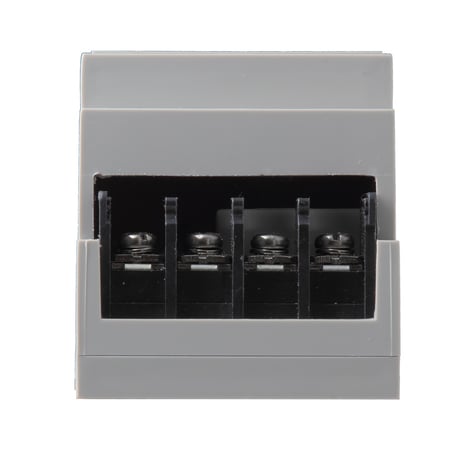
Product Image
1. Connect the external power supply to the input connector and external devices to the output connector. 2. Put the Z-Wave Gateway or Control Panel into Inclusion mode (please refer to the Z-Wave Gateway or Control Panel manual). 3. Within 1.5 seconds, press the Function Button 3 times. 4. Refer to the operation manual of the Z-Wave Gateway or Control panel to complete the adding process. 5. If the device has already been added (included) into another Z-Wave Gateway/Control Panel, or if the device is unable to be added into the current Z-Wave Gateway/Control Panel, please exclude it first (see Removing Device) before attempting to include it into the current Z-Wave Gateway/Control Panel.
1. Put the Z-Wave gateway or control panel into Exclusion mode (please refer to the Z-Wave gateway or control panel manual). 2. Within 1.5 seconds, press the Function Button 3 times and the device will be removed from the Z-Wave network.
(Only use factory reset when network Control Panel/Gateway is missing or inoperable). *. Press and hold the Function Button of the device for 10 seconds to factory reset.
*. When the power consumed changes by +/- 2W, PSM-DIN3 will transmit a signal to Z-Wave Gateway/Panel. *. When the power consumed changes by +0.1 kWh, PSM-DIN3 will transmit a signal to Z-Wave Gateway/Panel. *. When the power is below 20W, measurement error is more likely to occur.
The DSK information is stored in the QR code format that is printed on a label and adhered to the front side of the device, as example shown on the right hand side.
| Type | Value(s) |
|---|
| Meter type |
|---|
| Electric Meter Consumption |