Sunricher
Z-Wave Dim Remote Control
SR-ZV9001K2-DIM
Wall Controller
HW: 1 FW: 1.26
ZM5101
6.71.03
0x0330 (816)
0x0300 (768)
0xa30f (41743)
ZC10-20066922
2020-06-16 11:04:45.396848
N/A
Enhanced 232 Slave
Portable Slave
Yes
The remote control is a Z-Wave device that can both control other Z-Wave devices and activate scenes in Gateways. Although it is controlling other devices, the device cannot act as Z-Wave network controller (primary or secondary) and will always need a Z-Wave network controller to be added into a Z-Wave network.
The remote control is a Z-Wave device that can both control other Z-Wave devices and activate scenes in Gateways. Although it is controlling other devices, the device cannot act as Z-Wave network controller (primary or secondary) and will always need a Z-Wave network controller to be added into a Z-Wave network.This product can be operated in any Z-Wave network with other Z-Wave certified devices from other manufacturers. The remote control has following functions: 1. Control of groups of other Z-Wave devices using ON, OFF and Dim commands. 2. Activation of scenes in Gateway mode.
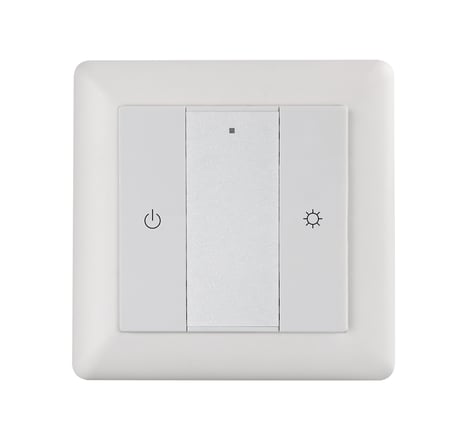
Product Image
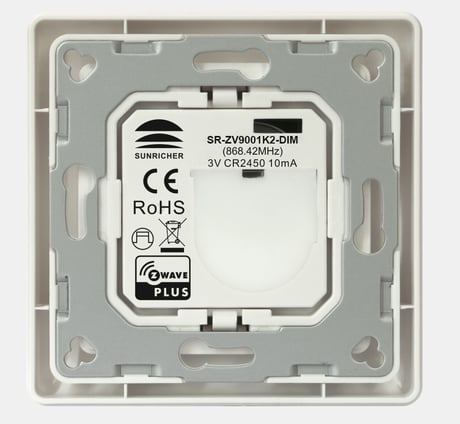


1 - factory reset
Value=0x55AA, other values are invalid, factory reset the Remote ControlSize: 2 bytes
Default: 21930
Minimum: 21930
Maximum: 21930
Possible values
| From | To | Desription |
|---|---|---|
| 21930 | 21930 | factory reset |
Step 1. Make sure the remote control does not belong to any Z-Wave network, short press any button, if LED indicator does not turn on, the remote control does not belong to any network, then continue step 2,if LED indicator turns on, it means the remote control has already been included to a network, please first set the remote control to exclusion mode (refer to the part "Exclusion" of this manual),then continue step 2. Step 2. Set primary controller/gateway into inclusion mode (Please refer to your primary controllers manual on how to turn your controller into inclusion). Step 3. Press and hold down both two buttons over 3 seconds, LED indicator turns on, the remote control will be set to inclusion mode, and waiting to be included, after 10s LED indicator blinks 6 times quickly to indicate successful inclusion. The remote control is a sleepy device, after inclusion it will not enter into sleepy mode immediately, and will continue activation status for 30s and wait data interaction from the gateway, the LED indicator will stay solid on, please be patient to wait LED indicator to turn off.
There are two exclusion methods: Method 1: Exclusion from the primary controller/gateway as follows: 1. Set the primary controller/gateway into exclusion mode (Please refer to your primary controllers manual on how to set your controller into exclusion). 2. Press and hold down both two buttons over 3 seconds, LED indicator turns on, the remote control will be set to exclusion mode, and waiting to be excluded, after 7s LED indicator blinks 4 times quickly to indicate successful exclusion. Method 2: Factory reset the remote control will force the remote control to be excluded from a network. (please refer to the part “Factory Reset” of this manual)
The remote control is under sleepy mode for most of the time to save battery power. It can not receive wireless command under sleepy mode. Before the gateway interacts data with the remote, the remote control shall be activated manually first. Short press any button to activate the remote control for 3s, and press and hold down two buttons together over 1 second to activate the remote control for 7s.
Press and hold down both two buttons together for over 10 seconds, LED indicator turns on and then blinks 4 times quickly to indicate successful factory reset. Please use this procedure only when the network primary controller is missing or otherwise inoperable.
Step 1. Make sure the remote control does not belong to any Z-Wave network, short press any button, if LED indicator does not turn on, the remote control does not belong to any network, then continue step 2,if LED indicator turns on, it means the remote control has already been included to a network, please first set the remote control to exclusion mode (refer to the part Exclusion"" of this manual),then continue step 2. Step 2. Set primary controller/gateway into inclusion mode (Please refer to your primary controllers manual on how to turn your controller into inclusion). Step 3. Press and hold down both buttons I and O of Group 2 over 3 seconds, LED indicator turns on, the remote control will be set to inclusion mode, and waiting to be included, after 10s LED indicator blinks 6 times quickly to indicate successful inclusion. The remote control is a sleepy device, after inclusion it will not enter into sleepy mode immediately, and will continue activation status for 30s and wait data interaction from the gateway, the LED indicator will stay solid on, please be patient to wait LED indicator to turn off.
There are two exclusion methods: Method 1: Exclusion from the primary controller/gateway as follows: 1. Set the primary controller/gateway into exclusion mode (Please refer to your primary controllers manual on how to set your controller into exclusion). 2. Press and hold down both buttons I and O of Group 2 over 3 seconds, LED indicator turns on, the remote control will be set to exclusion mode, and waiting to be excluded, after 7s LED indicator blinks 4 times quickly to indicate successful exclusion.
| Type | Value(s) |
|---|