Trane
XL824
TCONT824AS52DB
Central Controller
HW: 1 FW: 7.13:11.02
ZM5202
6.82.01
0x008B (139)
0x5438 (21560)
0x325A (12890)
ZC10-20106993
2020-09-18 10:46:46.749809
N/A
Bridge Controller
Central Static Controller
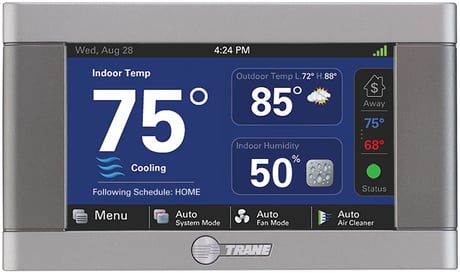
Embedded within the XL824 comfort control is a S2 secure-enabled Z-Wave Plus central static controller designed to enable remote control of a Z-Wave network from the Nexia smart home system.
When enrolled to a Nexia smart home system account, the XL824 is a Z-Wave Plus security-enabled device that can serve as a central hub for an entire network of home automation devices, including all non-battery powered devices that will act as repeaters on your network. Your XL824 can also display local weather conditions, five-day forecasts and National Weather Service warnings and alerts.
Product Image
To add the bridge to an existing network, follow your primary controller’s instructions to put the primary controller into Add Mode. Then press the Learn button on the bridge. This function copies a new Z-Wave network to the bridge from another controller. This function is not allowed if your bridge is a primary controller with included Z-Wave devices.
Resets all Z-Wave information and removes all devices from the bridge. If this bridge is the primary controller for your network, resetting it will result in all the devices in your network being removed. Following the reset, it will be necessary to remove and then add all of the devices back to your network.
1) The DSK is not on the label. We run the zip gateway which can give us a new DSK after every factory reset. Since it can change it is not included on the label or literature. It is only displayed on the UI. 2) The DSK is displayed on the UI when being added to an S2 controller and after pressing the Learn button.
To add the bridge to an existing network, follow your primary controller’s instructions to put the primary controller into Add Mode. Then press the Learn button on the bridge. This function copies a new Z-Wave network to the bridge from another controller. This function is not allowed if your bridge is a primary controller with included Z-Wave devices.
From the HOME Screen, press MENU, then press NEXIA. Press ADD DEVICE and follow the device manufacturer’s instructions for setting the Z-Wave device into learn mode.
From the HOME Screen, press MENU, then press NEXIA. Press REMOVE DEVICE and follow the manufacturer’s instructions for setting the Z-Wave device into learn mode. You will have four minutes to set the device into learn mode after pressing the REMOVE DEVICE button.
| Type | Value(s) |
|---|
| Group | Type |
|---|---|
| Access Control |
|
| Home Security | Motion sensor status: Motion detection |
| Siren |
|
| Sensor type |
|---|
| Air Temperature |
| General Purpose |
| Humidity |
| Water Flow |
| Meter type |
|---|
| Cooling Meter Consumption |
| Cooling Meter Production |
| Electric Meter Consumption |
| Electric Meter Production |
| Gas Meter Consumption |
| Gas Meter Production |
| Heating Meter Consumption |
| Heating Meter Production |
| Water Meter Consumption |
| Water Meter Production |