Elan
Elan System Controller
EL-SC-100
Gateway
HW: 1 FW: 7.13:02.03
7.13.1
0x014F (335)
0x5343 (21315)
0x5a57 (23127)
ZC12-20120148
2020-11-05 13:41:03.224602
N/A
Bridge Controller
Central Static Controller
The EL-SC-100 provides a single point of control and automation for media, climate, lighting, security, door locks, and more.
A Smart Home means enjoying the maximum comfort and convenience technology can provide. Connect all of your devices under one platform using Z-Wave, IP, RS-232, or IR control. The award-winning ELAN user experience sets us apart and gives you full and easy control of your connected smart home and entertainment system.
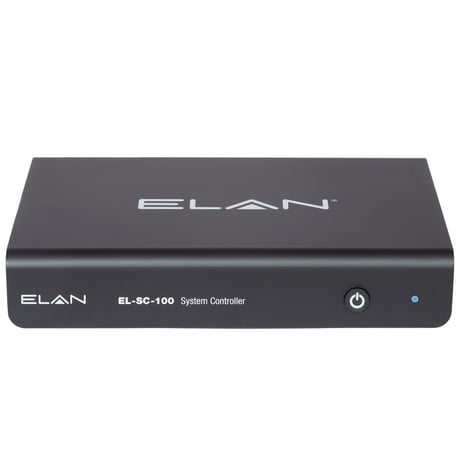
Product Image
1. Navigation to the Communication Device: ELAN Z-Wave Network page under Security, Climate, Lighting or Input/Output Tabs in Configurator 2. Management View: Network Management 3. Network Action: Learn 4. Put other controller in Add/Include mode per manufacturer instruction 5. Execute (button to right of Network action)
1. Navigation to the Communication Device: ELAN Z-Wave Network page under Security, Climate, Lighting or Input/Output Tabs in Configurator 2. Management View: Network Management 3. Network Action: Reset 4. Execute (button to right of Network action)
Products are professionally installed. During configuration the UI will present the DSK information.
1. Navigation to the Communication Device: ELAN Z-Wave Network page under Security, Climate, Lighting or Input/Output Tabs in Configurator 2. Management View: Network Management 3. Node Action: Request Info 4. Select desired Node ID in the Devices list 5. Execute (button to right of Node action)
Replication of network information from the controller to another controller is not supported.
1. Navigation to the Communication Device: ELAN Z-Wave Network page under Security, Climate, Lighting or Input/Output Tabs in Configurator 2. Management View: Network Provisioning. 3. Refer device documentation / manufacturer instruction for Z-wave DSK of the device. 4. Put device full DSK string in Device DSK text box & click Append. 5. Click on “ Add device to List “ button. 6. Click on “Discover Devices button” at the bottom. 7. Power on the end device or any other mechanism to start smart start in the device to be added into SC100 network. Refer manufacturer instruction.
1. Navigation to the Communication Device: ELAN Z-Wave Network page under Security, Climate, Lighting or Input/Output Tabs in Configurator 2. Set Management View: Network Management 3. Set Network Action: Include 4. Put device in Inclusion/Learn mode per manufacturer instruction Execute (button to right of Network action)
1. Navigation to the Communication Device: ELAN Z-Wave Network page under Security, Climate, Lighting or Input/Output Tabs in Configurator 2. Management View: Network Management 3. Network Action: Exclude 4. Put device in Exclusion/Learn mode per manufacturer instruction 5. Execute (button to right of Network action)
1. Navigation to the Communication Device: ELAN Z-Wave Network page under Security, Climate, Lighting or Input/Output Tabs in Configurator 2. Management View: Network Provisioning. 3. Network Action: Remove Device – This action removes the device only form the provisioning list & not from Z-wave network. 4. Network Action: Clear List – This action removes all the devices only form the provisioning list & not from Z-wave network.
| Type | Value(s) |
|---|
| Group | Type |
|---|---|
| Access Control |
|
| Home Security |
|
| Power Management | Power status: Power has been applied |
| Sensor type |
|---|
| Air Temperature |
| General Purpose |
| Illuminance |
| Power |
| Humidity |
| Outside Temperature |
| Meter type |
|---|
| Cooling Meter Consumption |
| Cooling Meter Production |
| Electric Meter Consumption |
| Electric Meter Production |
| Gas Meter Consumption |
| Gas Meter Production |
| Heating Meter Consumption |
| Heating Meter Production |
| Water Meter Consumption |
| Water Meter Production |