SONY Network Communications inc.
ONU Integrated Service Router
NSD-G3000T
Gateway
HW: 1 FW: 7.13:07.13
ZGM130
7.13.2
0x0402 (1026)
0x0003 (3)
0x0002 (2)
ZC12-21010164
2021-01-15 15:01:51.886965
N/A
Bridge Controller
Central Static Controller
This product is an ONU Integrated Service Router for NURO.
The current product is a home gateway device. IoT devices such as sensors are connected and can be controlled with this device. This device supports various interfaces for the functionalities of Wireless LAN, Bluetooth, Z-Wave. The device can collect sensing data from various Z-Wave sensor devices, and uploading of the data to a cloud server by PON interface is available. The ONU Integrated Service Router has the following general features: - 4 LAN Ports - Wireless LAN interface - Z-Wave communication - Bluetooth communication
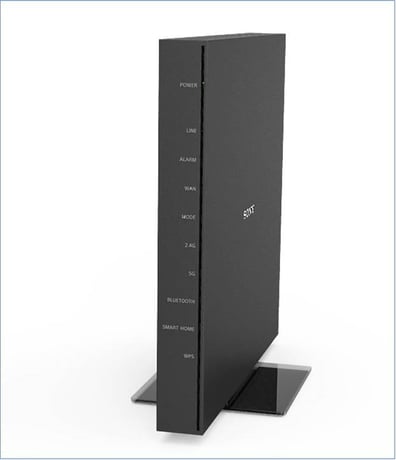
Product Image
To add a device to the Z-Wave network, press the “Inclusion” button in the Android Controller Application.
To remove a device from the Z-Wave network, press the “Exclusion” button in the Android Controller Application.
To add an IoT gateway into another Z-Wave network as a secondary controller or inclusion controller, press “Learn Mode Classic” or “Learn Mode NWI” in the Settings dialog.
Press “RESET” in the Factory Default Reset dialog. This will reset the Z- Wave chip, and the gateway will show “DEVICE RESET LOCALLY NOTIFICATION” after the restart.
As the camera starts, hold it over the QR code. Register or Unregister the DSK when you correctly hold the camera over a QR code on product label. (Full DSK is printed on a gift box) QR code is on a product label in a PON Cover. Since the QR code is written on the inside of the PON cover, it is protected from the wonders of rubbing and dirt.
In the event that the gateway is already the controller of the Z-Wave network, put the gateway into Inclusion Mode, and put another controller into the Learn Mode. The Replication will begin and network information will be sent to another controller. In the event that the gateway is integrated into an existing Z-Wave network, put the gateway into Learn Mode, and put the existing controller into Inclusion Mode. The Replication will begin and network information will be received from the existing controller.
Press “Add” to display the camera screen. As the camera starts, hold it over the QR code. Register the DSK when you correctly hold the camera over a QR code on the product label.
To add a device to the Z-Wave network, press the “Inclusion” button in the Android Controller Application.
To remove a device from the Z-Wave network, press the “Exclusion” button in the Android Controller Application.
Access When tapping the Setting button, a Settings dialog will be displayed. Show Provisioning List Edit Display the registered provisioning list (DSK and inclusion status). Press an item in the list to delete it.
| Group | Type |
|---|---|
| Heat Alarm | Rapid temperature rise |
| Sensor type |
|---|
| Air Temperature |
| Meter type |
|---|
| Heating Meter Production |