Alloy SmartHome Hub
Alloy SmartHome Hub
AH-HUB3
Gateway
HW: 1 FW: 7.13:07.14:02.03
ZGM130
7.14.3
0x0390 (912)
0x0001 (1)
0x0001 (1)
ZC12-21040215
2021-01-21 12:24:22.580775
N/A
Bridge Controller
Central Static Controller
The Alloy SmartHome Hub is a Security Enabled Z-Wave Plus central static controller.
The Alloy SmartHome Hub is a Security Enabled Z-Wave Plus central static controller. It is responsible for managing a network of Z-Wave-compliant devices from a fixed location. The Alloy SmartHome Hub provides extensive support for the following Z-Wave-compliant devices: Thermostats Secure door locks Notification sensors Binary and multilevel power switches Sirens Central Scene Controllers All Z-Wave-compliant devices from different manufacturers and product categories can be a part of the Z-Wave network controlled by the Alloy SmartHome Hub. At a minimum, the Alloy SmartHome Hub will control them via basic on/off commands.
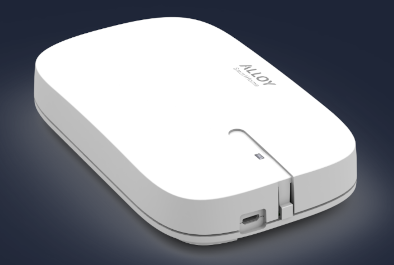
Product Image
The Alloy SmartHome Hub can be put in Learn Mode in order to add it to another controller's network as a secondary controller. This is useful when performing tests on the Hub. Please note that the moment the Alloy SmartHome Hub becomes a secondary controller, it falls under the control of the primary controller. Until the Hub becomes primary again, the Alloy SmartHome Hub Web application is no longer functional. You put the Hub in Learn Mode with the small button on the Hub itself (just above the LED light). Press it twice within one second and it will put the Alloy SmartHome Hub in Learn Mode for 30 seconds. The LED flashes green while the Hub is in Learn Mode from pressing the button. The Hub restarts if it was successfully added as a secondary controller by another controller.
To reset the Alloy SmartHome Hub to its factory settings, you will first need to remove all devices. A Factory reset button will then become visible. Pressing the Factory reset button will immediately reset the Hub. The Hub will reboot. If this controller is the primary controller for your network, resetting it will result in the nodes in your network being orphaned and it will be necessary after the reset to exclude and re-include all of the nodes in the network. If this controller is being used as a secondary controller in the network, use this procedure to reset this controller only in the event that the network primary controller is missing or otherwise inoperable.
The DSK QR Code and PIN are printed on the label on the bottom of the device
The Hub automatically discovers the capabilities of the devices added to its network when they are added and every time it starts up. Should the devices acquire new capabilities via firmware updates, these capabilities, to the extent that they are supported by the Hub, will be discovered the next time the Hub is restarted.
The Alloy SmartHome Hub is a Z-Wave static central controller. It is responsible for managing a network of Z-Wave-compliant devices from a fixed location. It typically acts as the "primary" controller for the network, meaning that it is responsible for the addition (inclusion) and removal (exclusion) of devices from the network. Only primary controllers can add or remove devices. A controller maintains "routing tables" and uses them to reach the devices in its network. A primary controller can add another, secondary, controller to the network. When it does, it "replicates" its routing tables on the secondary controller.
Z-Wave SmartStart automates the secure addition of devices to the Z-Wave network controlled by the Alloy SmartHome Hub. By giving the Hub a list of provisioned devices, you are instructing it to automatically add matching devices to the Z-Wave network, if not already added, whenever they are detected by the Hub. Only one device can possibly match a given SmartStart provisioning.
When the Devices tab is selected, an Add a device button is displayed under the list of already added devices. To add a device that is not yet part of a Z-Wave network, press the Add a device button and put a device into "add mode" (follow the instructions in the documentation that came with the device). If the device is an S2 authenticated device, in order to securely include it, you will be asked to provide its PIN. The hub should complete the process automatically and, after a few seconds, report success and add the device to the list. If the device was not added securely, the application reports the fact. The application also reports when adding a device fails or times out.
When the Devices tab is selected, a Remove a device button is displayed under the list of already added devices. To remove a device from the Z-Wave network controlled by the Hub, press the button and put one of the listed devices (other than the "Gateway") into "remove mode" (follow the instructions in the documentation that came with the device). The Hub should complete the process automatically and, after a few seconds, report success and remove the device from the list.
A device is provisioned first clicking on the "Add provisioning" button and then editing the details of its provisioning. This is done by entering its 40-digit secure device key (SDK), accompanied by a meaningful name. Note that the SDK is composed of eight 5-digit numbers separated by dashes. When done, press on the "Set" button.
| Type | Value(s) |
|---|
| Group | Type |
|---|---|
| Smoke Alarm |
|
| CO Alarm |
|
| CO2 Alarm |
|
| Heat Alarm |
|
| Water Alarm |
|
| Access Control |
|
| Home Security |
|
| Power Management |
|
| System |
|
| Emergency Alarm |
|
| Clock |
|
| Appliance |
|
| Home Health |
|
| Siren |
|
| Water Valve |
|
| Weather Alarm |
|
| Irrigation |
|
| Gas alarm |
|
| Pest Control |
|
| Light sensor |
|
| Water Quality Monitoring |
|
| Home monitoring |
|
| Request pending notification | State idle |
| Sensor type |
|---|
| General Purpose |
| Meter type |
|---|
| Cooling Meter Consumption |
| Cooling Meter Production |
| Electric Meter Consumption |
| Electric Meter Production |
| Gas Meter Consumption |
| Gas Meter Production |
| Heating Meter Consumption |
| Heating Meter Production |
| Water Meter Consumption |
| Water Meter Production |