Ecolink Intelligent Technology
TBZ500 Thermostat
TBZ500
Thermostat - HVAC
HW: 4 FW: 6.08:03.00
ZM5202
6.82.00
0x014A (330)
0x5442 (21570)
0x5439 (21561)
ZC10-21047015
2021-04-01 11:40:27.546676
N/A
Routing Slave
Always On Slave
Yes
TBZ500 Z-Wave® thermostat paired with a security system provides greater control of your energy and can remotely control, automate and monitor the home’s temperature.
The TBZ500 is a Z-Wave® wireless digital thermostat that supports both 24VAC and battery operation. Designed to control the majority of HVAC systems including standard gas/electric type and heat pump systems. The TBZ500 contains a robust thermostat interface and is designed for use with communicating systems where remote monitoring and/or remote control are desired.
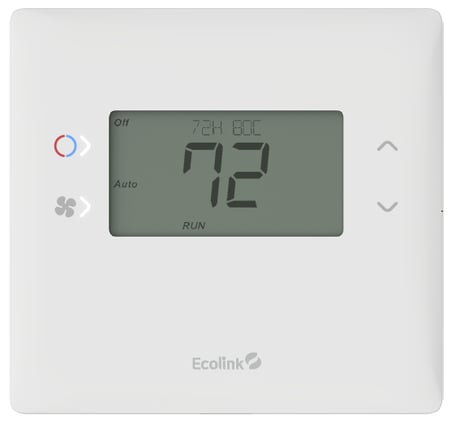
Product Image
TBZ500 White Front


1 - System Type 4
0 = Standard 1 = Heat PumpSize: 1 byte
Default: 0
Minimum: 0
Maximum: 1
Possible values
| From | To | Desription |
|---|---|---|
| 0 | 1 | 0 = Standard 1 = Heat Pump |
2 - Fan Type 4
0 = Gas (No fan w/Heat) 1 = Electric (Fan w/Heat)Size: 1 byte
Default: 0
Minimum: 0
Maximum: 1
Possible values
| From | To | Desription |
|---|---|---|
| 0 | 1 | 0 = Gas (No fan w/Heat) 1 = Electric (Fan w/Heat) |
Classic Inclusion - Adding the thermostat to a Z-Wave network. 1. Follow the instructions provided with your system for enrolling the thermostat. 2. Press and hold the FAN button on the Thermostat until the screen changes to the Menu screen. 3. Press the UP button until ZWAVE is shown in the Status Display line then press Select. 4. INSTALL should be shown on the status line. 5. When instructed by your system installation to add the thermostat to the network press the “Select” button to install. Wait until SUCCESS or FAILED is shown on thestatus display. 6. Press Done on the Thermostat to exit the ZWAVE screen. 7. Press Done on the Thermostat again to exit the Menu screen. 8. Once enrolled on your system’s network, continue to follow the instructions provided to complete the enrollment and naming of the thermostat. 9. The indicator should be shown on the Thermostat Main screen indicating the thermostat has successfully been enrolled into the Z-Wave network.
Removing the thermostat from a Z-Wave network. It may be necessary to remove and/or reinstall the thermostat from a Z-Wave network if the thermostat has been previously installed on another network. Follow the instructions supplied with your Z-Wave system to remove/uninstall a Z-Wave device. When the system instructs you to press and release the Z-Wave button on the thermostat, follow these steps: 1. Press and hold the FAN button for 3 seconds until the Menu screen is displayed. 2. Press the UP arrow button to scroll to the “ZWAVE” menu. 3. Press “Select” to select the ZWAVE screen. 4. The display will show “REMOVE” in the text line. 5. Press “Select” to perform the remove action. 6. “WAIT” will be displayed in the text line. The remove operation is in process. 7. “SUCCESS” will be display when the thermostat has been excluded from the network. 8. Press “Done” to exit back to the thermostat screen. 9. Thermostat is now ready to be added to any Z-Wave network.
N/A - listening sleeping slave device type
Please use this procedure only when the Z-Wave Primary Controller is missing or otherwise inoperable. To reset the TBZ500’s Z-Wave parameters to Factory Settings (both Z-Wave and HVAC settings): 1. Remove power from the TBZ500. 2. Restore power to the TBZ500. 3. When “TBZ500” appears on the screen, hold down the MODE and FAN buttons at the same time. 4. Release the buttons when RESET appears on the Status Line. 5. Once the TBZ500 resets the Z-Wave and HVAC settings, a DONE confirmation message will appear on the screen before the thermostat self-reboots.
Page 25 - SmartStart Inclusion
| Type | Value(s) |
|---|
| Sensor type |
|---|
| Air Temperature |
| Humidity |