N/A
Z-Wave SmartPlug US
SC428ZW
On/Off Power Switch
HW: 0 FW: 1.08
ZM5101
6.82.01
0x0140 (320)
0x0807 (2055)
0x1007 (4103)
ZC10-21047014
2021-03-30 13:55:26.371103
N/A
Enhanced 232 Slave
Always On Slave
The compact Z-Wave SmartPlug power outlet provides wireless control for most plug-in devices.
The Z-Wave SmartPlug works with your home automation system to provide wireless control of common household devices with the following features: • Z-wave Plus Security Framework • On/Off Power Switching • Compact design does not block a second outlet • Energy usage monitoring • Wireless repeater to extend network range • Overvoltage Alarm • Overcurrent Alarm • Over-The-Air (OTA) firmware updates
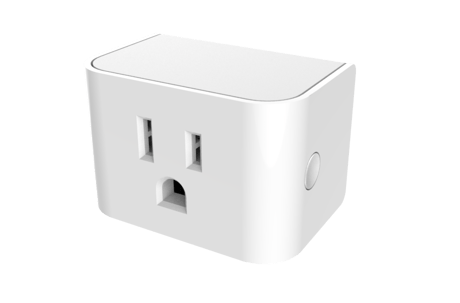
Product Image


1 - Status when powered up
Status when powered up 0 = Off 1 = On 2 = Status when last poweredSize: 1 byte
Default: 2
Minimum: 0
Maximum: 2
Possible values
| From | To | Desription |
|---|---|---|
| 0 | 2 | Status when powered up 0 = Off 1 = On 2 = Status when last powered |
3 - Enable/Disable for Group 2 & 3
Enable/Disable for Group 2 & 3 0 = Group 2 & 3 disabled 1 = Group 2 enabled 2 = Group 3 enabled 3 = Group 2 & 3 enabledSize: 1 byte
Default: 3
Minimum: 0
Maximum: 3
Possible values
| From | To | Desription |
|---|---|---|
| 0 | 3 | Enable/Disable for Group 2 & 3 0 = Group 2 & 3 disabled 1 = Group 2 enabled 2 = Group 3 enabled 3 = Group 2 & 3 enabled |
5 - Overvoltage Alarm (V)
Overvoltage Alarm (V) 1-200 = Overvoltage Alarm thresholdSize: 2 bytes
Default: 132
Minimum: 1
Maximum: 200
Possible values
| From | To | Desription |
|---|---|---|
| 1 | 200 | Overvoltage Alarm (V) 1-200 = Overvoltage Alarm threshold |
6 - Overcurrent Alarm (mA)
Overcurrent Alarm (mA) 1-15000 = Overcurrent Alarm thresholdSize: 2 bytes
Default: 15000
Minimum: 1
Maximum: 15000
Possible values
| From | To | Desription |
|---|---|---|
| 1 | 15000 | Overcurrent Alarm (mA) 1-15000 = Overcurrent Alarm threshold |
21 - Power Change Report
Enable/Disable for Group 2 & 3 0 = Group 2 & 3 disabled 1 = Group 2 enabled 2 = Group 3 enabled 3 = Group 2 & 3 enabledSize: 1 byte
Default: 10
Minimum: 1
Maximum: 100
Possible values
| From | To | Desription |
|---|---|---|
| 1 | 100 | Enable/Disable for Group 2 & 3 0 = Group 2 & 3 disabled 1 = Group 2 enabled 2 = Group 3 enabled 3 = Group 2 & 3 enabled |
22 - Overload Power Report
Overload Power Report 1 – 1980 = 1 to 1980WSize: 2 bytes
Default: 1980
Minimum: 1
Maximum: 1980
Possible values
| From | To | Desription |
|---|---|---|
| 1 | 1980 | Overload Power Report 1 – 1980 = 1 to 1980W |
23 - Energy Report
Energy Report 1 – 327 = 1 KWh to 327 KWhSize: 2 bytes
Default: 1
Minimum: 1
Maximum: 327
Possible values
| From | To | Desription |
|---|---|---|
| 1 | 327 | Energy Report 1 – 327 = 1 KWh to 327 KWh |
24 - Metering Report
Metering Report 30 – 32767 = 30 – 32767 seconds to send reportSize: 2 bytes
Default: 3600
Minimum: 30
Maximum: 32767
Possible values
| From | To | Desription |
|---|---|---|
| 30 | 32767 | Metering Report 30 – 32767 = 30 – 32767 seconds to send report |
25 - High Power Threshold
High Power Threshold 0 = High Power Threshold disabled 1 – 32767 = High Power Threshold (Watts)Size: 2 bytes
Default: 1980
Minimum: 1
Maximum: 32767
Possible values
| From | To | Desription |
|---|---|---|
| 1 | 32767 | High Power Threshold 0 = High Power Threshold disabled 1 – 32767 = High Power Threshold (Watts) |
26 - Low Power Threshold
Low Power Threshold 0 = Low Power Threshold disabled 1 – 32767 = High Power Threshold (Watts)Size: 2 bytes
Default: 5
Minimum: 1
Maximum: 32767
Possible values
| From | To | Desription |
|---|---|---|
| 1 | 32767 | Low Power Threshold 0 = Low Power Threshold disabled 1 – 32767 = High Power Threshold (Watts) |
27 - Power Threshold Action
Power Threshold Action 1 = Power Threshold Action disabled 2 = Power High Threshold is enabled and send OFF to group 4 4 = Power High Threshold is enabled and send ON to group 4 8 = Power Low Threshold is enabled and send OFF to group 5 16 = Power Low Threshold is enabled and send ON to group 5 12 = 4 AND 8Size: 1 byte
Default: 12
Minimum: 1
Maximum: 16
Possible values
| From | To | Desription |
|---|---|---|
| 1 | 16 | Power Threshold Action 1 = Power Threshold Action disabled 2 = Power High Threshold is enabled and send OFF to group 4 4 = Power High Threshold is enabled and send ON to group 4 8 = Power Low Threshold is enabled and send OFF to group 5 16 = Power Low Threshold is enabled and send ON to group 5 12 = 4 AND 8 |
Add (Include) a device to a network • Refer to the instructions for your Z-Wave certified controller to add a device to the Z-Wave network. • Locate the Device Specific Key (DSK) label located on the back(plug side) of the SmartPlug, scan QR code to obtain DSK. • Plug the SmartPlug switch into an AC outlet at the desired location to account for any radio interference. • Press the Multi Button once to initiate adding the device to the network.
Remove (Exclude) a device from a network • Refer to the instructions for your Z-Wave certified controller to remove a device to the Z-Wave network. • Press the Multi Button once to remove the switch from the network.
Reset to Factory Defaults Press and hold the Multi Button for more than 10 seconds. The amber LED will be illuminated for 2 seconds while it searches for the network. Please use this procedure only when the network primary controller is missing or otherwise inoperable.
Energy Usage Monitoring
The DSK is printed on a label on the back side of the device
| Type | Value(s) |
|---|
| Group | Type |
|---|---|
| Power Management |
|
| Meter type |
|---|
| Electric Meter Consumption |