Zooz
DIMMER SWITCH 700
ZEN72
Multilevel Switch
HW: 1 FW: 1.00
ZGM130
7.13.6
0x027A (634)
0x7000 (28672)
0xA002 (40962)
ZC12-21030190
2021-02-26 09:41:07.767541
N/A
Enhanced 232 Slave
Always On Slave
Meet the new 700 Series Z-Wave Plus Dimmer with Direct 3-Way Solution, Multi-color LED indicator and Smart Bulb Mode.
PRODUCT HIGHLIGHTS: - Manual or Z-Wave on/off and brightness control - NEW: 700 series Z-Wave chip for better range and faster control -Direct 3-Way: works with regular on/off switches in a 3-way - Scene control: trigger actions with multi-tap (select hubs only) - Smart bulb mode: disable relay and control the light via Z-Wave - Night light mode: press down when off to turn lights on to 20% - Adjustable LED indicator in 4 colors and 3 brightness levels - Built-in Z-Wave range test tool and signal repeater - Works with LED and incandescent bulbs (don’t use with tubes) SPECS: - Model Number: ZEN72 VER. 1.0 - Z-Wave Signal Frequency: 908.42 MHz - Power: 120 VAC, 60 Hz - Maximum Load: 150W LED bulbs, 960W Incandescent, 1800W -(15A) Resistive - Range: Up to 500 feet line of sight - Operating Temperature: 32-104° F (0-40° C) - Installation and Use: Indoor only
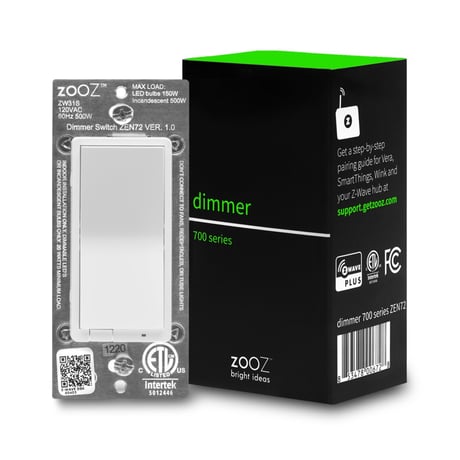
Product Image


1 - On/Off Paddle Orientation
Choose if you want the upper paddle to turn the light on or turn the light off when tapped.Size: 1 byte
Default: 0
Minimum: 0
Maximum: 2
Possible values
| From | To | Desription |
|---|---|---|
| 0 | 0 | Upper paddle turns the light on, lower paddle turns it off (default) |
| 1 | 1 | Upper paddle turns the light off, lower paddle turns it on |
| 2 | 2 | Any paddle turns light on/off. |
2 - LED Indicator Control
Choose if you want the LED indicator to turn on when the switch (light) is on or off, or if you want it to remain on or off at all times.Size: 1 byte
Default: 0
Minimum: 0
Maximum: 3
Possible values
| From | To | Desription |
|---|---|---|
| 0 | 0 | LED indicator is on when switch is off, LED indicator is off when switch is on (default) |
| 1 | 1 | LED indicator is on when switch is on, LED indicator is off when switch is off; |
| 2 | 2 | LED indicator is always OFF |
| 3 | 3 | LED indicator is always ON |
3 - Auto Turn-Off Timer
Use this parameter to enable or disable the auto turn-off timer function (the time after which you want the switch to automatically turn off once it has been turned on).Size: 4 bytes
Default: 0
Minimum: 0
Maximum: 65535
Possible values
| From | To | Desription |
|---|---|---|
| 0 | 0 | timer disabled (default) |
| 1 | 65535 | minutes |
5 - Auto Turn-On Timer
Use this parameter to enable or disable the auto turn-on timer function (the time after which you want the switch to automatically turn on once it has been turned off).Size: 4 bytes
Default: 0
Minimum: 0
Maximum: 65535
Possible values
| From | To | Desription |
|---|---|---|
| 0 | 0 | timer disabled |
| 1 | 65535 | minutes |
8 - On Off Status After Power Failure
Set the on off status for the switch after power failure.Size: 1 byte
Default: 2
Minimum: 0
Maximum: 2
Possible values
| From | To | Desription |
|---|---|---|
| 0 | 0 | forced to OFF (regardless of state prior to power outage) |
| 1 | 1 | forced to ON (regardless of state prior to power outage) |
| 2 | 2 | remembers and restores on/off status after power failure (default) |
9 - Ramp Rate Control
Adjust the ramp rate for your dimmer (fade-in / fade-out effect for on / off operation). Values correspond to the number of seconds it take for the dimmer to reach full brightness or turn off when operated manually.Size: 1 byte
Default: 1
Minimum: 1
Maximum: 99
Possible values
| From | To | Desription |
|---|---|---|
| 1 | 99 | seconds |
10 - Minimum Brightness
Set the minimum brightness level (in %) for your dimmer. You won’t be able to dim the light below the set value.Size: 1 byte
Default: 1
Minimum: 0
Maximum: 99
Possible values
| From | To | Desription |
|---|---|---|
| 1 | 99 | percent |
11 - Maximum Brightness
Set the maximum brightness level (in %) for your dimmer. You won’t be able to add brightness to the light beyond the set value. Note: if Parameter 12 is set to value 0, Parameter 11 is automatically disabled.Size: 1 byte
Default: 99
Minimum: 1
Maximum: 99
Possible values
| From | To | Desription |
|---|---|---|
| 1 | 99 | percent |
12 - Double Tap Behavior
Choose what you'd like the dimmer to do when you double-tap the upper paddle.Size: 1 byte
Default: 0
Minimum: 0
Maximum: 3
Possible values
| From | To | Desription |
|---|---|---|
| 0 | 0 | the light will turn on to full brightness (default) |
| 1 | 1 | the light will turn on to the custom brightness level set in parameter 18 |
| 2 | 2 | the light will turn on to the maximum brightness level set in Parameter 11 |
| 3 | 3 | double tap disabled |
15 - Smart Bulb Mode: Enable/Disable Paddle / Z-Wave Control
Enable or disable paddle on/off control (aka disable the relay). If disabled, you’ll only be able to control the connected light via Z-Wave. Scenes and other functionality will still be available through paddles.Size: 1 byte
Default: 1
Minimum: 0
Maximum: 2
Possible values
| From | To | Desription |
|---|---|---|
| 0 | 0 | physical paddle control disabled |
| 1 | 1 | physical paddle control enabled (default) |
| 2 | 2 | physical paddle and Z-Wave control disabled |
16 - Physical Dimming Speed
Set the time it takes to get from 0% to 100% brightness when pressing and holding the paddle (physical dimming). The number entered as value corresponds to the number of seconds.Size: 1 byte
Default: 5
Minimum: 1
Maximum: 99
Possible values
| From | To | Desription |
|---|---|---|
| 1 | 99 | seconds |
18 - Custom Brightness Level On
Set the custom brightness level (instead of the last set brightness level) you want the dimmer to come on to when you single tap or double tap the upper paddle (see parameters 12 and 25).Size: 1 byte
Default: 0
Minimum: 0
Maximum: 99
Possible values
| From | To | Desription |
|---|---|---|
| 0 | 0 | last brightness level (default) |
| 1 | 99 | % for custom brightness level |
19 - 3-Way Switch Type
Choose the type of 3-way switch you want to use with this dimmer in a 3-way set-up. Changing this setting can allow you to control brightness and dim the light from both 3-way locations. Use a regular momentary switch (like the Zooz ZAC99 accessory switch) if value is set to 2.Size: 1 byte
Default: 0
Minimum: 0
Maximum: 3
Possible values
| From | To | Desription |
|---|---|---|
| 0 | 0 | regular mechanical 3-way on/off switch, use the connected 3-way switch to turn the light off or on to the last brightness level, dimming only available from the Zooz Z-Wave dimmer and from the hub (or through voice control if smart speaker is integrated with your Z-Wave hub) |
| 1 | 1 | regular mechanical 3-way on/off switch, tap the paddles once to change state (light on or off), tap the paddles twice quickly to turn light on to full brightness, tap the paddles quickly 3 times to enable a dimming sequence (the light will start dimming up and down in a loop) and tap the switch again to set the selected brightness level |
| 2 | 2 | momentary switch, click once to change status (light on or off), click twice quickly to turn light on to full brightness, press and hold to adjust brightness (dim up / dim down in sequence) |
| 3 | 3 | momentary switch, click once to change status (light on or off), click twice quickly to turn light on to full brightness, press and hold to adjust brightness (dim up / dim down in sequence but always reduce brightness after double click) |
20 - Paddle Behavior for Smart Bulb Mode
Choose how you'd like the dimmer to report when paddles are tapped and held and physical / Z-Wave control is enabled or disabled.Size: 1 byte
Default: 2
Minimum: 0
Maximum: 2
Possible values
| From | To | Desription |
|---|---|---|
| 0 | 0 | report each brightness level to hub when physical / Z-Wave control is disabled for physical dimming (final level only reported if physical / Z-Wave control is enabled) |
| 1 | 1 | report final brightness level only for physical dimming, regardless of the physical / Z-Wave control mode |
21 - Reporting Behavior for Smart Bulb Mode
Set reporting behavior for disabled physical control.Size: 1 byte
Default: 0
Minimum: 0
Maximum: 1
Possible values
| From | To | Desription |
|---|---|---|
| 0 | 0 | switch reports on/off status and changes LED indicator state even if physical and Z-Wave control is disabled (default) |
| 1 | 1 | switch doesn't report on/off status or change LED indicator state when physical (and Z-Wave) control is disabled. |
22 - Night Light Mode
Set the brightness level the dimmer will turn on to when off and when lower paddle is held DOWN for a second.Size: 1 byte
Default: 20
Minimum: 0
Maximum: 99
Possible values
| From | To | Desription |
|---|---|---|
| 0 | 0 | disabled |
| 1 | 99 | % brightness |
23 - LED Indicator Color
Choose the color of the LED indicator.Size: 1 byte
Default: 1
Minimum: 0
Maximum: 3
Possible values
| From | To | Desription |
|---|---|---|
| 0 | 0 | white |
| 1 | 1 | blue |
| 2 | 2 | green |
| 3 | 3 | red |
24 - LED Indicator Brightness
Choose the LED indicator's brightness level.Size: 1 byte
Default: 1
Minimum: 0
Maximum: 2
Possible values
| From | To | Desription |
|---|---|---|
| 0 | 0 | bright (100%) |
| 1 | 1 | medium (60%) |
| 2 | 2 | low (30%) |
25 - Single Tap Behavior
Choose what you'd like the dimmer to do when you tap the upper paddle once.Size: 1 byte
Default: 0
Minimum: 0
Maximum: 3
Possible values
| From | To | Desription |
|---|---|---|
| 0 | 0 | the light will turn on to the last brightness level (default) |
| 1 | 1 | the light will turn on to the custom brightness level set in parameter 18 |
| 2 | 2 | the light will turn on to the maximum brightness level set in Parameter 11 |
| 3 | 3 | the light will turn on to full brightness |
1. Initiate inclusion (pairing) in the app (or web interface). 2. TAP UP 3 TIMES QUICKLY if using traditional Z-Wave inclusion. 3. The LED indicator will blink blue to signal communication and turn green for 3 seconds if inclusion is successful or turn red for 3 seconds if the pairing attempt fails.
1. Bring your Z-Wave gateway (hub) close to the switch if possible 2. Put the Z-Wave hub into exclusion mode (not sure how to do that? [email protected]) 3. Tap the lower paddle on the switch 3 times quickly (the LED indicator will start blinking blue) 4. Your hub will confirm exclusion, the LED indicator on the switch will turn green for 3 seconds, and the device will disappear from your controller's device list
If your primary controller is missing or inoperable, you may need to reset the device to factory settings. To reset the switch, press and hold the lower paddle for 10 seconds until the LED indicator starts blinking. Release paddle, and immediately after, tap the lower paddle 5 times to complete the reset. The LED indicator will flash blue 3 times and turn red for 3 seconds to confirm successful reset.
on Page 2 under Z-Wave Control > Add Device (visual cue to the location of the QR code on the switch)
| Type | Value(s) |
|---|