Square D
Z-Wave Plus Auxiliary Switch
SQR50101**Z (** means the color code)
Central Scene Device
HW: 1 FW: 1.04
ZGM130
7.13.6
0x0447 (1095)
0x000E (14)
0x1301 (4865)
ZC12-21030200
2021-03-18 16:39:14.815094
N/A
Enhanced 232 Slave
Always On Slave
Z-WAVE REMOTE DIMMER SWITCH
The Square D Z-Wave Remote Dimmer Switch is the professionals choice for secure reliable lighting control. This device does not control a load, it is used in all 3-Way applications for both the Square D dimmer & switch. The remote switch can also be grouped to control Z-Wave receptacle or a plug-in outlet allowing for on-wall control of floor lamps without having to run new wires.
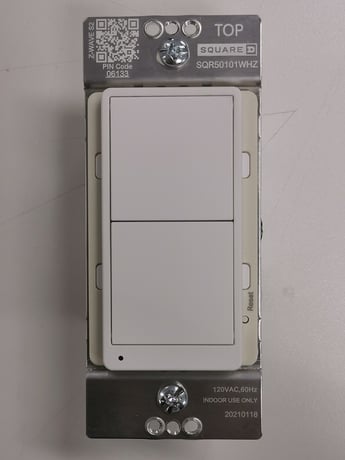
Product Image


1 - Child Lockout Enable
Child Lockout EnableSize: 1 byte
Default: 0
Minimum: 0
Maximum: 1
Possible values
| From | To | Desription |
|---|---|---|
| 0 | 0 | Disable |
| 1 | 1 | Enable |
A. SmartStart inclusion: The feature assumes the gateway has implemented SmartStart. Users could use the APP of the gateway or the gateway camera to scan the QR code on device or on the enclosed label inside the package before powering on the device, and then when the device is powered on, it shall be automatically added to the gateway. B. Manual inclusion (Figure 4): When the gateway is in adding mode (please refer to the instruction of the Z-Wave gateway for the operations on gateway itself), quick click the upper paddle or lower paddle 3 times within 1.5 seconds.
When the gateway is in removing mode (please refer to the instruction of the Z-Wave gateway for the operations on gateway itself), quick click the upper paddle or lower paddle 3 times within 1.5 seconds
Reset to factory defaults (Figure 10): Long press the reset button for >20 seconds till the blue LED blink 5 times within one second. NOTE: • Use this procedure only when the Z-Wave gateway is missing or otherwise inoperable. • Reset the device to factory default settings will set the device to not in Z-Wave network state, delete the association setting and restore the configuration setting to the default.
Product drawing shows the QR code location on user manual page 4