Johnson Controls
Smart Plug In Switch
IQ Outlet
Binary Switch
HW: 1 FW: 7.08
ZGM130
7.13.7
0x012A (298)
0x4744 (18244)
0x3033 (12339)
ZC12-21030207
2021-03-24 12:49:52.248307
N/A
Enhanced 232 Slave
Always On Slave
Make any outlet smarter with the new IQ Outlet using the 700 series Z-Wave module
Make any outlet smarter with the new IQ Outlet using the 700 series Z-Wave module - Turns ON/OFF incandescent, CFL, or LED lamps, and AC operated electrical appliances - 700 Series Z-Wave module - Energy monitoring supported - LED to indicate ON/OFF status - Controls appliances up to 15A - Z-Wave Plus Certified with S2 security and SmartStart (QR code with Z-Wave DSK included) - Grounded 3-pin AC power receptacle to enhance safety - Safety tab to secure to outlet - Compact design - does not block the 2nd AC outlet - Over-The-Air firmware upgrade available, if supported by controller - Supports Network Wide Inclusion (inclusion through a repeater), if supported by controller. - Functions as a Z-Wave signal repeater
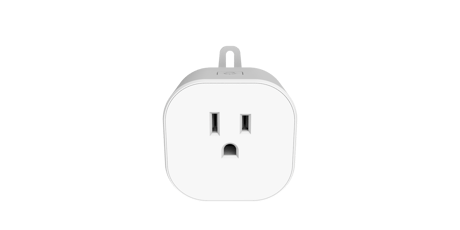
Product Image
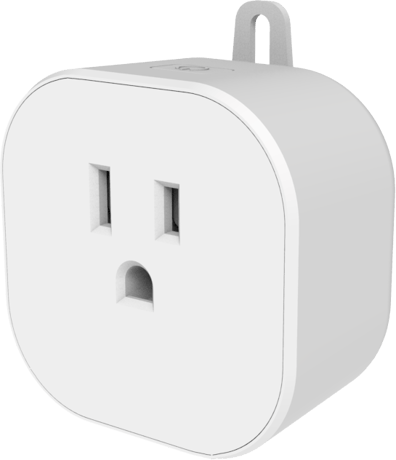


3 - LED Mode Indicator
When value = 0, the LED indicator will be OFF when the connected appliance is ON, and the LED indicator will be ON when the connected appliance is OFF. If value = 1, the LED indicator will be OFF when the connected appliance is OFF, and the LED indicator will be ON when the connected appliance is ON. If value = 2, the LED indicator will be always OFF regardless of the load status.Size: 1 byte
Default: 0
Minimum: 0
Maximum: 2
Possible values
| From | To | Desription |
|---|---|---|
| 0 | 2 | When value = 0, the LED indicator will be OFF when the connected appliance is ON, and the LED indicator will be ON when the connected appliance is OFF. If value = 1, the LED indicator will be OFF when the connected appliance is OFF, and the LED indicator will be ON when the connected appliance is ON. If value = 2, the LED indicator will be always OFF regardless of the load status. |
4 - Energy monitoring reporting interval
0 = Disable energy monitoring, default 1 - 255 = Reporting interval (minutes)Size: 1 byte
Default: 0
Minimum: 0
Maximum: 255
Possible values
| From | To | Desription |
|---|---|---|
| 0 | 255 | 0 = Disable energy monitoring, default 1 - 255 = Reporting interval (minutes) |
1. Place your network controller into inclusion mode by following the controller manufacturer's instructions. 2. When the controller is ready, single click the button on the top of the IQ Outlet. The controller should indicate that the new device was added successfully. 3. Once the IQ Outlet has been successfully added to your home network, you can move it to the preferred location in the home.
1. Place your network controller into exclusion mode by following the controller manufacturer's instructions. 2. When the controller is ready, single click the button on the top of the IQ Outlet. The controller should indicate that the new device was added successfully. 3. Once the IQ Outlet has been successfully added to your home network, you can move it to the preferred location in the home.
Please use this procedure only when the network primary controller is missing or otherwise inoperable. The manual reset method is as follows: 1. Unplug the IQ Outlet from the AC outlet and also unplug the power plug of the appliance from the IQ Outlet (if plugged in). 2. Press and hold the button on the IQ Outlet . 3. Plug the IQ Outlet back into the AC outlet with the button pressed.
Z-Wave Plus Certified with S2 security and SmartStart (QR code on bottom of device)
| Type | Value(s) |
|---|
| Meter type |
|---|
| Electric Meter Consumption |