Jasco
0-10V In-Wall Smart Dimmer (ICP) (120/277)
43107 / ZW3015
Light Dimmer Switch
HW: 255 FW: 5.54
ZM5202
6.82.00
0x0063 (99)
0x4944 (18756)
0x3332 (13106)
ZC10-21057025
2021-04-29 15:55:31.074893
N/A
Enhanced 232 Slave
Always On Slave
0-10V In-Wall Toggle Smart Dimmer with QuickFit and SimpleWire enhancements. This device includes low voltage wiring designs for use with 0-10V commercial lighting. All of this is coupled with Z-Wave S2 and SmartStart allows for effortless installation while being safer than ever!
0-10V In-Wall Toggle Smart Dimmer with QuickFit and SimpleWire enhancements. Revolutionary QuickFit design features a housing depth that is up to 20 percent smaller than the previous Z-Wave models. This reduced size coupled with the elimination of heat taps provides a better fit in older style boxes and multi-gang configurations. SimpleWire technology allows line and load to automatically be configured with auto-sensing line-load terminals. This device includes low voltage wiring designs for use with 0-10V commercial lighting. All of this is coupled with Z-Wave S2 and SmartStart allows for effortless installation while being safer than ever!
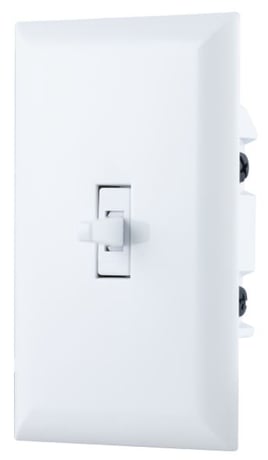
Product Image


3 - LED Indication
Adjust the LED status to default, invert, always OFF or always ONSize: 1 byte
Default: 0
Minimum: 0
Maximum: 3
Possible values
| From | To | Desription |
|---|---|---|
| 0 | 0 | Device is ON, LED is OFF; device is Off, LED is ON |
| 1 | 1 | Device is ON, LED is ON; device is Off, LED is OFF |
| 2 | 2 | LED always off |
| 3 | 3 | LED always ON |
6 - Dim Rate
Adjust the speed at which the ramps to a specific value other than 0 and FFSize: 1 byte
Default: 0
Minimum: 0
Maximum: 1
Possible values
| From | To | Desription |
|---|---|---|
| 0 | 0 | Dim up/down the light to the specified level quickly by command except value 0 and FF |
| 1 | 1 | Dim up/down the light to the specified level slowly by command except value 0 and FF |
16 - Switch Mode
Turn your dimmer into an On/Off switch with switch modeSize: 1 byte
Default: 0
Minimum: 0
Maximum: 1
Possible values
| From | To | Desription |
|---|---|---|
| 0 | 0 | Disable- Normal Operation |
| 1 | 1 | Enabled- Switch Mode |
19 - Alternate Exclusion
Alternate Exclusion method to prevent accidental removal of deviceSize: 1 byte
Default: 0
Minimum: 0
Maximum: 1
Possible values
| From | To | Desription |
|---|---|---|
| 0 | 0 | Normal Operation, press any button to exclude device |
| 1 | 1 | Press two times ON button and two times OFF button, LED will flash 5 times if device is successfully excluded. |
20 - Minimum Dim Threshold
Set minimum dim levelSize: 1 byte
Default: 1
Minimum: 1
Maximum: 99
Possible values
| From | To | Desription |
|---|---|---|
| 1 | 99 | Set the minimum dimmer threshold when manually or remotely controlled |
31 - Maximum Brightness Threshold
Set the maximum brightness levelSize: 1 byte
Default: 99
Minimum: 0
Maximum: 99
Possible values
| From | To | Desription |
|---|---|---|
| 0 | 99 | Set the maximum brightness threshold when manually or remotely controlled |
32 - Default Brightness Level
Set the default brightness level that the dimmer will turn on when being controlled manuallySize: 1 byte
Default: 0
Minimum: 0
Maximum: 99
Possible values
| From | To | Desription |
|---|---|---|
| 0 | 0 | Default |
| 1 | 99 | Ex. 1= 1% and 99 = 99% |
1. Follow the instructions for your Z-Wave certified controller to add a device to the Z-Wave network. 2. Once the controller is ready to add your device, press up and release the toggle. 3. The controller’s app will indicate if it discovers the switch. If prompted by the controller to enter the S2 security code, refer to the QR code/security number on the side of the box or the QR code label on the product (see Figure 1). Enter the 5-digit code
1. Follow the instructions for your Z-Wave certified controller to remove a device from the Z-Wave network. 2. Once the controller is ready to remove your device, press up and release the toggle.
Quickly press ON (up) button three times then immediately press the OFF (down) button three times.
The controller’s app will indicate if it discovers the switch. If prompted by the controller to enter the S2 security code, refer to the QR code/security number on the side of the box or the QR code label on the product (see Figure 1).
| Type | Value(s) |
|---|