Ultraloq
Ultraloq U-Bolt Z-Wave Smart Lock
U-BOLT-ZWAVE
Lock
HW: 1 FW: 1.01
ZGM130
7.14.3
0x0452 (1106)
0x0004 (4)
0x0001 (1)
ZC12-21050229
2021-05-12 11:37:10.075438
N/A
Enhanced 232 Slave
Listening Sleeping Slave
Ultraloq U-Bolt Z-Wave smart lock works with your smart home system with a compatible Z-Wave Hub and allows you to control access from anywhere.
Ultraloq U-Bolt Z-Wave smart lock works with your smart home system with a compatible Z-Wave Hub and allows you to lock, unlock or share access to your home from anywhere. You can also unlock with your code, key or smartphone via Bluetooth for ultimate security and convenience. The simple installation takes minutes and only four screws.
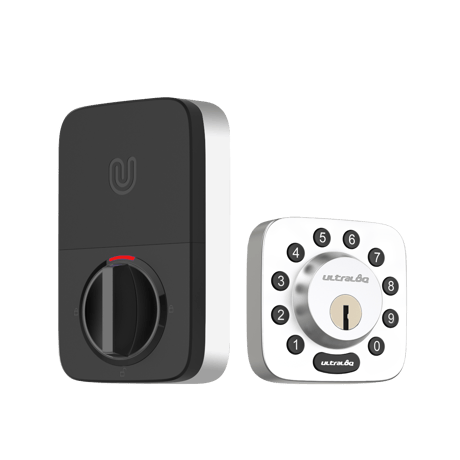
Product Image
.png)
.jpg)
.png)
This process can only be done once the lock is Set up and connected in the U-tec App. Step1 Set the Z-Wave network main controller or hub into inclusion mode. Step2 Open the U-tec App and go to Settings, select Z-Wave Control. The App should state that “Your Ultraloq Smart Lock has not been added to a Z-Wave hub yet”. If your lock has been added to a hub already, please follow the instructions to exclude your lock from the hub first. Step3 Tap Add to Z-Wave hub,then follow the App instructions to start the inclusion process. If your Z-Wave hub is Security 2 enabled and requires the Z-Wave QR code or pin code to add the lock automatically, please find it on the back of the battery cover of your smart lock. When U-tec App states that the connection is successful, please return to your hub interface to complete the setup.
This process can only be done once the lock is Set up and connected in the U-tec App. Step1 Set the Z-Wave network main controller or hub into exclusion mode. Step2 Open U-tec App,go to Lock Settings, select Z-Wave Control, tap Remove my lock from Z-Wave hub, then follow the App instructions to complete the process.
1. Touch the keypad on outdoor body. 2. Turn the knob on Indoor body. 3. Touch unlock button in the U-tec App
CAUTION: Resetting a Z-Wave device without notifying the hub may cause performance problems. Use this procedure only when the Z-Wave hub is missing or otherwise inoperable. If you are using U-tec App as Owner, please click “Delete and Reset” to remove the lock from your U-tec Account, then use a Reset Needle to push the Reset Button (at the bottom of Interior Assembly) for around 3 seconds until you hear one long beep and two short beeps. If U-Bolt Z-Wave is working as Standalone Mode without the App, please use a Reset Needle to push the Reset Button (at the bottom of Interior Assembly) for around 3 seconds until you hear one long beep and two short beeps.
If your Z-Wave hub is Security 2 enabled and requires the Z-Wave QR code or pin code to add the lock automatically, please find it on the back of the battery cover of your smart lock.