Ring
Ring Protect Base Station
Ring Base Station V2
Central Controller
HW: 2 FW: 5.14:02.80:01.00:01.00
SD3502
6.81.02
0x0346 (838)
0x0001 (1)
0x0101 (257)
ZC10-21067040
2021-06-14 13:33:24.898354
N/A
Bridge Controller
Central Static Controller
The Ring Base Station V2 adds a simple, smart, affordable professional security solution for your home.
The Ring Base station V2 adds a simple, smart, affordable security solution for your home.
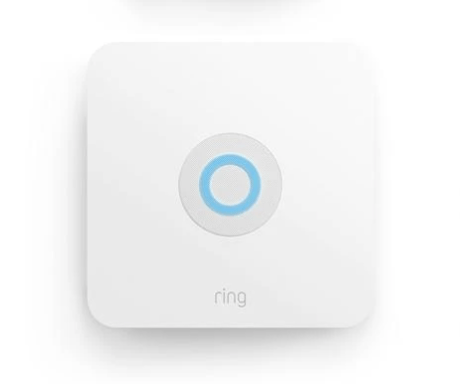
Product Image
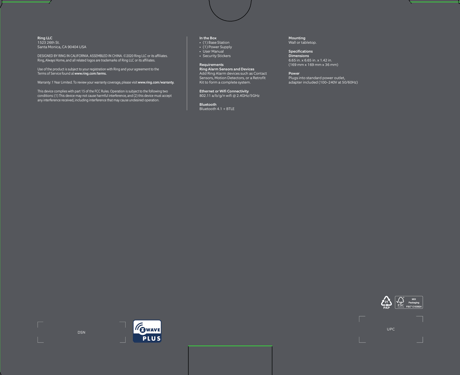
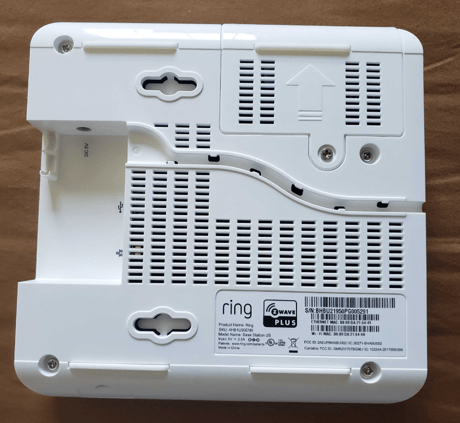
Classic Inclusion Steps: 1. Start inclusion mode on the primary controller 2. From the application’s UI, navigate to controller’s device setting screen -> select Advance options -> Select Z-wave from “Protocol Adapters” and Select “Learn Mode” – DSK will be displayed (refer to the picture below) 3. Select “Begin Learn Mode” in the UI 4. When the inclusion process in complete, the LED on the base station will be solid blue Note: Joining another Z-Wave network via learn mode is available only when the base station is not already paired to any other devices
Exclusion Instructions: 1. Start exclusion mode on the primary controller 2. From the application’s UI, navigate to controller’s device setting screen -> select Advance options -> Select Z-wave from “Protocol Adapters” and Select “Learn Mode” – DSK will be displayed 3. Select “Begin Learn Mode” in the UI 4. When the exclusion process in complete, the LED on the base station will be solid blue
*Learn Mode* Learn Mode allows you to add a controller to an existing Z-Wave network. When a controller enters Learn Mode, it looks for another controller to communicate with. To enter Learn Mode: 1. From the application’s UI, navigate to controller’s device setting screen -> select Advance options -> Select Z-wave from “Protocol Adapters” and Select “Learn Mode” – DSK will be displayed (refer to the picture below) 2. Select “Begin Learn Mode” in the UI 3. When the inclusion process in complete, the LED on the base station will be solid blue
1. Launch Ring app (iOS or Android) 2. Navigate to Base Station Setting: Devices à Alarm Base Station à Tap on gear icon located on top right-hand corner 3. Navigate to Advanced Options à Z-Wave 4. Tap “Reset Z-Wave Network” and Select “Reset” Warning: This process is irreversible. All your Z-Wave devices will be removed from your Base Station. You will have to manually reset and re-add each device to rebuild your network. Use this procedure only in the event that the network primary controller is missing or otherwise inoperable.
Base station is a controller, DSK will be displayed during "Learn Mode" - Classic Inclusion Steps: 1. Start inclusion mode on the primary controller 2. From the application’s UI, navigate to controller’s device setting screen -> select Advance options -> Select Z-wave from “Protocol Adapters” and Select “Learn Mode” – DSK will be displayed (refer to the picture below) 3. Select “Begin Learn Mode” in the UI 4. When the inclusion process in complete, the LED on the base station will be solid blue Joining another Z-wave network via learn mode is available only when the base station is not already paired to any other devices
Controller replication can be initiated by adding another controller into the network
Classic Inclusion Steps: 1. Start inclusion mode on the primary controller 2. From the application’s UI, navigate to controller’s device setting screen -> select Advance options -> Select Z-wave from “Protocol Adapters” and Select “Learn Mode” – DSK will be displayed (refer to the picture below) 3. Select “Begin Learn Mode” in the UI 4. When the inclusion process in complete, the LED on the base station will be solid blue Joining another Z-wave network via learn mode is available only when the base station is not already paired to any other devices
Exclusion Instructions 1. Start exclusion mode on the primary controller 2. From the application’s UI, navigate to controller’s device setting screen -> select Advance options -> Select Z-wave from “Protocol Adapters” and Select “Learn Mode” – DSK will be displayed 3. Select “Begin Learn Mode” in the UI 4. When the exclusion process in complete, the LED on the base station will be solid blue
| Type | Value(s) |
|---|
| Group | Type |
|---|---|
| Smoke Alarm | State Idle |
| Home Security | (Refer to parameters): State idle |
| Power Management | (Refer to parameters): State idle |