Ness
Ness Z-Wave Smart Plug
ZA-216001
On/Off Power Switch
HW: 1 FW: 1.02
ZM5202
6.81.01
0x0208 (520)
0x0102 (258)
0x0029 (41)
ZC10-22017070
2022-01-19 16:40:56.091355
N/A
Enhanced 232 Slave
Always On Slave
Smart plug is a Z-Wave™ Switch plugin module specifically used to enable Z-Wave™ command and control (on/off) of any plug-in tool.
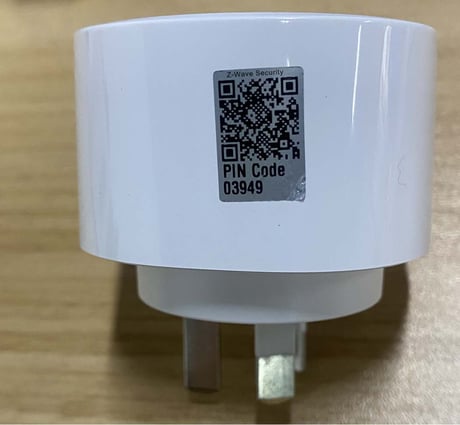
Product Image


20 - Overload protection
Smart Plug keep detecting the load power, once the AC current exceeds 11.5A for more than 5s, smart plug's relay will turn off.Size: 1 byte
Default: 1
Minimum: 0
Maximum: 1
Possible values
| From | To | Desription |
|---|---|---|
| 0 | 0 | The function is disabled |
| 1 | 1 | The function is enabled. |
21 - Device state after power on
Defines the state of the plug when the power is turned on.Size: 1 byte
Default: 0
Minimum: 0
Maximum: 2
Possible values
| From | To | Desription |
|---|---|---|
| 0 | 0 | The Smart Plug will remain in the same state as it was before the power off. |
| 1 | 1 | The smart plug is turned on by default. |
| 2 | 2 | The smart plug is turned off by default. |
24 - Send reports when load status changes
Defines whether to send report to the associated device (Lifeline Group) when the load status of the Smart Plug changes.Size: 1 byte
Default: 1
Minimum: 0
Maximum: 2
Possible values
| From | To | Desription |
|---|---|---|
| 0 | 0 | The function is disabled. |
| 1 | 1 | Send Basic report. |
| 2 | 2 | Send Basic report only when Load condition is not changed by Z-WAVE Command. |
27 - The state of indicator light
Define the corresponding state of the indicator light when the load changes.Size: 1 byte
Default: 0
Minimum: 0
Maximum: 1
Possible values
| From | To | Desription |
|---|---|---|
| 0 | 0 | The indicator light remains the same as the load on/off status. When the load is on, the light is on. When the load is off, the light is off. |
| 1 | 1 | Within 5 seconds after the operation load, the indicator light is consistent with the load on/off status, and then the indicator turns off. |
151 - Threshold of power report
Set the power threshold. When the load power value exceeds this threshold, the smart plug will send a power report to the associated device (Lifeline Group).Size: 2 bytes
Default: 50
Minimum: 0
Maximum: 200
Possible values
| From | To | Desription |
|---|---|---|
| 0 | 200 | Available values: 0 - 200 (0 - 200W) |
| 0 | 0 | 0 - The function is disabled. |
152 - Percentage threshold for power reporting
Set the power percentage threshold. When the load power percentage value exceeds this threshold, the smart plug will send a power report to the associated device (Lifeline Group).Size: 1 byte
Default: 10
Minimum: 0
Maximum: 100
Possible values
| From | To | Desription |
|---|---|---|
| 0 | 0 | The function is disabled. |
| 0 | 100 | Available values: 0 - 100 (0 - 100%) |
171 - Frequency of power reports
Defines how often power reports are sent to associated devices (Lifeline Group).Size: 4 bytes
Default: 3600
Minimum: 0
Maximum: 2678400
Possible values
| From | To | Desription |
|---|---|---|
| 0 | 0 | The function is disabled. |
| 3600 | 2678400 | Available values: 3600- 2678400 (3600 - 2678400s) |
172 - Frequency of energy reports
Defines how often energy reports are sent to associated devices (Lifeline Group).Size: 4 bytes
Default: 7200
Minimum: 0
Maximum: 2678400
Possible values
| From | To | Desription |
|---|---|---|
| 0 | 0 | The function is disabled. |
| 3600 | 2678400 | Available values: 3600- 2678400 (3600 - 2678400s) |
173 - Frequency of voltage reports
Defines how often voltage reports are sent to associated devices (Lifeline Group).Size: 4 bytes
Default: 0
Minimum: 0
Maximum: 2678400
Possible values
| From | To | Desription |
|---|---|---|
| 0 | 0 | The function is disabled. |
| 3600 | 2678400 | Available values: 3600- 2678400 (3600 - 2678400s) |
174 - Frequency of electric current reports
Defines how often electric current reports are sent to associated devices (Lifeline Group).Size: 4 bytes
Default: 0
Minimum: 0
Maximum: 2678400
Possible values
| From | To | Desription |
|---|---|---|
| 0 | 0 | The function is disabled. |
| 3600 | 2678400 | Available values: 3600- 2678400 (3600 - 2678400s) |
254 - Enable/Disable the configuration command
Enable:The values of other parameters can be changed. Disable:The values of other parameters cannot be changed.Size: 1 byte
Default: 0
Minimum: 0
Maximum: 1
Possible values
| From | To | Desription |
|---|---|---|
| 0 | 0 | Enable |
| 1 | 1 | Disable |
Add for inclusion (non-security and security): 1)Connect the power supply. 2)Set the Z-Wave™ network main controller into learning mode. 3)Triple click the Z-button, the LED indicator will be flashing 3 times in Blue. 4)Smart Plug should be recognized and included into the Z-Wave™ network.
1) Insert the Plug into a socket. 2) Set the Z-Wave™ network controller into the exclusion mode. 3) Triple click the Z button. 4) LED will blink in blue for 3 times, and then start slow flashing to indicate that the remove for exclusion is successful. LED will indicate network status after it is removed from Z-Wave™ network.
Please use this procedure only when the network primary controller is missing or otherwise inoperable. Long press the button for 20 seconds and the blue LED will speed up the flash and then LED will keep on for 3 seconds in blue and Smart Plug will send ”Device Reset Locally Notification” to the main controller and exclude from the Z-Wave™ network, this procedure will reset Smart Plug to factory default. Please use this procedure only when the network primary controller is missing or otherwise inoperable.
If you want your Smart Plug to be a security device that use secure/encrypted message to communicate in a Z-Wave™ network, then a security enabled Z-Wave™ controller is needed
The position of the QR code is on the side of the product, using 29*29 pixels, which will be attached to the product in the form of a label. SmartStart enabled products can be added into a Z-Wave™ network by scanning the Z-Wave™ QR Code present on the product with a controller providing SmartStart inclusion .No further action is required and the SmartStart product will be added automatically within 10 minutes of being switched on in the network vicinity. 1) Scan the QR code on your device, and add the device DSK to the main controller. 2) Power on Smart Plug. 3) LED will blink in blue for 3 times, and enter SmartStart. If add Smart Plug for inclusion is successful, the LED will be off. Then Z-Wave™ PC Controller interface will display the corresponding device information.
| Type | Value(s) |
|---|
| Meter type |
|---|
| Electric Meter Consumption |