Minoston
S2 Remote Control Switch
MR40Z
Central Scene Device
HW: 1 FW: 1.00
ZGM130
7.13.6
0x0312 (786)
0x0924 (2340)
0xD001 (53249)
ZC12-21070256
2021-07-14 10:28:09.913422
N/A
Enhanced 232 Slave
Reporting Sleeping Slave
Custom lighting control is at your fingertips with the Z-Wave™ 4-Button Portable Hub Remote. This versatile remote communicates with your hub to activate up to 6 unique, lighting scenes. Once the remote is connected to your existing network, you can begin programming the lights to personalize your indoor space.
Custom lighting control is at your fingertips with the Z-Wave™ 4-Button Portable Hub Remote. This versatile remote communicates with your hub to activate up to 6 unique, lighting scenes. Once the remote is connected to your existing network, you can begin programming the lights to personalize your indoor space. The wireless lighting control has an overall signal range of up to 150 feet and is compatible with any device that works with your hub.
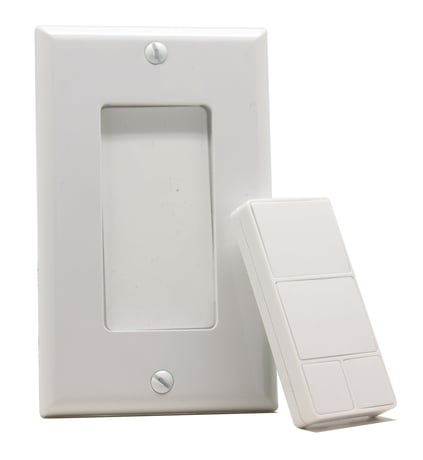
Product Image


1 - LED Indicator Mode
Indicator inverse, follow, always on or always off.Size: 1 byte
Default: 1
Minimum: 0
Maximum: 3
Possible values
| From | To | Desription |
|---|---|---|
| 0 | 0 | LED always off |
| 1 | 1 | LED normal mode |
| 2 | 2 | LED always on in color specified in Parameter 2 |
| 3 | 3 | LED always on in color specified in Parameter 3 |
2 - LED Indicator Color for Upper paddle remote cont
Setting inidcator led's color: white, blue, red, magenta, yellow or cyan for upper paddle remote control.Size: 1 byte
Default: 1
Minimum: 0
Maximum: 6
Possible values
| From | To | Desription |
|---|---|---|
| 0 | 0 | White |
| 1 | 1 | Blue |
| 2 | 2 | Green |
| 3 | 3 | Red |
| 4 | 4 | Magenta |
| 5 | 5 | Yellow |
| 6 | 6 | Cyan |
3 - LED Indicator Color for Lower paddle remote cont
Setting inidcator led's color: white, blue, red, magenta, yellow or cyan for upper paddle remote control.Size: 1 byte
Default: 0
Minimum: 0
Maximum: 6
Possible values
| From | To | Desription |
|---|---|---|
| 0 | 0 | White |
| 1 | 1 | Blue |
| 2 | 2 | Green |
| 3 | 3 | Red |
| 4 | 4 | Magenta |
| 5 | 5 | Yellow |
| 6 | 6 | Cyan |
Adding Your Device To A Hub The device support two methods of inclusion,When using a Z-Wave Plus™ certified controller choose Network Wide Inclusion or SmartStart, Network Wide Inclusion To A Z-Wave™ Network 1,Refer to your primary controller instructions to process the inclusion / exclusion setup procedure. 2,When prompted by your primary controller, click the Up or Down button six times in one second.
Adding Your Device To A Hub The device support two methods of inclusion,When using a Z-Wave Plus™ certified controller choose Network Wide Inclusion or SmartStart, Network Wide Inclusion To A Z-Wave™ Network 1,Refer to your primary controller instructions to process the inclusion / exclusion setup procedure. 2,When prompted by your primary controller, click the Up or Down button six times in one second.
quickly press 7x upper paddle: Wake up Function 4: tap-tap-tap’and’hold to reset, LED indicator
tap-tap-tap’and’hold to reset, LED indicator will blink red 5 times to confirm successful reset (Node:Please use this procedure only when the network primary controller is missing or otherwise inoperable.)
The device is compatible with SmartStart SmartStart enabled products can be added into a Z-Wave™ network by scanning the Z-Wave™ QR Code found on the top of the outlet or the back of the box with a controller providing SmartStart inclusion.No further action is required and the SmartStart product will be added automatically within 10 minutes of being switched on and in the network vicinity. QR CODE the QR code are sticked to the side of the case,DSK is included in the QR code. DSK The DSK code can be found on the DSK label which is attached on the packaging box.
| Type | Value(s) |
|---|