MITSUMI
Multi Sensor
FGT-0002
Notification Sensor
HW: 1 FW: 7.14:01.00
ZGM130
7.14.3
0x0112 (274)
0x0016 (22)
0x0001 (1)
ZC12-22010329
2021-10-18 10:19:59.771404
N/A
Enhanced 232 Slave
Reporting Sleeping Slave
This product is detects and notifies motion, temperature, humidity, and illuminance.
This product is "FGT-0002" that detects and notifies motion, temperature, humidity, and illuminance that support Z-Wave Plus™ as standard. Detects changes in the state of the place where the product is installed and notifies the controller.
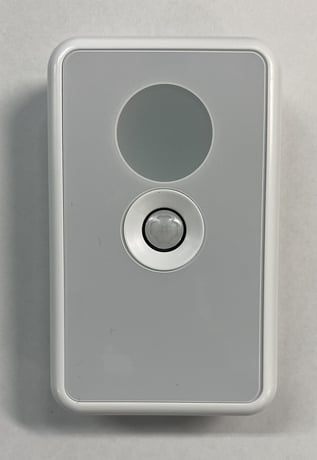
Product Image


1 - Periodic check interval
Periodic check intervalSize: 2 bytes
Default: 120
Minimum: 1
Maximum: 1440
Possible values
| From | To | Desription |
|---|---|---|
| 1 | 1440 | measurement interval for the sensor |
2 - Threshold battery level
Threshold battery levelSize: 1 byte
Default: 28
Minimum: 1
Maximum: 50
Possible values
| From | To | Desription |
|---|---|---|
| 1 | 50 | battery alert level. |
3 - Temperature threshold
Temperature thresholdSize: 1 byte
Default: 1
Minimum: 1
Maximum: 50
Possible values
| From | To | Desription |
|---|---|---|
| 1 | 50 | temperature sensor notifies the controller |
4 - Humidity threshold
Humidity thresholdSize: 1 byte
Default: 10
Minimum: 1
Maximum: 50
Possible values
| From | To | Desription |
|---|---|---|
| 1 | 50 | humidity sensor notifies the controller |
5 - Illuminance threshold
Illuminance thresholdSize: 1 byte
Default: 10
Minimum: 1
Maximum: 50
Possible values
| From | To | Desription |
|---|---|---|
| 1 | 50 | illuminance sensor notifies the controller |
1 Set the controller in "Add (Inclusion)" mode. (For the operation procedure, see the instruction manual of the controller.) 2 Push the Operation switch once and release it immediately. The LED blinks green and the registration operation start. * If the LED does not brink green, remove the battery, check the insertion direction, and insert it again * If that doesn't work, try inserting a new battery. (The included battery is a sample. Battery life may be shorter than regular batteries on the market.) 3 Check the connection using a controller or a dedicated application.
1 Remove the Battery cover. 2 Set the controller in "Remove (Exclusion)" mode. (For the operation procedure, see the instruction manual of the controller.) 3 Push the Operation switch once and release it immediately. The LED blinks red and the remove operation start. 4 LED turns off when removed. Check the disconnection using a controller or a dedicated application.
Detects human movements. When it is detected, it notifies the controller. However, it does not detect continuous movements. Motion sensing is stopped for about 3 minutes after detection.
Please use this procedure only in the event that the primary controller is lost. All the settings and the controller information are cleared to return to the factory default. 1 Remove the Battery cover. 2 Press and hold the Operation SW for about 10 seconds, and release the Operation SW. 3 Push the Operation switch once and release it immediately. The reset is complete when the LED brink green. Push and release the Operation switch again to turn off the LED.
You can check the DSK and QR code on the label at back of this product.
| Group | Type |
|---|---|
| Home Security | Motion sensor status: Motion detection |
| Sensor type |
|---|
| Air Temperature |
| Illuminance |
| Humidity |