Resideo
LTEM-P
LTEM-P
Central Controller
HW: 1 FW: 6.06:02.81:02.00
ZM5202
6.81.05
0x041B (1051)
0x0001 (1)
0x0001 (1)
ZC10-22087115
2022-08-02 17:19:12.433489
N/A
Bridge Controller
Central Static Controller
Yes
LTEM-P is a Communicator that sends alarms and messages from the security system's control panel to AlarmNet.
LTEM-P communicators send alarms and messages from the security system’s control panel to AlarmNet for subsequent transfer to the central monitoring station. Other features include the following: • The communicators provide upload/downloading capability of Resideo's control panel programming data. • These communicators also support optional Plug-In Modules, including PROLTE series LTE radio modules, PROWIFIZW and PROWIFI Wi-Fi modules, and PRODCM Dialer Capture module. • In addition, these communicators can be used with compatible non-VISTA/non-Resideo control panels.
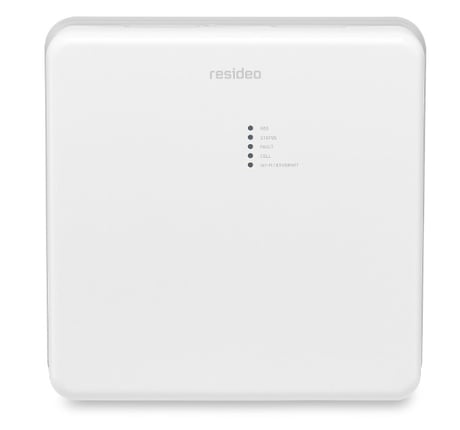
Product Image
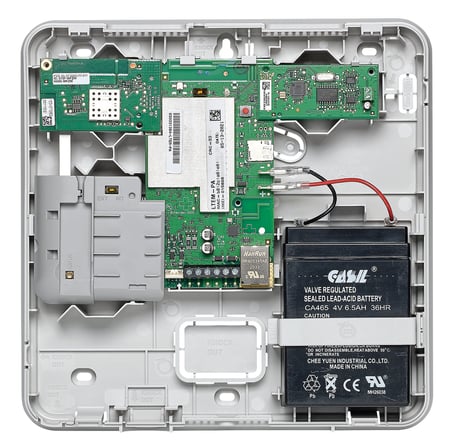
LTEM-P open
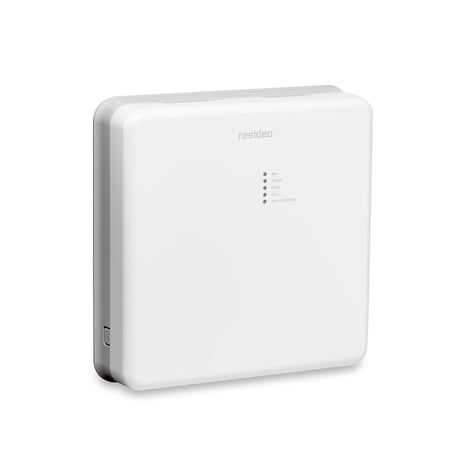
Front view
1. Click "Enter Learn Mode" on the web 2. The DSK PIN information will show
1. Prepare two mains powered z-wave DUTs and navigate to system UI as below, click "factory" button 2. Click "Setting" 3. Reply "yes" to the "Pop up "Are you sure you want to factory reset the controller?"
The communicators provide upload/downloading capability of Resideo's control panel programming data.
Once Z-wave module is inserted and powered up, after syncing, DSK related information will appear
Controller replication (Copy) is achieved through Inclusion and Set Learn Mode. Entering learn mode while in a network will trigger a replication if the primary controller is in add node mode. So replication and Learn Mode are the same and you just need to do Learn Mode here.
Inclusion S0 device 1. To Include a Z-Wave device (Door lock, Switch, Dimmer...), click the INCLUDE DEVICES button. 2. Press the Function button on the device that you want to include. Wait for the inclusion to end and the device information to display. Click CLOSE. 3. When the process is complete, the newly registered device should appear in the Z-Wave device list Inclusion S2 device 1. Click the INCLUDE DEVICES button 2. Press the button on the device which you want to include, wait for a dialog and input first 5 digits DSK, click OK 3. Wait for the inclusion to end, display device information, click done 4. View Z-Wave device list, the newly registered device should show
1. To Exclude a Z-Wave device (Door lock, Switch, Dimmer...), click the EXCLUDE DEVICES button. 2. The exclusion mode window appears while the system searches for Z-Wave Devices. 3. When the exclusion mode window displays a list of Z-Wave devices, press the Function button on the device that you want to exclude. Wait for the exclusion to end and the device information to display. Click DONE.
| Type | Value(s) |
|---|
| Sensor type |
|---|
| General Purpose |