AMPER
Smart Home Gateway
AM-GZ80x-US
Gateway
HW: 1 FW: 6.09:07.13:02.03
ZM5202
6.82.01
0x0448 (1096)
0x0010 (16)
0x19F2 (6642)
ZC10-22057086
2022-04-29 09:57:53.596921
N/A
Bridge Controller
Central Static Controller
Amper Smart Home Gateway AM-GZ80x-US is a platform and an interface, through which devices are compatible with one another and also offers a frontend for the user so that it can perform intelligent home control. Intended for US market.
AM-GZ80x-US Smart Home Gateway makes every home smart by using advanced technology to hide the complexity of home networking and delivering data, voice and video services to a home or customer premises. Automatically communicates with all connected devices and the cloud so users can control those using tablets, smart phones, computers or TVs from everywhere. AM-GZ80x-US Smart Home Gateway is the new brain of the smart home. It brings real value to consumers and service providers. It represents a platform to connected services and service support. Consumers use it to manage their homes, and service providers use it to activate new services and capabilities on demand. Moreover, it allows service providers to remotely diagnose and troubleshoot issues, meaning faster, better support and less hassle for all. It is compatible with different communication standards such as Z-Wave Plus™, RF 433MHz, WiFi, IP, Ethernet. RF433, WiFi and Z-Wave Plus protocol are used to communicate with different sensors and WiFi or Ethernet to connect to a broadband internet router. Once configured, the gateway works independently, but it also has cloud support for advanced monitoring, messaging, and scheduling services. The intuitive graphical user interface allows customers to program their own house rules without any previous programming experience.
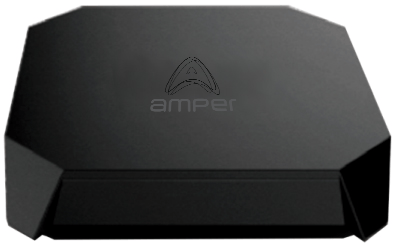
Product Image
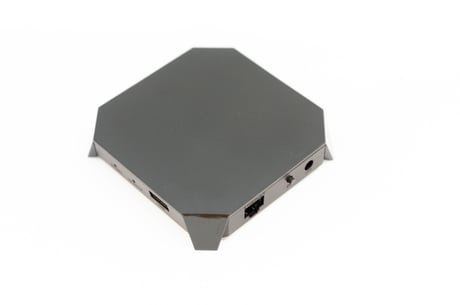
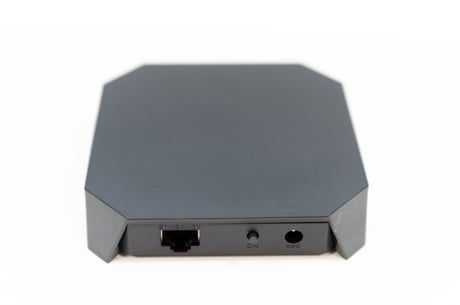
Vista lateral con interfaces y leds
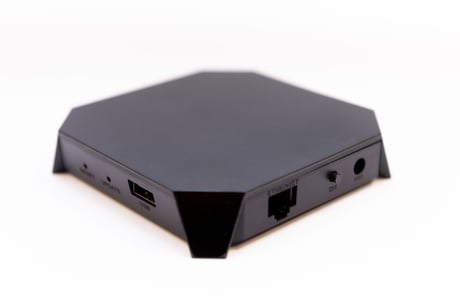
Vista frontal
In order to include a Z-Wave device from your network navigate to “Administration”->”Installations”. Click in the “Add Device” Icon, screen shown different protocols will appear. By clicking on the Z-Wave icon you can start adding devices The System will guide you through the process, please follow the instructions online. To start adding devices, click the “+” icon.
In order to remove a Z-Wave device from your network navigate to “Administration”->”Installations” menu option. By clicking on the Z-Wave icon, the System will guide you through the process, please follow the instructions online. To start removing devices, click the “-” icon. After that just set your Z-Wave device in exclusion mode (see device’s user manual, sometimes it’s also called learn mode). When the process completes the timer will disappear and a message will confirm successful removal (only if the device previously belonged to your Z-Wave network).
This Factory resets the gateway. This will perform a factory reset and remove every Z-Wave device from your Gateway and reset Zwave module. If everything goes right a pop up will show up after a few seconds and the gateway will reboot so it might take a few extra seconds to be ready again (Z-Wave network will have been reset and all devices removed from the gateway). Otherwise a pop up with an error description will appear.
DSK label is placed in the bottom of the devide and in the giftbox. In the UI of encontrol app can also be read the DSK number
| Type | Value(s) |
|---|
| Group | Type |
|---|---|
| Smoke Alarm | State Idle |
| CO Alarm | (Refer to parameters): State idle |
| Water Alarm | (Refer to parameters): State idle |
| Gas alarm | (Refer to parameters): State idle |
| Sensor type |
|---|
| Air Temperature |
| Illuminance |
| Power |
| Humidity |
| Carbon Dioxide (CO2) Level |
| Ultraviolet |
| Target Temperature |
| Meter type |
|---|
| Cooling Meter Consumption |
| Cooling Meter Production |
| Electric Meter Consumption |
| Electric Meter Production |
| Gas Meter Consumption |
| Gas Meter Production |
| Heating Meter Consumption |
| Heating Meter Production |
| Water Meter Consumption |
| Water Meter Production |