Jasco Pro Series
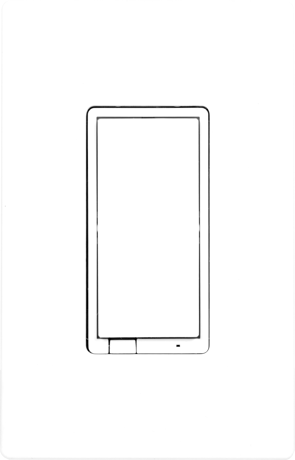
JascoPro Series Z-Wave Plus In-Wall Smart Switch, White and Light Almond Paddles, 700S
59381/ZWA4011
Binary Switch DT
HW: 01 FW: 01.21
ZGM130S037HGN2 / ZGM130S037HGN1
7.15.4
0x0063 (99)
N/A
0x4952 (18770)
ZC14-22010053
2022-01-13 14:52:06
N/A
Enhanced 232 Slave
Always On Slave
Experience the latest generation of Z-Wave™ smart controls for in-wall configurations with paddle-style switches to accommodate any home.


3 - LED Light Mode
Set the LED Light ModeSize: 1 byte
Default: 0
Minimum: 0
Maximum: 3
Possible values
| From | To | Desription |
|---|---|---|
| 0 | 0 | 0 |
4 - Invert Switch
Reverse the default ON/OFF Paddle switch settingSize: 1 byte
Default: 0
Minimum: 0
Maximum: 1
Possible values
| From | To | Desription |
|---|---|---|
| 0 | 0 | 0 |
5 - 3-Way Type
Configure between standard 3-Way Switch or Add-On Switch is being usedSize: 1 byte
Default: 0
Minimum: 0
Maximum: 1
Possible values
| From | To | Desription |
|---|---|---|
| 0 | 0 | 0 |
19 - Alternate Exclusion
Alternative way to perform ExclusionSize: 1 byte
Default: 0
Minimum: 0
Maximum: 1
Possible values
| From | To | Desription |
|---|---|---|
| 0 | 0 | 0 |
34 - LED Light Color
Set the LED Light ColorSize: 1 byte
Default: 5
Minimum: 1
Maximum: 8
Possible values
| From | To | Desription |
|---|---|---|
| 0 | 0 | 0 |
35 - LED Light Intensity
Set the LED Light IntensitySize: 1 byte
Default: 4
Minimum: 1
Maximum: 7
Possible values
| From | To | Desription |
|---|---|---|
| 0 | 0 | 0 |
36 - Guidelight Mode Intensity
Set the Guidelight Mode IntensitySize: 1 byte
Default: 4
Minimum: 1
Maximum: 7
Possible values
| From | To | Desription |
|---|---|---|
| 0 | 0 | 0 |
39 - Relay Control
Relay ControlSize: 1 byte
Default: 0
Minimum: 0
Maximum: 1
Possible values
| From | To | Desription |
|---|---|---|
| 0 | 0 | 0 |
84 - Reset Factory Default
Reset Switch to Factory DefaultsSize: 1 byte
Default: 0
Minimum: 0
Maximum: 1
Possible values
| From | To | Desription |
|---|---|---|
| 0 | 0 | 0 |
Adding your device to a Z-Wave network 1. Follow the instructions for your Z-Wave certified controller to add a device to the Z-Wave network. 2. Once the controller is ready to add your device, press the top or bottom of the wireless smart switch.
To remove and reset the device 1. Follow the instructions for your Z-Wave certified controller to remove a device from the Z-Wave network. 2. Once the controller is ready to remove your device, press the top or bottom of the wireless smart switch.
To return your switch to factory defaults: Pull the airgap switch. Press and hold the bottom button, push the airgap switch in and continue holding the bottom button for 10 seconds. The LED will flash once each of the 8 colors then stop. NOTE: This should only be used if your network’s primary controller is missing or otherwise inoperable. NOTE: SmartStart enabled products can be added into a Z-Wave network by scanning the QR code on the product with a controller providing SmartStart inclusion. No further action is required and the SmartStart product will be added automatically within 10 minutes of being switched on in the network vicinity.
Page 1, box 4
| Type | Value(s) |
|---|