Resideo
PROBOX-EU
PROBOX-EU
Central Controller
HW: 1 FW: 6.06:02.81:02.00
ZM5202
6.81.05
0x041B (1051)
0x0001 (1)
0x0001 (1)
ZC10-22037073
2022-03-29 12:08:29.999861
N/A
Bridge Controller
Central Static Controller
Yes
PROBOX-EU ProSeries Hidden Panel
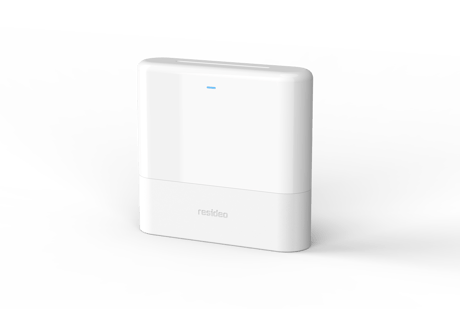
The ProSeries Hidden Panel is a professional security system with wireless sensors, Z-Wave™ devices, LTE communicator, multiple partitions, wireless keypads, Wi-Fi, Bluetooth, backup battery, siren. The Hidden Panel integrates with the next generation of Resideo Total Connect app, which delivers a faster, more fluid interaction on mobile devices. For installation and service efficiency, radios and batteries are end-user replaceable, and the AlarmNet 360™ cloud-based business management tool enables easy remote programming, transmits over-the-air software and firmware updates, performs remote diagnostics, and monitors and provides analytics on system usage and activity.
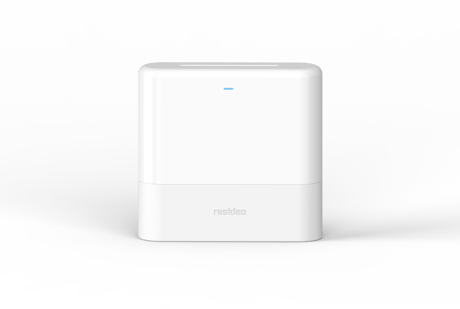
Product Image
* Navigate to "Z-Wave Devices" management tool from the web portal and Click the “Student Hat logo” button * Follow onscreen instructions.
* Navigate to "Z-Wave Devices" management tool from the web portal and Click the “factory” button * Follow onscreen instructions. If the Control Panel is the primary controller for your network, resetting it results in the devices in your network to be orphaned. After the factory reset, it is necessary to exclude and re-include all the devices in the network. This defaults the Z-Wave Controller in the system which removes all programmed Z-Wave devices, however, the devices do not receive a signal to be excluded. So, when they need to be included, they need to be excluded first.
DSK is displayed on the Network Information Page of the Web Portal -> Section D.4 from the User Manual.
Controller replication (Copy) is achieved through Inclusion and Set Learn Mode. Entering learn mode while in a network will trigger a replication if the primary controller is in add node mode. * Prepare two mains powered Z-Wave controller. * Primary controller : Navigate to "Z-Wave Devices" management tool from the web portal and Click the “+ logo” button * Secondary controller : Navigate to "Z-Wave Devices" management tool from the web portal and Click the “Student Hat logo” button * Follow onscreen instructions.
* Navigate to "Z-Wave Devices" management tool from the web portal and Click the “+ logo” button * Press the button on the device which you want to include. * Follow onscreen instructions.
* Navigate to "Z-Wave Devices" management tool from the web portal and Click the “Trash logo” button * Press the button on the device which you want to exclude. * Follow onscreen instructions.
| Type | Value(s) |
|---|
| Sensor type |
|---|
| Power |