Zooz
Z-Box Hub
ZZB97
Gateway
HW: 1 FW: 7.14
EFR32Z
7.14.2
0x010F (271)
0x0005 (5)
0x1000 (4096)
ZC12-22080348
2022-08-11 11:27:39.287401
N/A
Bridge Controller
Central Static Controller
The Z-Box Hub is a mature Z-Wave™ ecosystem equipped with the latest tech to enhance your automation experience.
- It’s all yours, forever. Keep your devices and scenes private with local access to your smart home. No contracts, no fees. - Z-Wave™ centric. Choose from thousands of innovative Z-Wave™ devices that just work. - Security first. Implement the latest S2 Authenticated protocol and SmartStart for a safe and reliable mesh network. Live progress window to track Z-Wave™ activity. - Real automation. Use the intuitive scene creator to make simple rules or execute complex multi-conditional scripts with a visual block-building tool. - Advanced access. Change settings for any Z-Wave™ device straight from the interface. Perform OTA firmware updates on your Z-Wave™ products and create associations easily. SPECS: - Z-WAVE™ CHIP: 700 Series - Z-WAVE™ FREQUENCY: 908.42 MHZ - Wi-Fi: 802.11 b/g/n - POWER SUPPLY: 5 V DC, 1 A (included) - POWER CONNECTION: USB Micro B - OPERATING TEMPERATURE: 32⁰ - 104⁰ F - OPERATING HUMIDITY: up to 75% - DIMENSIONS: 7” x 4.3” x 1.2” - INSTALLATION AND USE: indoor only
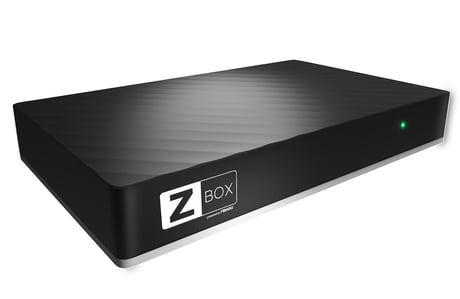
Product Image
1. Once your host network is inclusion mode, open your Z-Box online interface, click the gear icon and go to Z-Wave. 2. Go to Start Learn Mode and click Start. 3. You may need to enter a secure PIN code during inclusion – find it printed on the label on the bottom part of your Z-Box Hub.
Here’s how to reset your Z-Box Hub: 1. In your Z-Box online interface and click your username in the top right corner. 2. Select Recovery Mode from the menu and click Confirm. 3. The system will start rebooting, observe the hub’s LED indicator which should be pulsing red. 4. Once the LED indicator turns solid red, please refresh the online interface site in your browser. 5. Go to the Network Status section and click Factory Reset. 6. Check the checkbox next to the “Yes, I’m sure and I know what I’m doing” disclaimer. 7. Click Confirm.
The full DSK code for your Z-Box Hub can be found on the label on the back of the device.
1. In your Z-Box online interface, click the gear icon and go to Devices. 2. A list with all of your devices will display, click on the selected device you want to remove the association from and enter the detailed view. 3. Go to the Device configuration tab. 4. Go to Device reconfiguration and click Reconfigure device. 5. If your device is battery powered, wake it up manually for the association to finalize or wait for next automatic wake-up. You can find the manual wake-up procedure in the user manual for your product.
1. In your Z-Box online interface, click the gear icon and go to Devices. 2. Click the + icon and select Z-Wave Device. 3. Select the option that best fits your preference: • NWI (Network Wide Inclusion) to add a device using network repeaters if it’s outside of the hub’s direct range (recommended) • S2 security (select only if your device supports S2 unauthenticated or S2 authenticated SmartStart security) • Near proximity inclusion (select only if the device is located in the same room as the hub) 4. Click Start adding. 5. Follow the manufacturer’s instructions to activate the hub for inclusion by starting the Learn Mode. This information can be found in the product’s user manual. 6. Wait a few minutes for the network information to sync between both controllers.
1. In your Z-Box online interface, click the gear icon and go to Z-Wave™ > SmartStart. 2. Click Add DSK. 3. Enter the full DSK string code located on your device or in the packaging. If you can’t find it, double check if your device supports SmartStart and refer to the manual to locate the full DSK code (not just the 5-digit PIN). 4. Under Choose Security levels select the level of security you’d like the device to be assigned by the hub (S2 Unauthenticated, S2 Authenticated, S2 Access Control, or S0). S2 Authenticated is recommended for any device that supports SmartStart. 5. Leave the Only S2 classic inclusion option unchecked. 6. Power your Z-Wave™ device and it will be added automatically within 10 minutes.
1. In your Z-Box online interface, click the gear icon and go to Devices. 2. Click the + icon and select Z-Wave Device. 3. Select the option that best fits your preference: • NWI (Network Wide Inclusion) to add a device using network repeaters if it’s outside of the hub’s direct range (recommended) • S2 security (select only if your device supports S2 unauthenticated or S2 authenticated SmartStart security) • Near proximity inclusion (select only if the device is located in the same room as the hub) 4. Click Start adding. 5. Follow the manufacturer’s instructions to activate the device for inclusion. This information can be found in the product’s user manual. 6. If you’re adding a device that supports SmartStart, enter the 5-digit PIN code and click Send. 7. The device will enroll in the network and will appear on the device list shortly after.
Use this method to remove a device from your Z-Box hub if it’s still connected and responsive in the network. Use these instructions to reset your Z-Wave™ device if you’re having problems adding it to the hub. Follow these steps to remove the device: 1. In your Z-Box online interface, click the gear icon and go to Devices. 2. Click the – [minus] icon and select Z-Wave Device. 3. Follow the manufacturer’s instructions to activate the device for exclusion (removing the device from the network). This information can be found in the product’s user manual.
Edit a device in the Provisioning List 1. In your Z-Box online interface, click the gear icon and go to Z-Wave > SmartStart. 2. Locate the device you’d like to edit and click the pencil icon next to it. 3. Change the Security level preferences as needed. 4. Click Save.
| Type | Value(s) |
|---|
| Group | Type |
|---|---|
| Smoke Alarm |
|
| CO Alarm |
|
| CO2 Alarm |
|
| Heat Alarm |
|
| Water Alarm |
|
| Access Control |
|
| Home Security |
|
| Power Management |
|
| System |
|
| Emergency Alarm |
|
| Clock |
|
| Appliance |
|
| Home Health |
|
| Siren |
|
| Water Valve |
|
| Weather Alarm |
|
| Irrigation |
|
| Gas alarm |
|
| Pest Control |
|
| Light sensor |
|
| Water Quality Monitoring |
|
| Home monitoring |
|
| Request pending notification | State idle |
| Sensor type |
|---|
| Air Temperature |
| General Purpose |
| Illuminance |
| Power |
| Humidity |
| Velocity |
| Direction |
| Atmospheric Pressure |
| Barometric Pressure |
| Solar Radiation |
| Dew Point |
| Rain Rate |
| Tide Level |
| Weight |
| Voltage |
| Current |
| Carbon Dioxide (CO2) Level |
| Air Flow |
| Tank Capacity |
| Distance |
| Angle Position |
| Rotation |
| Water Temperature |
| Soil Temperature |
| Seismic Intensity |
| Seismic Magnitude |
| Ultraviolet |
| Electrical Resistivity |
| Electrical Conductivity |
| Loudness |
| Moisture |
| Frequency |
| Time |
| Target Temperature |
| Particulate Matter 2.5 |
| Formaldehyde (CH2O) Level |
| Radon Concentration |
| Methane (CH4) Density |
| Volatile Organic Compound Level |
| Carbon Monoxide (CO) Level |
| Soil Humidity |
| Soil Reactivity |
| Soil Salinity |
| Heart Rate |
| Blood Pressure |
| Muscle Mass |
| Fat Mass |
| Bone Mass |
| Total Body Water (TBW) |
| Basis Metabolic Rate (BMR) |
| Body Mass Index (BMI) |
| Acceleration X-Axis |
| Acceleration Y-Axis |
| Acceleration Z-Axis |
| Smoke Density |
| Water Flow |
| Water Pressure |
| RF Signal Strength |
| Particulate Matter 10 |
| Respiratory Rate |
| Relative Modulation Level |
| Boiler Water Temperature |
| Domestic Hot Water (DHW) Temperature |
| Outside Temperature |
| Exhaust Temperature |
| Water Chlorine Level |
| Water Acidity |
| Water Oxidation Reduction Potential |
| Heart Rate LF/HF Ratio |
| Motion Direction |
| Applied Force on Sensor |
| Return Air Temperature |
| Supply Air Temperature |
| Condenser Coil Temperature |
| Evaporator Coil Temperature |
| Liquid Line Temperature |
| Discharge Line Temperature |
| Suction (Input) Pressure |
| Discharge (Output) Pressure |
| Defrost Temperature (Sensor Defrost) |
| Ozone (O3) |
| Sulfur Dioxide (SO2) |
| Nitrogen Dioxide (NO2) |
| Ammonia (NH3) |
| Lead (Pb) |
| Particulate Matter 1 |
| Meter type |
|---|
| Cooling Meter Consumption |
| Cooling Meter Production |
| Electric Meter Consumption |
| Electric Meter Production |
| Gas Meter Consumption |
| Gas Meter Production |
| Heating Meter Consumption |
| Heating Meter Production |
| Water Meter Consumption |
| Water Meter Production |