Ness
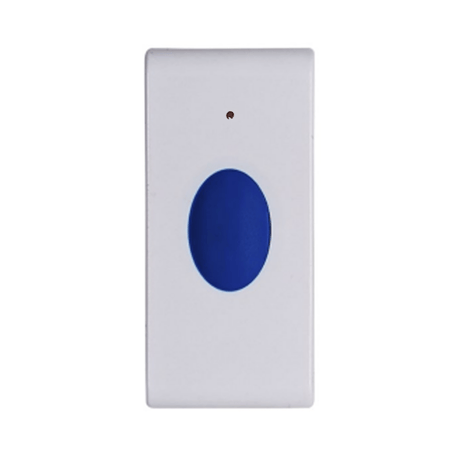
Ness Z-Wave Single Button
ZU-116011
Central Scene DT
HW: 01 FW: 01.01
ZGM130S037HGN2 / ZGM130S037HGN1
7.16.3
0x0189 (393)
N/A
0x0104 (260)
ZC14-22100153
2022-10-31 09:57:52
N/A
Enhanced 232 Slave
Reporting Sleeping Slave
The Ness Z-Wave™ Single Button (ZWSB) is a simple Z-Wave™ scene controller that allows you to control devices through the Z-Wave™ network and run various scenes defined in your Z-Wave™ gateways.


1 - The command to 2nd association group
This parameter defines how the Basic Set commands send to the nodes listed in 2nd association group after a Key Pressed 1 time scene event has triggered. 0 - No Basic Set commands send; 1 - Basic Set ON/OFF alternately; 2 - Basic Set ON with delay off; 3 - Basic Set OFF.Size: 1 byte
Default: 1
Minimum: 0
Maximum: 3
Possible values
| From | To | Desription |
|---|---|---|
| 0 | 0 | 0 |
2 - The Basic Set OFF Delay
The period of time in seconds to send Basic Set OFF command to Association Group 2 after BASIC Set ON command has reported. This parameter take affected only the option 2 has been selected in Configuration Parameter 1. 10 - disable BASIC Set OFF report; Time in seconds to send BASIC Set OFF command.Size: 2 bytes
Default: 10
Minimum: 0
Maximum: 3600
Possible values
| From | To | Desription |
|---|---|---|
| 0 | 0 | 0 |
3 - The Key Held Down Duration
This parameter defines the duration that the key need to be pressed and held down to trigger the Key Held Down Scene event. The value is in seconds.Size: 1 byte
Default: 2
Minimum: 2
Maximum: 10
Possible values
| From | To | Desription |
|---|---|---|
| 0 | 0 | 0 |
4 - The commands to 3rd association group
This parameter defines how the Start Level Change/the Stop Level Change commands send to the nodes listed in 3rd association group. 0 - No any Start Level Change and Stop Level Change commands send; 1 - Send the Start Level Change/the Stop Level Change commands when the Key Held Down/the Key Released scene event has triggered; 2 - Send Start Level Change command when the Key Held Down. It does not sent the Stop Level Change command when the Key Released.Size: 1 byte
Default: 1
Minimum: 0
Maximum: 2
Possible values
| From | To | Desription |
|---|---|---|
| 0 | 0 | 0 |
5 - The duration of multilevel start level change
This parameter defines the duration in Switch Multilevel Start Level Change command. The value is in second. 0 - Instantly transition from the current value to the new target value; 1 ~ 120 - The time transition should take from the current value to the new target value.Size: 1 byte
Default: 2
Minimum: 0
Maximum: 120
Possible values
| From | To | Desription |
|---|---|---|
| 0 | 0 | 0 |
6 - Low battery setting
Report battery low warning message when battery level reaches this value in percentage. Range: 10~50 (10%~50%); The battery level range: 100% - 3V; 0% - 1.8V.Size: 1 byte
Default: 10
Minimum: 10
Maximum: 50
Possible values
| From | To | Desription |
|---|---|---|
| 0 | 0 | 0 |
7 - Battery Scheduled Report Interval
The battery level scheduled report interval time is based on every 30 minutes per kick. The value N related to the time in minutes is N x 30 minutes. Range: 0~120. Default: 12 (12x30 =360 minutes). Value = 0 - Disable Battery level scheduled report.Size: 1 byte
Default: 12
Minimum: 0
Maximum: 120
Possible values
| From | To | Desription |
|---|---|---|
| 0 | 0 | 0 |
Adding the device into a Z‑Wave Network Inclusion To add the device to the Z-Wave network: 1) Power on the device and ensure it has been factory defaulted. 2) Set the primary controller into inclusion mode. 3) Click the Action Button once to enter inclusion mode. Red LED: fast flashing. Inclusion mode can be cancelled by clicking the Action Button again before the controller starts inclusion mode. Red LED stops flashing. 4) If your Z-Wave controller supports S2 Access encryption and DSK, enter the first 5 digits of the DSK located at bottom of the QR image. 5) If Inclusion is successful: Red LED stops fast flashing. Green LED turns on for 2 seconds.
Removing The device from a Z‑Wave Network The Exclusion process is the same as Inclusion however your Z-Wave controller must be in Exclusion mode. You may need to refer to your Z-Wave gateway/controller’s instructions for removing devices. Exclusion To remove the device from the Z-Wave network: 1) The device is powered 2) Set the primary controller into Exclusion mode. 3) Click the Action Button once. 4) If Exclusion is successful: Red LED stops fast flashing. Green LED turns on for 2 seconds.
2. Wake-up To manually wake up the ZWSB, press and hold the Action Button for 3 seconds until the Blue LED turns on, then release the button.
3. Factory Default To reset Ness ZWSB to factory default settings, press and hold the Action Button for at least 20 seconds. Release the button when the Blue LED turns off (20 seconds). The Green LED will flash once to indicate successful reset. Releasing the Action Button while the Blue LED is on cancels the reset process.
Page 7. Ness Z-Wave Single Button (ZWSB) is a SmartStart-enabled device allowing it to be added into a Z-Wave network by scanning its Z-Wave QR Code with a controller providing SmartStart inclusion. No further action is required and the SmartStart product will be added automatically within 10 minutes of being switched on in the network vicinity.
| Type | Value(s) |
|---|