Alarm.com
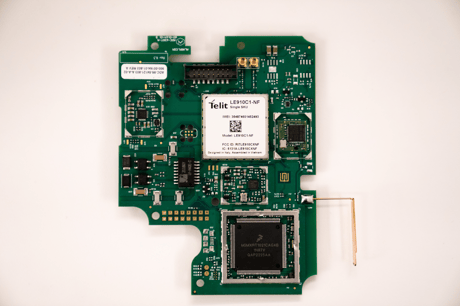
Alarm.com Rev6.3 Radio Module
ADC-630T
Central Controller
HW: 254 FW: 06.10:04.31
ZM5202AU-CME3
6.84.00
0x0094 (148)
N/A
0x000A (10)
ZC13-22120002
2022-12-12 13:52:46
N/A
Static Controller
Central Static Controller
The ADC-630T is an Alarm.com radio module that connects to Alarm.com Cloud Services and provides home automation features, such as lights, thermostats, and locks.
1. Log into the Partner Portal at https://alarmadmin.alarm.com/default.aspx and select a customer. 2. Navigate to the “Equipment” page. 3. Click the “Z-Wave Devices” tab. 4. Under the “Advanced Z-Wave Commands” header, click “Remove All Z-Wave Devices.” 5. Allow 3 minutes for the associated commands to go through and for the Alarm.com Z-Wave device to act on them.
When learning the product into another Z-Wave network using the web or app UI, the DSK is prominently displayed on the web or app UI. There is no DSK label on the product itself.
1. Log into the Partner Portal at https://alarmadmin.alarm.com/default.aspx and select a customer. 2. Navigate to the “Equipment” page. 3. Click the “Z-Wave Devices” tab. 4. Under the “Manage Devices” header, click “Manage S2 & SmartStart Keys.” Alternatively, you can go directly to the URL https://alarmadmin.alarm.com/Support/ManageDeviceKeys.aspx 5. Click “Add Device Key” 6. You have two options for adding info for the device you want to add: a. Input the full DSK of the device you want to add, and optionally name it. b. Click the “USB Barcode Scanner” button, then use a standard USB barcode scanner to scan the SmartStart QR code of the device. You may also paste in the text from a QR code. 7. You may optionally add a name for this device as well. 8. Click the “Add Device” button. 9. Power up the new device in range of the Alarm.com device. It will automatically be added to the Alarm.com device’s network, and will show up on the Z-Wave equipment page at https://alarmadmin.alarm.com/Support/DeviceAutomation.aspx
| Type | Value(s) |
|---|