Qolsys
IQ4 Hub
IQPHXXX
Gateway DT
HW: 01 FW: 07.17:07.15
EFR32ZG23A
7.17.2
0x012A (298)
N/A
0x0001 (1)
ZC14-23020200
2023-02-16 08:43:20
N/A
Bridge Controller
Central Static Controller
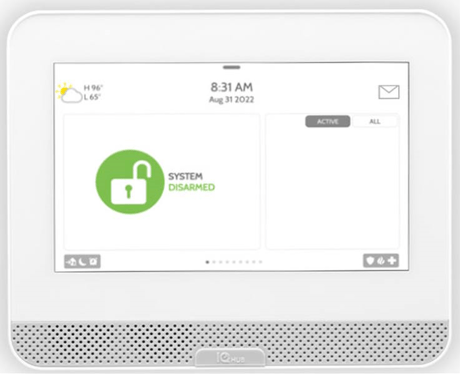
IQ Panel 4 enjoys extensive integration with interactive services from Alarm.com to provide residential, multifamily, commercial, wellness, builder and support in a single panel and app.
1. On home menu, swipe down from the top of the screen. A pull-down menu should appear. 2. Press the SETTINGS icon. 3. Press the ADVANCED SETTINGS icon. 4. Enter in installer code. 5. Press the INSTALLATION icon. 6. Press the DEVICES icon. 7. Press the Z-WAVE DEVICES icon. 8. Press the REMOVE ALL DEVICES icon. 9. Press YES on the confirmation dialog to perform a reset.
Advanced Manual: Page 2
SmartStart enabled devices can be securely included into the IQ Panel 4’s Z-Wave network by scanning the Z-Wave QR Code present on the product. No further action is required and the SmartStart product will be added automatically within 10 minutes of being switched on in the network vicinity. 1. On home menu, swipe down from the top of the screen. A pulldown menu should appear. 2. Press the SETTINGS icon. 3. Press the ADVANCED SETTINGS icon. 4. Enter in installer code. 5. Press the INSTALLATION icon. 6. Press the DEVICES icon. 7. Press the Z-WAVE DEVICES icon. 8. Press the SMARTSTART icon. 9. A QR code scanner will appear from the IQ Panel 4’s camera. Scan in the QR code included on the SmartStart enabled device’s documentation, physical device and/or packaging. 10. Press the Add button. This adds the SmartStart enabled device into the Provision List. 11. Power on the SmartStart enabled device. The device will attempt to securely include the device in the background, and the IQ Panel 4 UI will be updated to reflect changes once inclusion completes.
| Type | Value(s) |
|---|