2GIG
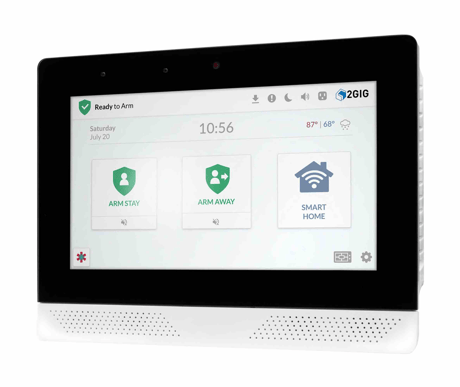
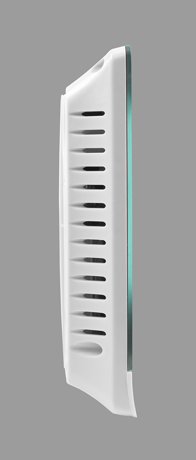
2GIG EDGE
2GIG-EDG-NA
Generic Controller DT
HW: 26 FW: 07.24:04.26
EFR32ZG14
7.18.3
0x0094 (148)
N/A
0x0015 (21)
ZC14-23050239
2023-05-11 14:06:04
N/A
Bridge Controller
Central Static Controller
Next generation home security panel that also controls home automation devices.
This process will clear all nodes from the Alarm.com Z-Wave device’s network, change the Alarm.com Z-Wave device’s home ID, and reset all Z-Wave settings to their default values. To perform a Z-Wave reset, follow these steps: 1. Log into the Partner Portal at https://alarmadmin.alarm.com/default.aspx and select a customer. 2. Navigate to the “Equipment” page. 3. Click the “Z-Wave Devices” tab. 4. Under the “Advanced Z-Wave Commands” header, click “Remove All Z-Wave Devices.” 5. Allow 3 minutes for the associated commands to go through and for the Alarm.com Z-Wave device to act on them. If this controller is the primary controller for your network, resetting it will result in the nodes in your network being orphaned and it will be necessary after the reset to exclude and re-include all the nodes in the network. If this controller is being used as a secondary controller in the network, use this procedure to reset this controller only if the network primary controller is missing or otherwise inoperable.
Alarm.com Supplemental Z-Wave Documentation, Section 2.2.2
Option 1: Alarm.com Partner Portal 1. Log into the Partner Portal at https://alarmadmin.alarm.com/default.aspx and select a customer. 2. Navigate to the “Equipment” page. 3. Click the “Z-Wave Devices” tab. 4. Under the “Manage Devices” header, click “Manage S2 & SmartStart Keys.” Alternatively, you can go directly to the URL https://alarmadmin.alarm.com/Support/ManageDeviceKeys.aspx 5. Click “Add Device Key” 6. You have two options for adding info for the device you want to add: a. Input the full DSK of the device you want to add, and optionally name it. b. Click the “USB Barcode Scanner” button, then use a standard USB barcode scanner to scan the SmartStart QR code of the device. You may also paste in the text from a QR code. 7. You may optionally add a name for this device as well. 8. Click the “Add Device” button. 9. Power up the new device in range of the Alarm.com device. It will automatically be added to the Alarm.com device’s network, and will show up on the Z-Wave equipment page at https://alarmadmin.alarm.com/Support/DeviceAutomation.aspx Option 2: Alarm.com MobileTech App 1. Download the Alarm.com MobileTech app from the app store on your device, then log in using your Partner Portal credentials. 2. Select a customer 3. Tap on the “Equipment” button 4. Tap the “Z-Wave Devices” header 5. Expand the “Z-Wave Actions” drawer at the top of the screen 6. Tap the “Manage Device Keys” button 7. Expand the “Add a Device Key” section 8. Optional: Add a device name 9. Enter the full DSK of the device, or alternatively tap the barcode icon at the right-hand side of the input field to scan the QR code of the SmartStart device you want to add 10. Click the blue “Add” button 11. Power up the new device in range of the Alarm.com device. It will automatically be added to the Alarm.com device’s network, and will show up on the Z-Wave equipment page at https://alarmadmin.alarm.com/Support/DeviceAutomation.aspx