Leviton
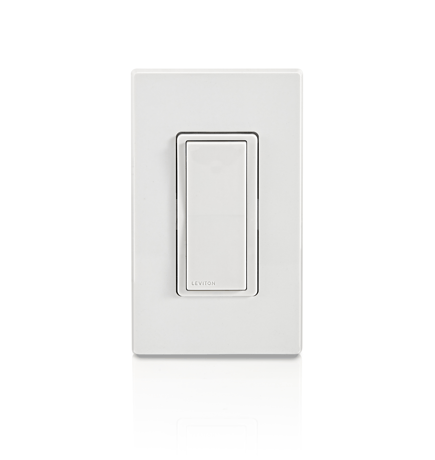
Decora Smart Z-Wave™ 800 Series Switch
ZW15S
Binary Switch DT
HW: 01 FW: 01.00:02.01
ZGM230SA
7.18.3
0x001D (29)
N/A
0x0042 (66)
ZC14-23070303
2023-07-31 08:02:40
N/A
Enhanced End Node 232
Always On End Node
Leviton's Decora Smart Z-Wave™ 800 Series Switch offers the latest in Z-Wave™ technology with on/off control of general purpose loads up to 15A including LED/CFL, Incandescent, and 3/4HP Motor.


7 - Status LED Configuration
0: always off, 254: Status LED ON when load is ON, 255: Status LED ON when load is OFF (locator mode)Size: 4 bytes
Default: 255
Minimum: 0
Maximum: 255
Possible values
| From | To | Desription |
|---|---|---|
| 0 | 0 | 0 |
For older controllers, Classic Inclusion is supported. Depending on the age of the controller it may need to be 3 to 35 feet from the device when including. 1. Enter setup mode (see page 10). 2. Follow the Z-Wave controller instructions to enter inclusion mode. 3. Tap the top rocker 1 time, the Status LED will quickly flash GREEN. 4. The Z-Wave controller will confirm successful inclusion to the Z-Wave network.
The Exclusion command found in the Z-Wave controller is used as a best practice for removing devices from a Z-Wave network. 1. Enter setup mode (see page 10). 2. Follow the Z-Wave controller instructions to enter exclusion mode. 3. Tap the top rocker 1 time, the Status LED will quickly flash GREEN. 4. The Z-Wave controller will confirm successful exclusion from the Z-Wave network.
When removing a Z-Wave device from the network, it is best practice to use the exclusion process. In situations where a device needs to be returned to factory default settings, follow the steps below. Please use this procedure only when the network primary controller is missing or otherwise inoperable. 1. Hold the top rocker for 14 seconds: After the first 7 seconds, the Status LED will turn AMBER. Continue holding until the Status LED flashes RED/AMBER then release. 2. The device will reset.
Status LED Follow the below steps to change the functionality of the Status LED. Status LED ON when load is ON: 1. Enter setup mode (see page 10). 2. Tap the top rocker 4 times. The Status LED will quickly flash GREEN/AMBER. 3. Tap the top rocker 1 time. The Status LED will flash GREEN 4 times to confirm the selection. Status LED ON when load is OFF (default) 1. Enter setup mode (see page 10). 2. Tap the top rocker 4 times. The Status LED will quickly flash GREEN/AMBER. 3. Tap the top rocker 2 times. The Status LED will flash AMBER 4 times to confirm the selection. Status LED OFF: 1. Enter setup mode (see page 10). 2. Tap the top rocker 4 times. The Status LED will quickly flash GREEN/AMBER. 3. Tap the top rocker 3 times. The Status LED will flash RED 4 times to confirm the selection.
SmartStart enabled devices can be added to a Z-Wave network by scanning the Z-Wave QR code on the top of the device, on the strap, or on the back of the unit box with a compatible Z-Wave controller that supports SmartStart inclusion. The device should be added automatically within 10 minutes of being switched on and in the network vicinity. The QR code label with DSK is located on the top of the device. If required, the PIN code is underlined on the label. The PIN code is also located on the front strap.
| Type | Value(s) |
|---|